Paragon ExtFS for Windows – Accessing Linux Drives on Your PC
In the world of computing, few things are as frustrating as discovering that a hard drive you need to access is formatted in a file system your operating system simply refuses to read. For anyone who has tried to plug a drive formatted for Linux into a Windows PC, that sinking feeling is all too familiar. The drive appears to be present, but it’s as if it contains a digital ghost—visible in disk management but utterly inaccessible for file browsing or data recovery.
This is where Paragon ExtFS for Windows enters the picture. This specialized software solution has long been a bridge between two different worlds, allowing Windows users to seamlessly read from and write to Linux-formatted drives without the need for complex dual-boot setups or virtual machines. For developers, IT professionals, and everyday users who work across operating systems, this tool has earned a reputation as one of the most reliable ways to handle Ext2, Ext3, and Ext4 file systems directly within Windows .
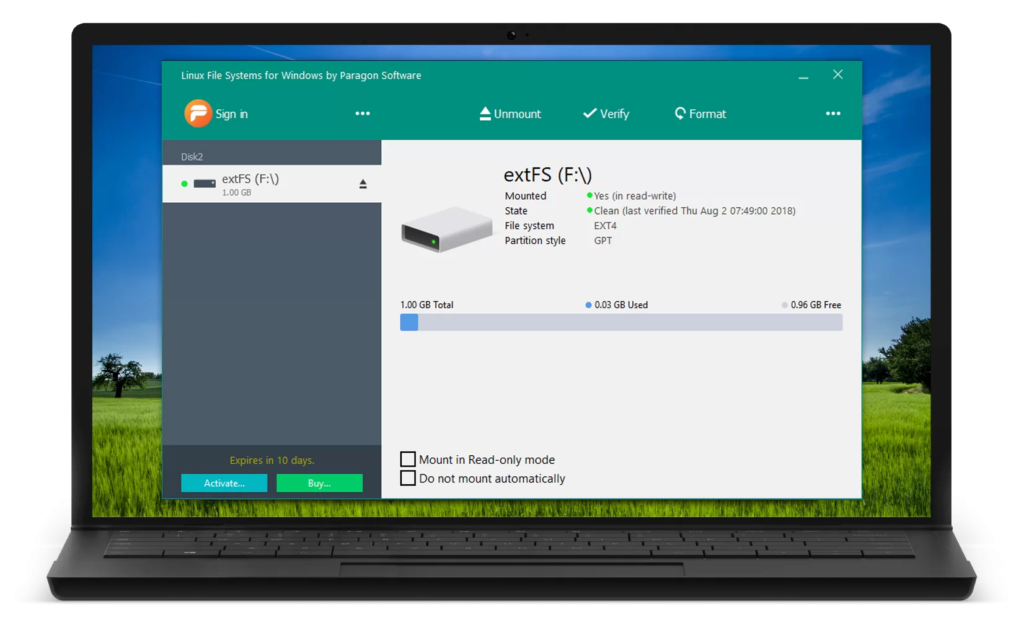
This comprehensive guide will explain everything you need to know about Paragon ExtFS for Windows, from its core functionality and key features to its limitations and an important update regarding its availability.
What is Paragon ExtFS for Windows and Why You Need It
Windows and Linux were built on fundamentally different philosophies, and this extends down to the very way they store data. Windows predominantly uses NTFS for its internal drives and exFAT or FAT32 for removable storage. Linux, on the other hand, relies on the Extended File System (Ext), with Ext4 being the standard for most modern distributions . These file systems are not natively compatible with one another, which presents a significant challenge for users who work in mixed-OS environments.
Paragon ExtFS for Windows is a file system driver designed to eliminate this compatibility barrier. Once installed, it integrates seamlessly into Windows, effectively teaching the operating system how to read and write Linux file systems . This means you can take a hard drive, SSD, or USB flash drive formatted with Ext2, Ext3, or Ext4, plug it into your Windows PC, and access it just like any native Windows drive.
The software is particularly valuable for several common scenarios:
Working with NAS Devices: Many network-attached storage devices run on Linux-based operating systems and format their internal drives with Ext file systems. If a NAS fails, or if you simply want to retrieve data directly from its drive, Paragon ExtFS for Windows allows you to connect that drive to a Windows PC and recover your files without needing a Linux machine .
Using Linux-Formatted External Drives: If you’ve used a Linux system to format an external drive, that drive will be unreadable on a Windows PC without specialized software. This driver allows you to freely exchange data between your Linux and Windows machines using the same portable storage device.
Recovering Data from a Linux Computer: If a Linux system won’t boot but the drive itself is functional, you can remove the drive, connect it to a Windows PC, and use Paragon ExtFS for Windows to access your important files and backup critical data.
How Paragon ExtFS Works: The Technology Behind the Scenes
Paragon ExtFS for Windows operates as a low-level kernel driver that sits between the Windows operating system and the connected storage hardware. When you connect a drive formatted with a Linux file system, the driver performs the necessary translations to make the drive appear as a regular volume in Windows Explorer . The entire experience is designed to be as straightforward as possible.
Once the software is installed and the driver is loaded, Linux partitions appear as normal Windows volumes . You can perform all standard file operations: copy files, edit documents, rename folders, move data, or even delete files . This transparency is the hallmark of a well-designed driver, as it allows you to continue using the Windows tools you’re already familiar with, rather than forcing you to learn a new interface.
Supported File Systems
The primary focus of Paragon ExtFS is on the Ext family of file systems. It provides full read and write support for:
Ext2: An older but still used file system, often found on legacy Linux installations or embedded devices .
Ext3: A journaling file system that added reliability to Ext2, commonly used before the widespread adoption of Ext4 .
Ext4: The current standard for most Linux distributions. Paragon ExtFS for Windows supports many of Ext4’s modern features, including 64-bit support, extents, and flexible block groups .
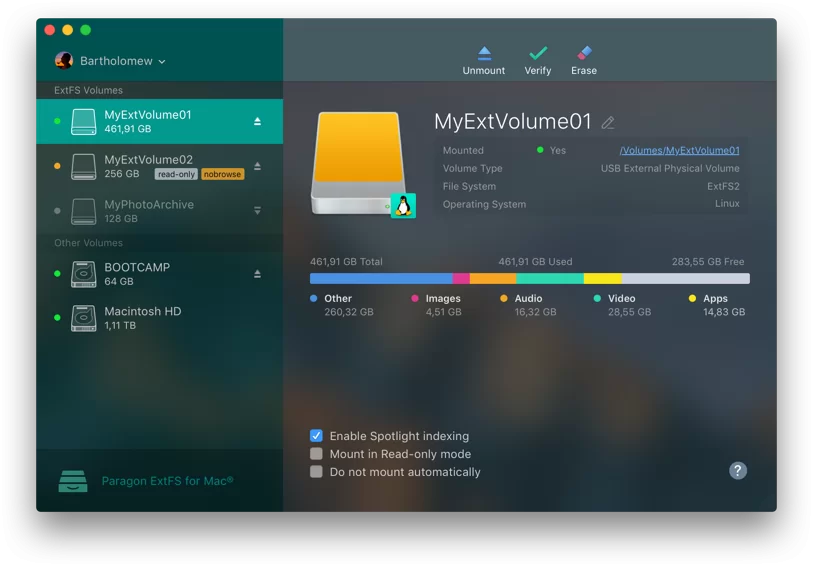
Btrfs: This modern file system is supported in read-only mode. While you cannot write to it, you can still view and copy files from a Btrfs volume .
XFS: Another popular file system often used in enterprise environments, also supported in read-only mode .
Integration with Logical Volume Management
For users dealing with more advanced Linux storage configurations, Paragon ExtFS also supports LVM (Logical Volume Manager) . LVM is a system for managing disk storage that allows for flexible volume allocation across multiple physical drives. The software can read and write to LVM volumes, enabling full access to complex storage setups.
Key Features and Benefits
Paragon ExtFS for Windows offers a comprehensive set of features that make it a professional-grade solution for cross-platform data access.
Automatic Mounting: After the driver is installed, it can automatically detect and mount supported Linux partitions when you connect a drive. This means you don’t have to manually intervene or configure anything each time you plug in a drive . This automation is a significant convenience, saving you time and potential confusion.
Set-and-Run Mode: The software is designed to require minimal user input once installed. It runs in the background and manages Linux volumes without demanding constant attention .
Full Write Support: Unlike many other freeware solutions that may be limited to read-only access, Paragon ExtFS provides full read and write access to Ext2/3/4 file systems . This is essential for users who need to create, edit, and delete files on Linux drives.
Safety and Reliability: Paragon has built a long-standing reputation for data safety and reliability in the storage management field. The driver’s architecture includes safeguards to protect data integrity and prevent accidental corruption .
Safe Eject Feature: The software supports Windows’ “safe eject” functionality, ensuring you can safely remove your Linux-formatted drive without risking data loss .
Windows Explorer Integration: Linux partitions appear in Windows Explorer just like any other drive, ensuring a consistent experience for file management .
Important Update: Legacy Product and Successor
One of the most critical pieces of information to be aware of is the status of Paragon ExtFS for Windows. As of October 8, 2025, the product has been officially classified as a legacy product and is no longer available for purchase . This means that while the software still works, it is no longer being actively sold or supported with new updates.
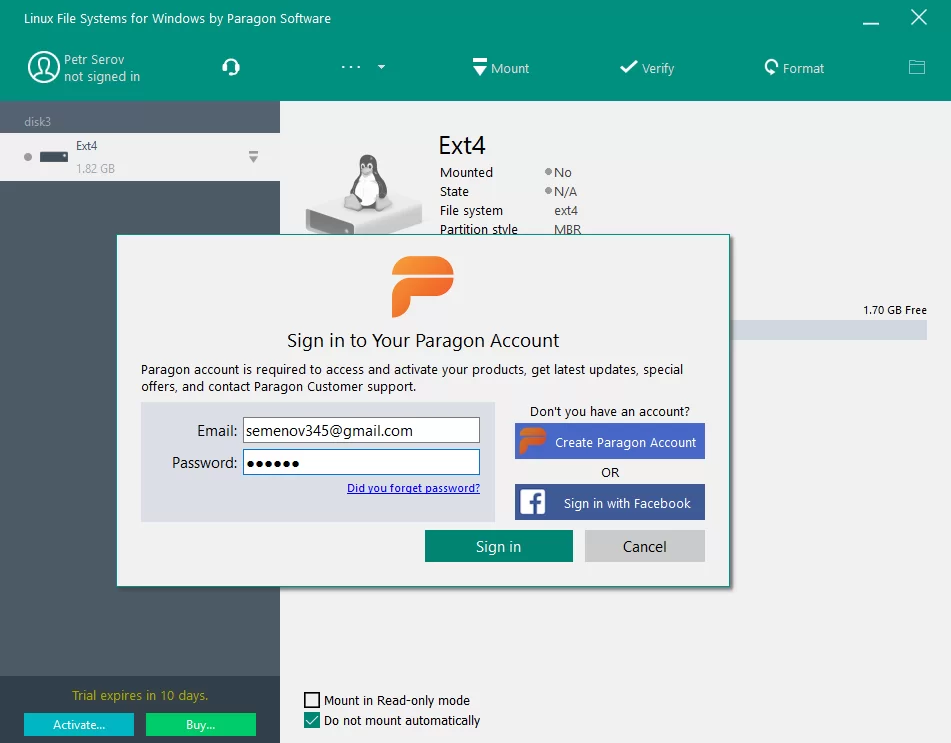
The software has been succeeded by a new, more comprehensive product called Linux File Systems for Windows by Paragon Software . This successor builds on the foundation of ExtFS and adds support for additional file systems.
What This Means for New Users
If you are a new user looking for a Paragon solution to access Linux drives in Windows, you should be looking for “Linux File Systems for Windows” rather than the older “ExtFS for Windows.” The new product offers:
- Support for Ext2, Ext3, and Ext4 with read and write access
- Read-only support for Btrfs and XFS
- Support for newer versions of Windows, including Windows 10 and Windows 11
- A modernized driver designed to handle large volumes and offer improved performance
What This Means for Existing Users
If you already have a license for Paragon ExtFS for Windows, you can continue to use your existing software. However, it is unlikely to receive further updates, and any issues arising from new Windows versions may not be addressed. Existing users who wish to get the newer features and broader file system support can upgrade to Linux File Systems for Windows .
Alternatives to Paragon ExtFS
While Paragon’s solutions are among the best, there are other methods to access Linux drives from Windows. Each has its own advantages and limitations.
Freeware and Open-Source Alternatives
Ext2Fsd (Ext2 File System Driver for Windows): This is a popular open-source alternative that supports Ext2, Ext3, and Ext4. However, it is largely unmaintained and does not support newer versions of Windows . Some users have reported stability issues, particularly with large files or extended use .
DiskInternals Linux Reader: This is a freeware tool that can read Linux file systems. The major limitation is that the free version is read-only . While you can view and copy files, you cannot write, edit, or delete them, making it unsuitable for tasks that require full management of a Linux drive.
Bootable Linux Tools
Parted Magic: This is a bootable Linux distribution that runs entirely from a CD or USB drive. It includes the ability to read and write to Ext file systems and offers a range of recovery and system management tools. While powerful, it requires you to boot into a separate operating system rather than working directly in Windows .
Performance and Reliability Considerations
Paragon ExtFS for Windows has generally been praised for its stability and performance, especially when compared to free alternatives . The driver is built to handle large files smoothly and works well with modern Windows versions . However, like any third-party driver that interfaces with the Windows kernel, it has not been without its issues.
Stability Issues with Older Versions
A review of user feedback reveals a mixed experience. Some users have reported that older versions of the software were “a little buggy” and could cause system instability . In some cases, this manifested as blue screens when attempting to copy files . One user reported that the software caused their Windows 10 system to blue screen three times in a row when copying files to an Ext4 partition .
Compatibility Issues
The software’s use of a component called Dokan, which acts as an intermediary, has been identified as a potential point of failure . This is particularly concerning as Dokan has been abandoned and does not officially support Windows 8 or later versions, which could lead to compatibility issues and performance degradation.
File Corruption Concerns
Perhaps the most serious feedback relates to file corruption. Several users have reported that Paragon ExtFS for Windows has corrupted their Ext4 partitions . One user specifically noted that it “corrupted many of my files on my ext4 file system when I copied files from NTFS to ext4” . This is a significant concern, as data integrity is paramount when working across file systems.
Frequently Asked Questions (FAQs)
1. Is Paragon ExtFS for Windows still available for purchase?
No, Paragon ExtFS for Windows was discontinued as a standalone product on October 8, 2025. It has been replaced by a newer product called Linux File Systems for Windows, which offers read and write support for Ext2/3/4 and read-only support for Btrfs and XFS .
2. What’s the difference between Paragon ExtFS and Linux File Systems for Windows?
Linux File Systems for Windows is the official successor and upgrade to Paragon ExtFS for Windows. The newer product supports additional file systems (Btrfs and XFS in read-only mode) and is designed for better compatibility with modern Windows versions .
3. Can I write files to a Linux drive using Paragon ExtFS for Windows?
Yes. Paragon ExtFS for Windows provides full read and write access to Ext2, Ext3, and Ext4 file systems. You can create, edit, delete, and rename files on a Linux-formatted drive directly from Windows Explorer .
4. Is there a free trial available for Paragon’s Linux file system software?
Yes, you can try Linux File Systems for Windows by Paragon Software for ten days completely for free. After the trial period ends, the transfer speed will be reduced until you activate a purchased license .
5. What are the risks of using Paragon ExtFS for Windows?
While many users have had positive experiences, some have reported system instability, including blue screens, and file corruption when using the software. It is always recommended to back up critical data before writing to an Ext file system from Windows and to ensure you are using the latest version of the software .
Conclusion
Paragon ExtFS for Windows has long been a trusted solution for users who need to bridge the gap between Windows and Linux file systems. Its ability to provide seamless read and write access to Ext2, Ext3, and Ext4 drives has made it an indispensable tool for developers, IT professionals, and anyone working in mixed-OS environments.
However, the software landscape is evolving. The original ExtFS for Windows has been retired, making way for the more modern and versatile Linux File Systems for Windows. This successor product adds support for Btrfs and XFS (in read-only mode) and is designed to keep pace with the latest Windows updates, offering a more future-proof solution.
For users considering a Paragon solution, the choice is clear: if you already own ExtFS for Windows, it remains a functional tool. However, for new installations or users seeking the broadest compatibility, Linux File Systems for Windows is the current recommended product. While free alternatives exist, they often come with significant limitations, such as read-only access or stability issues. Paragon’s reputation for reliability, despite some user-reported concerns, continues to make its software a viable option for professional-grade cross-platform data management.