ShellExView – Mastering Windows Shell Extensions for Peak Performance
Introduction
Have you ever right-clicked on a file or folder in Windows, only to be greeted by a spinning blue circle and a frustrating delay? Or perhaps your File Explorer has crashed unexpectedly, leaving you scrambling to recover your work? For many Windows users, these are all-too-common symptoms of a deeper, often-overlooked issue: problematic shell extensions.
Over time, as you install and uninstall various software applications, your system accumulates these small but powerful components. They are responsible for adding those handy options to your right-click context menu, integrating cloud storage services, and enhancing your file management experience. But when these extensions malfunction or become too numerous, they can transform your efficient workflow into a sluggish, error-prone ordeal.
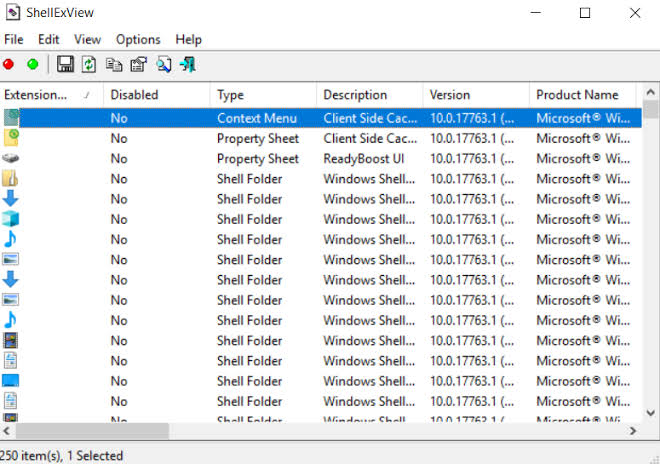
ShellExView is a legendary, free utility developed by NirSoft that has been the secret weapon of IT professionals and power users for nearly two decades . This lightweight, portable tool provides a comprehensive, centralized view of every shell extension installed on your Windows system, allowing you to enable, disable, and troubleshoot them with ease . This guide will explore everything you need to know about ShellExView, from its core functionality to advanced troubleshooting techniques, empowering you to take control of your Windows experience. We will cover what shell extensions are, why they cause problems, how ShellExView solves these issues, and provide a step-by-step guide to using it safely and effectively.
Chapter 1: Understanding the Invisible Engines of Windows
What Exactly Are Shell Extensions?
At its core, a shell extension is an in-process Component Object Model (COM) object that extends the capabilities of the Windows operating system . Think of them as plug-ins or add-ons that integrate directly into the Windows shell—the graphical user interface that includes the desktop, taskbar, and File Explorer. When you right-click a file and see options like “Scan with Microsoft Defender,” “Add to archive,” or “Share with…” you are witnessing the work of shell extensions .
The Diverse Types of Shell Extensions
Shell extensions are not one-size-fits-all. They come in many different types, each designed for a specific purpose . Here are some of the most common ones you will encounter in ShellExView:
- Context Menu Handlers: This is the most widely recognized type. These extensions add specific commands to the context menu that appears when you right-click on a file, folder, or drive. For instance, 7-Zip adds “Add to archive,” and a graphics editor might add “Edit with…” .
- Icon Handlers: These extensions dynamically assign icons to file objects. For example, cloud storage services like Dropbox use them to display a green checkmark or blue cloud icon on files to indicate their sync status.
- Property Sheet Handlers: These extensions add custom tabs to the Properties dialog box of a file. You might see a “Details” or “Security” tab added by other software .
- Drag-and-Drop Handlers: These extend the context menu when you drag a file with the right mouse button, offering options like “Copy here” or “Move here” .
- Copy Hook Handlers: These extensions are called when a file is moved, copied, renamed, or deleted, allowing programs to intervene in these operations .
- Column Handlers: These allow software to add new columns to the details view in File Explorer, such as “Date Taken” for photos or “Length” for music files .
The Culprits: Why Shell Extensions Cause Problems
While shell extensions are incredibly useful, they are also a common source of system instability. Here is why:
- Poorly Coded Software: Not all shell extensions are created equal. A poorly written extension from a third-party developer can contain bugs, memory leaks, or other inefficiencies that cause File Explorer to hang or crash .
- Clutter from Uninstalled Applications: Many programs fail to clean up after themselves when you uninstall them. They leave behind their shell extensions, which can point to non-existent files or corrupt registry entries, creating conflicts and delays .
- Conflicts Between Extensions: Sometimes, two different extensions will try to do the same thing or will interact in unpredictable ways, leading to instability.
- The Accumulation Effect: The more extensions you have, the more work File Explorer must do every time you open a context menu. This accumulation inevitably leads to slower load times . This is especially noticeable in older versions of Windows or on systems with slower hardware.
Chapter 2: Enter ShellExView – Your Diagnostic Ally
What is ShellExView?
ShellExView is a freeware utility created by the renowned developer Nir Sofer (of NirSoft) . It is a portable, standalone executable that requires no installation, making it a perfect tool for a technician’s USB drive or for a quick system scan . It works on almost every version of Windows, from Windows 98 all the way up to Windows 11, including both 32-bit and 64-bit systems .
Its primary function is simple yet powerful: it scans your Windows registry, identifies all registered shell extensions, and presents them in a clean, sortable, and detailed list. This list provides you with all the information you need to understand what is installed on your system and, most importantly, to disable the troublemakers.
Key Features That Make ShellExView Essential
- Comprehensive Detail: For each shell extension, ShellExView displays a wealth of information, including its name, description, type, file path, CLSID (a unique identifier), product name, and the company that created it . This is crucial for identifying which program an extension belongs to.
- Enable/Disable Functionality: Instead of forcing you to delete extensions or manually navigate the complex Windows Registry, ShellExView allows you to safely disable and enable extensions with a single click or keystroke (F7 to disable, F8 to enable) .
- Filtering and Sorting: You can sort the list by any column, making it easy to group all “Context Menu” extensions together, for example. You can also use the Options menu to Hide All Microsoft Extensions . This is the single most effective way to declutter the view and focus only on third-party components that are the most likely source of problems.
- Color-Coding for Clarity: ShellExView uses a simple, intuitive color scheme:
- Pink Background: Entries highlighted in pink are non-Microsoft (third-party) extensions . These are your primary suspects when troubleshooting.
- Disabled Items: Disabled extensions are clearly marked with a red dot or “Yes” in the “Disabled” column, making it easy to see what you have turned off .
- Portability: It requires no installation and can be run directly from a ZIP file . It does not write to the Windows registry or leave any traces on your system.
- Reporting: You can export the entire list of extensions to an HTML or XML report for documentation or remote troubleshooting .
ShellExView vs. The Windows Registry
You might be wondering, “Why not just use the Registry Editor?” The answer is simple: efficiency and safety.
- The Registry Editor: To find and disable shell extensions manually, you would need to navigate several obscure registry keys, such as
HKEY_CLASSES_ROOT\*\shellex\ContextMenuHandlers,HKEY_CLASSES_ROOT\Folder\shellex\ContextMenuHandlers,HKLM\SOFTWARE\Microsoft\Windows\CurrentVersion\Shell Extensions\Approved, and many more. This process is tedious, confusing, and carries a high risk of accidentally disabling a critical system component if you make a mistake. - ShellExView: It consolidates all of this scattered information into a single, clear interface. It automatically identifies Microsoft extensions, so you know what’s safe to ignore. It provides a simple, safe way to disable and re-enable extensions, effectively acting as a “safe mode” for your shell environment . It is the undisputed champion for this specific diagnostic task.
Chapter 3: A Step-by-Step Guide to Using ShellExView
This section will guide you through the process of using ShellExView to diagnose and resolve common Windows shell issues. The most common use case is troubleshooting a slow or crashing context menu.
Step 1: Download and Run
- Download: Visit the official NirSoft website to download the ShellExView ZIP file. You can find the download link in the description of this guide .
- Extract: Unzip the downloaded file to a folder on your computer. It is recommended to create a dedicated “Portable Tools” folder on your C: drive or a USB drive for easy access. The download includes both 32-bit (
shexview.exe) and 64-bit (shexview-x64.exe) versions. If you are on a 64-bit version of Windows, use the x64 version . - Run as Administrator: Right-click on the appropriate executable file (e.g.,
shexview-x64.exe) and select Run as administrator. This ensures the tool has the necessary permissions to view and modify system-level extensions .
Step 2: Familiarize Yourself With the Interface
Once the program loads (which should only take a few seconds), you will be presented with a table showing a list of all shell extensions. The columns provide vital information, but the most important ones for troubleshooting are:
- Extension Name: The name of the extension.
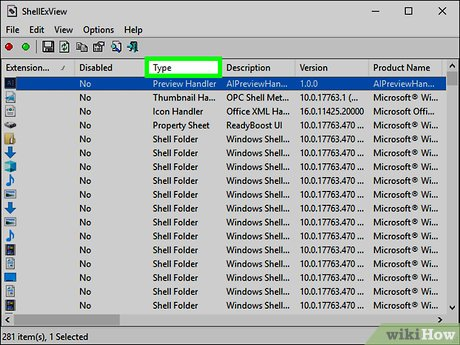
- Type: This is crucial. Look for the “Context Menu” type, as these are the ones that affect your right-click menu .
- Company: Tells you which software company created the extension.
- Disabled: Shows if an extension is currently disabled.
- Microsoft: A simple “Yes” or “No” indicating if the extension was installed by Microsoft .
Step 3: Filter and Identify Suspects
- Hide Microsoft Extensions: Click on the Options menu at the top and ensure Hide All Microsoft Extensions is checked . This will filter out all the extensions that are part of the Windows operating system, leaving you with a much shorter list of third-party components that are the likely source of any issue.
- Sort by Type: Click on the Type column header to sort the list. This will group all the “Context Menu” extensions together, making them easy to find.
- Focus on Pink Items: Remember that entries with a pink background are third-party extensions, which you should consider your primary suspects .
Step 4: The Troubleshooting Process (The “Divide and Conquer” Method)
Now comes the diagnostic process. The goal is to identify the single problematic extension by process of elimination. There are two main approaches:
Approach A: The Batched Method (Faster)
- Select and Disable: Using the
Ctrlkey, select multiple non-Microsoft extensions (especially those marked pink and of the “Context Menu” type). Right-click and select Disable Selected Items . - Restart Explorer: Click on Options > Restart Explorer. This will restart the Windows Explorer process and apply the changes without needing a full system reboot .
- Test: Right-click on a file or folder on your desktop to see if the problem (the delay or crash) is resolved.
- Isolate: If the problem is fixed, you know the culprit is among the batch you just disabled. Re-enable the items one by one (or in smaller groups), restarting Explorer and testing each time until you find the specific extension that causes the issue to return. This is a more efficient way to find the culprit than testing one extension at a time.
Approach B: The One-by-One Method (More Precise)
- Select and Disable: Starting from the top of the list, select one non-Microsoft extension (prefer pink “Context Menu” extensions). Right-click and select Disable Selected Items.
- Restart Explorer: Click Options > Restart Explorer.
- Test: Right-click on a file or folder to test if the issue is resolved.
- Repeat: If the problem persists, re-enable the disabled item (right-click -> Enable Selected Items) and move on to the next extension. If the problem is resolved, you have found the culprit!
Step 5: Identifying the Specific Culprit (Advanced)
Sometimes, disabling a single extension will directly fix the problem. In other cases, a known troublemaker might be the culprit.
- Known Troublemakers: As reported by various online communities, some known problematic extensions include the Google Drive “GDContextMenu Class” and the “Foxit Phantom PDF” context menu handler . These are good candidates to try disabling first.
- Searching Online: If you see an extension you don’t recognize, copy its “Description” or “Product Name” and search for it online. This can help you determine what program it belongs to and if it is safe to disable.
- Check the Path: Look at the “Filename” column for the extension. The file path (e.g.,
C:\Program Files\SomeApp\some.dll) clearly tells you which application installed it. If it’s an app you no longer use or a program that is known to be problematic, it is a prime suspect.
Chapter 4: Beyond Troubleshooting – The Advanced Capabilities of ShellExView
While troubleshooting is the most common use, ShellExView offers other powerful capabilities.
1. Cleaning Up After Uninstalled Programs
One of the most frustrating experiences is uninstalling a program, only to find that its context menu entries remain. These “ghost” extensions can slow down your system and clutter your menu. ShellExView is the perfect tool for this:
- Identify the Orphan: Look for an extension whose “Filename” points to a folder that no longer exists.
- Disable It: Disabling the extension will clean up your context menu and remove the useless registry entry from the system’s active list without the risk of editing the registry directly.
2. Resolving File Explorer Crashes
As discussed earlier, a crashing File Explorer upon right-click is almost always caused by a corrupt or problematic shell extension. By disabling all non-Microsoft extensions and then re-enabling them one by one, you can quickly pinpoint and disable the specific add-on that is causing the crash .
3. De-Cluttering Your Context Menu for Speed
You may not have a specific crash or delay, but perhaps your right-click menu is just too long and cumbersome. ShellExView allows you to selectively disable the items you never use, creating a leaner, faster, and more efficient context menu . This is a boon for productivity, as a cleaner menu means quicker access to the functions you actually need.
4. Managing 32-bit vs. 64-bit Extensions
On 64-bit systems, you can have two separate sets of shell extensions: one for 64-bit applications and one for 32-bit applications. ShellExView usually displays both by default. The 32-bit extensions might be listed with an “(x86)” marker. This is helpful because a 32-bit extension attempting to run in a 64-bit process can sometimes cause issues .
5. Generating Reports
You can create a detailed HTML or XML report of all your shell extensions. This is invaluable for:
- System Documentation: Keep a record of what extensions are installed on your system.
- Remote Support: Send the report to a more knowledgeable friend or IT professional for analysis.
- Change Tracking: Compare reports from two different dates to see what new extensions have been added.
Chapter 5: Best Practices and Safety Precautions
ShellExView is a powerful tool, and with great power comes great responsibility. Here are some essential safety tips to keep in mind:
- Do Not Disable Microsoft Extensions: The first step of any troubleshooting process is to Hide All Microsoft Extensions. Disabling a critical system extension can lead to major instability, including your desktop failing to load or File Explorer not functioning at all . Stick to the pink, third-party items.
- Understand What You are Disabling: If you do not know what an extension does, do not disable it. Take a moment to search for its name online. It might be a vital part of a program you use regularly. Disabling your antivirus’s context menu scanner is fine if you don’t use it, but disabling a cloud syncing service’s icon handler might cause confusion.
- Use Disable, Not Delete: ShellExView primarily allows you to Disable extensions. This is much safer than deleting them from the registry. If disabling an extension causes an unexpected problem, you can simply Enable it again and restore functionality with a few clicks. Deleting it from the registry is permanent and requires manual re-creation.
- Restart Explorer After Changes: Many changes to shell extensions will not take effect until File Explorer is restarted. Always use the Options > Restart Explorer command after enabling or disabling items to see the results of your actions .
- Process of Elimination is Key: The most reliable way to find a problematic extension is through the methodical “divide and conquer” approach. Be patient, and you will find the culprit.
Conclusion
For decades, ShellExView has stood as a testament to the power of well-designed, focused utility software. It is an indispensable tool for anyone looking to maintain a stable, fast, and well-organized Windows environment. By providing a clear, central, and manageable view of the complex world of shell extensions, it takes a daunting and potentially dangerous task and makes it safe, simple, and effective.
Whether you are an IT professional managing hundreds of systems, a power user who likes to keep their machine in top shape, or a regular user frustrated by a slow and unresponsive right-click menu, ShellExView is your answer. Its portability, ease of use, and comprehensive feature set have made it a trusted companion for nearly 20 years, and it remains an essential component of any Windows troubleshooting toolkit.
By understanding what shell extensions are, how they can cause problems, and how to use ShellExView to diagnose and solve those problems, you are not just fixing a single issue—you are taking a significant step towards mastering your own PC. Download it today, keep it on a USB drive, and the next time a context menu frustrates you, you’ll have the perfect tool to fight back.
Frequently Asked Questions (FAQs)
1. Is ShellExView safe to use, and will it harm my computer?
A: Yes, ShellExView is a safe and widely respected tool. However, the safety of its use depends entirely on the user. The application itself does not make any changes without your explicit command. As long as you follow best practices—specifically, hiding all Microsoft extensions and only disabling non-Microsoft items that you can identify—the risk of harming your system is very low. Always use the “Disable” function over “Delete,” as it is easily reversible .
2. Can I use ShellExView to fix a context menu that takes a long time to open?
A: Absolutely. This is one of its primary and most effective uses. Context menu delays are almost always caused by poorly performing third-party extensions. By using ShellExView to disable all non-Microsoft extensions (especially context menu handlers) and then re-enabling them one by one, you can isolate and disable the specific extension that is causing the delay .
3. My File Explorer crashes every time I right-click. Can ShellExView help with this?
A: Yes. A crash on right-click is a classic symptom of a problematic shell extension. The tool provides a direct way to fix this. By opening ShellExView as an administrator and disabling all third-party, non-Microsoft extensions (which are likely the cause), you can stop the crashes. Then, you can re-enable them one at a time to find the specific one responsible and keep it disabled .
4. I uninstalled a program, but its options are still in my context menu. Can ShellExView remove them?
A: Yes, it can. This is known as a “ghost” or orphaned extension. When you uninstall a program, it sometimes fails to remove its shell extension registration. Open ShellExView, find the extension by looking at the “Company” column or by searching the file path, and simply disable it. This will safely remove it from your context menu without needing to edit the registry .
5. What is the best way to start using ShellExView to find a problem?
A: The best and safest starting point is to:
- Run the tool as an administrator.
- From the Options menu, check Hide All Microsoft Extensions .
- Sort the list by the Type column and focus on entries that are “Context Menu” types.
- Look for entries highlighted in pink, as these are third-party components.
- Disable these entries in groups to quickly identify the problematic one, or use the “divide and conquer” method of disabling them one by one to pinpoint the exact cause .