Puran File Recovery 64-Bit – Resurrecting Your Lost Data
Introduction
In the digital age, few experiences are as gut-wrenching as the sudden realization that important files have vanished. Whether it’s the result of an accidental deletion, a virus attack, a formatting error, or a catastrophic hard drive failure, data loss can feel like a personal crisis. It can mean the difference between a successful project and a professional setback, or between cherished memories and a void that cannot be filled.
In these moments of panic, data recovery software becomes an essential lifeline. Among the many tools available, Puran File Recovery (64-bit) has earned a reputation as a powerful, reliable, and completely free solution for retrieving lost files from almost any storage medium . For years, it has been a go-to utility for users who need to recover everything from crucial work documents to treasured family photos.
This comprehensive guide explores everything you need to know about Puran File Recovery 64-bit. We will examine its inner workings, its three-tier scanning system, its support for various file systems and storage devices, and its strengths and limitations. We will also provide practical advice on how to use it effectively, what to expect from the recovery process, and when to consider alternative options. By the end of this article, you will have a thorough understanding of how to navigate the stressful world of data loss and use Puran File Recovery to bring your lost files back to life.
Chapter 1: Understanding Data Loss and How Recovery Works
The Many Faces of Data Loss
Data doesn’t just disappear; it is lost through a variety of common scenarios, including:
- Accidental Deletion: This is the most frequent cause of data loss. You simply delete the wrong file or folder and empty the Recycle Bin, believing you no longer need it.
- Accidental Formatting: Reformatting a hard drive, memory card, or USB drive is a common mistake that erases all data in preparation for a fresh start.
- Virus and Malware Attacks: Malicious software can corrupt or delete files, sometimes rendering an entire system unbootable.
- System Crashes and Power Failures: Unexpected shutdowns or system crashes can interrupt file system operations, causing data corruption and loss.
- Hardware Failures: Hard drives, SSDs, and flash memory have a finite lifespan. When they fail, data can become inaccessible.
- Partition Loss: The partition table that tells the operating system how to access a drive can become corrupted or deleted, making the entire volume appear empty.
How Does File Recovery Software Work?
When a file is deleted, it’s important to understand that the data itself is not instantly erased from the physical drive . Instead, the operating system simply marks the space that the file occupied as “available” for new data. The file’s entry in the file system’s index (like the Master File Table in NTFS) is removed, making the file invisible to the user. The actual data remains on the disk until that specific space is overwritten by new information.
This is the core principle behind file recovery software. These tools scan the drive at a low level, looking for the remnants of files that have not yet been overwritten . They can identify files in several ways:
- By File System Records: The software can look for references to the file in the file system’s structure. This is the fastest method and works best for recently deleted files.
- By File Signature (Raw Data Recovery): More advanced software like Puran File Recovery can bypass the file system entirely . It examines the raw data on the disk, searching for known “headers” and “footers” that are unique to specific file types. For example, a JPEG image file always starts with the bytes
FF D8and ends withFF D9. By scanning the disk for these patterns, the software can identify and extract files even if the file system is completely destroyed.
The success of file recovery often depends on a single, crucial factor: how quickly you act. Every time you write new data to the affected drive, you risk overwriting the space occupied by your deleted files, potentially making them unrecoverable. This is why professionals often advise stopping all use of the drive immediately after data loss .
Chapter 2: Introducing Puran File Recovery (64-Bit)
A Trusted Name in Data Recovery
Puran File Recovery is a free utility designed to locate and retrieve deleted or lost files from a wide array of storage media . Its 64-bit version is optimized to take full advantage of modern hardware, allowing for efficient scanning and recovery of large drives and extensive datasets. The developer, Puran Software, encourages users to donate if they find the tool helpful, ensuring its continued development and availability as a free resource for the community .
Key Features and Capabilities
- Wide Storage Support: The tool can access and recover from virtually any recognized storage device, including internal and external hard drives, USB flash drives, memory cards (SD, microSD, CompactFlash), mobile devices, and even CDs and DVDs .
- File System Agnostic: It works seamlessly with common file systems, including FAT12, FAT16, FAT32, and NTFS .
- Multi-Tier Scanning: Puran File Recovery offers a three-tier scanning approach, allowing users to choose the appropriate level of scrutiny based on their data loss situation .
- Extensive File Signature Database: The tool includes a database of over 50 common file formats . This enables it to perform raw recovery, finding files based on their internal structure even when the file system is corrupt.
- Preview and Search: Users can preview files before restoring them and use search functionality with wildcards to quickly locate specific files from large results .
- Folder Structure Retention: The tool can preserve the original folder structure when recovering files, making it easier to organize the recovered data .
- Deep Format Detection and Partition Loss Scanning: The software can handle more complex scenarios, such as recovering from formatted drives or scanning for lost partitions .
The 64-Bit Advantage
The 64-bit version of Puran File Recovery is particularly beneficial for users with modern computers. It allows the software to address more than 4GB of system memory, which is crucial for handling large drives (e.g., 1TB, 2TB, or more) without performance degradation. This ensures that deep, byte-by-byte scans can be completed efficiently without being hampered by memory limitations.
Chapter 3: A Step-by-Step Guide to Using Puran File Recovery
Step 1: Stop Using the Drive
This is the most critical step. If the drive you need to recover data from is your system drive (the one running Windows), you should stop using the computer immediately. The constant writing of temporary files, logs, and system updates can overwrite your deleted data. The safest approach is to shut down the computer and move the hard drive to a different computer as a secondary drive for the recovery process.
Step 2: Download and Install (or Run)
Download the latest version of Puran File Recovery (64-bit) from the official developer website or a trusted software download source . The program is lightweight and easy to install, though you can also run it as a portable application if preferred.
Step 3: Launch the Software and Select the Drive
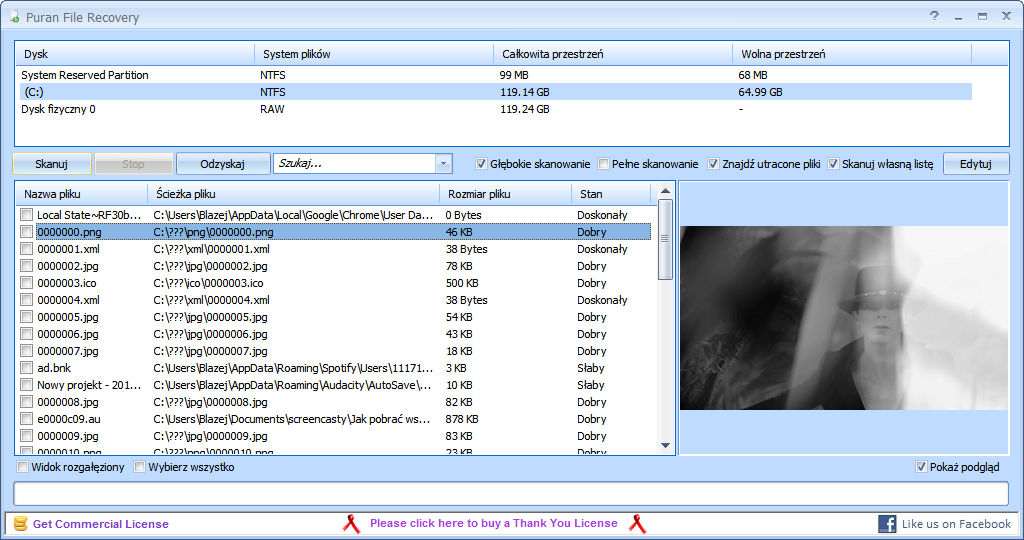
Launch the program. You will be presented with a minimal, uncluttered interface . Select the drive or partition from which you lost your data. This is usually a letter like C:, D:, E:, etc.
Step 4: Choose Your Scan Mode
Puran File Recovery offers three scan modes, enabling you to tailor the process to your needs and available time:
A. Quick Scan
This is the fastest and simplest scan, designed to recover recently deleted files. It looks for files in the file system’s master file table (MFT) or similar structures . Use this mode if you have just deleted a small number of files and haven’t used the drive much since. The recovery rate is high, and the process is quick.
B. Deep Scan
This is the workhorse of the software. A Deep Scan examines the drive at a low level, searching for file signatures, even if the file system structure is damaged . It performs a much more thorough search than a Quick Scan and can recover files that have been lost for a longer period or from a corrupted partition. This scan can take a long time, from several hours to several days, depending on the size of the drive and the speed of your computer.
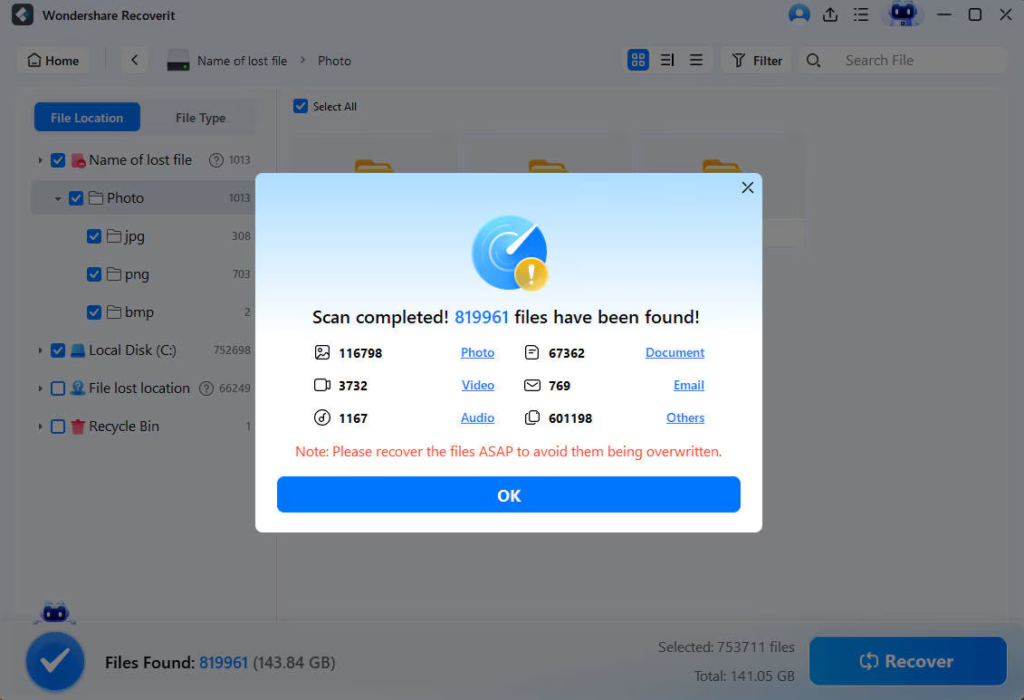
C. Full Scan
This is the most comprehensive option. A Full Scan includes everything from the Deep Scan but goes further by scanning for lost or deleted partitions and even supports scanning of physical drives and RAW devices . Use this mode if your partition has been deleted, the drive appears blank, or you are dealing with a completely unrecognized file system. This is your best bet for severe data loss scenarios but is also the most time-consuming. It has been reported that scanning a 600GB hard drive can take up to seven days with this mode.
Step 5: Select Scan Options
The software provides additional options to refine your scan. For example, you may be able to select the types of files you are looking for (e.g., documents, photos, videos) to speed up the scan. You may also be able to scan for files based on their specific internal signature (raw recovery).
Step 6: Review and Recover
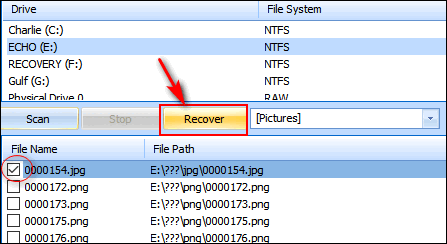
Once the scan is complete, the software will display the results in a list or tree view. You can:
- Preview the file to ensure it is the correct one and in good condition.
- Search for specific files using keywords and wildcards.
- Select the files you want to recover.
- Specify an Output Location: Crucially, do not save the recovered files back to the same drive you are scanning. Saving them to a different physical drive is essential to avoid overwriting the remaining lost data.
- Click the Recover Button.
Chapter 4: Performance, Pros, and Cons of Puran File Recovery
The Good: A Free Powerhouse
Puran File Recovery’s reputation is built on its exceptional performance in retrieving lost files, a fact reflected in its high user ratings. Here are its key strengths:
- It’s Completely Free: Unlike many commercial recovery tools that offer limited previews and then charge a significant fee for the actual recovery, Puran File Recovery is free for private use . This alone makes it a standout choice for individuals and small businesses.
- Highly Effective Recovery: User testimonials frequently highlight the software’s ability to recover a very high percentage of lost files, often 90-100% for documents, images, and other common file types . Many users have successfully recovered data that other paid tools failed to find.
- Versatile and Comprehensive: The tool handles a wide variety of data loss scenarios, from simple deletions to formatted drives and lost partitions.
- Advanced Recovery Options: Features like raw file recovery (using file signatures), retention of folder structure, and the ability to search and preview files make it a professional-grade tool.
The Not-So-Good: Limitations to Consider
While highly effective, the software has some drawbacks that potential users should be aware of:
- No Restoration of Original File Names: A significant limitation is that during Deep or Full scans, recovered files often lose their original file names and are saved with generic names like
IMG0001,DOC0001, etc. This can be a major inconvenience when dealing with hundreds or thousands of recovered files, especially if you need to sort through them. - Scanning is Extremely Slow: The Deep and Full scan modes are very time-consuming, with users reporting scan times of up to seven days for a 600GB hard drive . For large drives, this requires patience and leaves your computer unusable for the duration. This is a common trade-off for the depth of the scan, but it’s worth noting.
- Limited Automation: The software lacks scheduling or automation tools, which means you cannot automate a recurring backup or recovery process.
- Outdated User Interface: While the minimal interface is functional and allows users to focus on recovery, it is considered outdated and not very intuitive for less technical users .
- No Folder Structure Retention (Sometimes): Some users have reported that the software did not always recover files in their original folder structure, which can complicate the organization of recovered data.
- Resource Intensive: The deep scans consume significant system resources, making it difficult to use the computer for other tasks simultaneously.
Chapter 5: Frequently Asked Questions (FAQs)
1. Can Puran File Recovery recover files from a formatted hard drive?
A: Yes, it can. This is one of the software’s strongest features. The “Full Scan” mode is specifically designed to recover data from formatted drives . It can recognize and reconstruct data from drives that have been reformatted with FAT12, FAT16, FAT32, and NTFS file systems.
2. Is it safe to install Puran File Recovery on the same drive I want to recover data from?
A: It is strongly advised against. Installing software on the affected drive increases the risk of overwriting the sectors that contain your lost files, making them unrecoverable . The safest practice is to install the software on a different, healthy drive, or to run it as a portable application from a USB drive, and then use it to scan the affected drive.
3. How long does a scan with Puran File Recovery take?
A: The scan time varies dramatically based on the size of the drive and the scan mode selected. A Quick Scan might take just a few minutes. A Deep or Full Scan can take anywhere from a few hours to several days. For example, a Deep Scan of a 1TB drive could take over 24 hours, and a Full Scan could take even longer .
4. Why do my recovered files have strange names like “IMG0001.jpg”?
A: This happens because the software is using raw file recovery, which relies on the file’s signature (internal structure) rather than the file system’s index. When the file system is corrupted, the original file names and directory structure are lost. The software finds the file based on its pattern and assigns a generic name . This is a common limitation of deep recovery.
5. What is the difference between “Deep Scan” and “Full Scan”?
A: A “Deep Scan” performs a byte-by-byte search of the drive to find files based on their internal signatures (raw recovery). It is effective for recovering files from corrupted or partially formatted drives. A “Full Scan” includes the Deep Scan but adds the ability to search for lost or deleted partitions and can scan physical drives and RAW devices . It is the most thorough option for severe data loss scenarios.
Conclusion
Puran File Recovery (64-bit) stands as a powerful testament to the possibility of bringing lost digital data back from the brink. It is a robust, effective, and completely free tool that has proven its worth for thousands of users facing the nightmare of accidental deletion, formatting errors, or system corruption . Its three-tier scanning system, support for a vast array of file systems, and ability to perform raw file recovery make it a versatile solution for a wide range of data loss scenarios.
While its scan times can be lengthy and the resulting file names may not be intact, the sheer effectiveness of the recovery often outweighs these inconveniences. For the budget-conscious individual or the small business owner who cannot afford expensive commercial software, Puran File Recovery is an invaluable asset. By following the best practices outlined in this guide—acting quickly, avoiding writing to the affected drive, and choosing the correct scan mode—you can maximize your chances of a successful data recovery. In the stressful moments of data loss, Puran File Recovery provides a reliable and trustworthy lifeboat.