Windows Remote Desktop Connection – The Built-in Remote Access
In an increasingly interconnected world, the ability to access your computer from anywhere is no longer a luxury—it’s a necessity. Whether you’re a remote worker needing to access files on your office PC, an IT administrator troubleshooting a colleague’s system, or a student retrieving a document from your home computer while on campus, remote desktop software has become an indispensable tool.
For Windows users, the solution is often built right into the operating system: Remote Desktop Connection. While it may not have the flashy branding of third-party applications, the Windows Remote Desktop Protocol (RDP) is a powerful, secure, and incredibly reliable feature that has been the backbone of enterprise remote access for decades.
This comprehensive guide will explore everything you need to know about Remote Desktop Connection. We will cover how it works, its key features, how to set it up, and what its advantages and limitations are compared to third-party alternatives. By the end, you’ll understand why this built-in tool remains a go-to choice for millions of users and when it might be time to look elsewhere.
What Is Remote Desktop Connection?
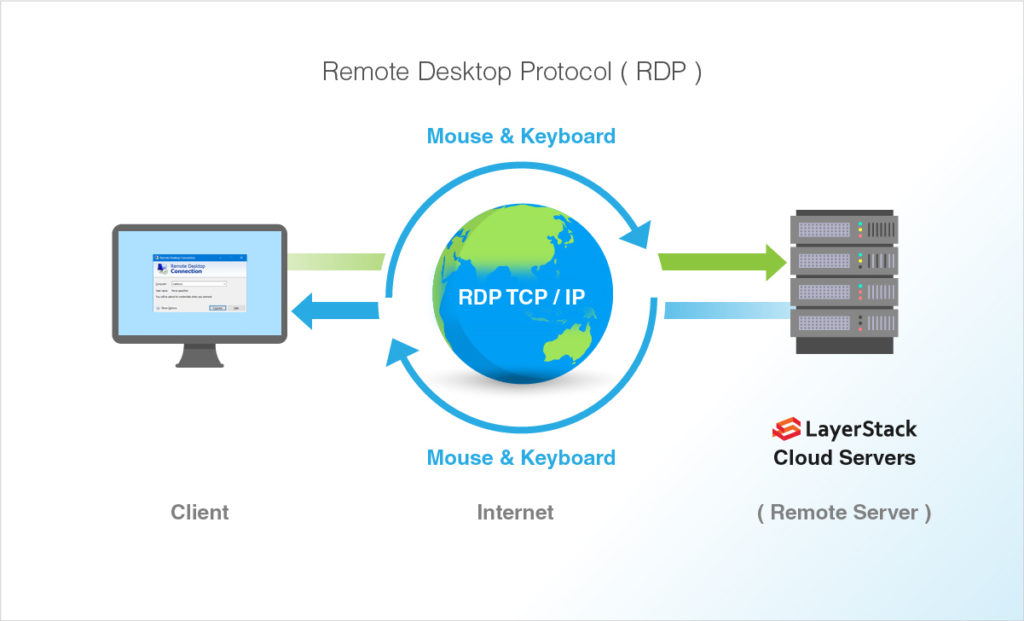
Remote Desktop Connection is a built-in feature of the Microsoft Windows operating system that enables users to connect to and control another Windows computer over a network . It uses a proprietary protocol created by Microsoft, known as Remote Desktop Protocol (RDP) . This technology essentially transmits the screen output of the remote computer to your local machine while sending your keyboard and mouse inputs back to the remote computer.
The experience is designed to be seamless. When you’re connected, you see the remote computer’s desktop as if you were sitting right in front of it. You can open files, run applications, manage settings, and perform virtually any task that you could do locally. The software mirrors the host’s interface, enabling users to interact with programs, open files, and perform tasks remotely .
RDP is a client-server technology. The client software (which comes pre-installed on most Windows versions under the name “Remote Desktop Connection” or mstsc.exe) initiates the connection to the server (the Windows PC you want to control). Starting with Windows XP, the Remote Desktop feature has been a standard component of the operating system, making it a ubiquitous tool in the Windows ecosystem.
Who Is Remote Desktop Connection For?
Remote Desktop Connection is designed for a wide range of users, from individuals to large enterprises.
Remote Workers and Telecommuters: For employees who need to access their work PC from home, Remote Desktop Connection is a classic solution. It provides a familiar and direct link to their office desktop, complete with all their files, applications, and network resources .
IT Professionals and System Administrators: This is the primary use case for many. IT staff use RDP for system maintenance, software installation, and troubleshooting on remote servers or user workstations . It allows them to manage multiple devices from a single console without being physically present.
Students and Researchers: Students can access their university lab computers or their personal PCs to retrieve important files or run resource-intensive software that isn’t available on their portable devices.
Support Teams: Helpdesk and technical support personnel often use RDP, either directly or through a gateway, to assist users in fixing problems on their computers.
Users Who Need One-Time Access: You might need to grab a file from your home computer while on vacation, or you might be helping a family member with a computer problem. RDP offers a simple and secure way to do this.
Key Features and Capabilities
Remote Desktop Connection offers a robust set of features designed to provide a secure and functional remote experience.
Core Functionality: Full Control of the Remote Desktop
The most fundamental feature is the ability to take full control of the remote computer. The software mirrors the host’s interface, enabling users to interact with programs, open files, and perform tasks remotely . This includes everything from running complex applications to changing system settings, providing a truly comprehensive remote management experience.
Security: Encryption and Authentication
Microsoft has built significant security measures into RDP to protect against unauthorized access. It requires encrypted connections for remote sessions, providing a crucial layer of protection, especially when operating over the internet . The connection uses standard authentication methods, such as user credentials and passwords, and can be integrated with Network Level Authentication (NLA). NLA provides an additional layer of security by requiring authentication before a full remote session is established, reducing the risk of denial-of-service attacks and credential theft.
Customizable Performance Options
To accommodate different network speeds and bandwidth limitations, Remote Desktop Connection offers several performance optimization settings . Users can adjust the user experience to suit their connection, including:
- Reducing Color Depth: Lowering the number of colors displayed (e.g., from 32-bit to 16-bit or 8-bit) significantly reduces bandwidth usage, improving responsiveness on slow connections.
- Adjusting Resolution: You can choose a specific screen resolution for the remote session or set it to fit the current window.
- Disabling Unnecessary Visuals: Options to disable the desktop background, font smoothing, and other visual effects can be toggled to boost performance.
- Persistent Bitmap Caching: This feature stores bits of the remote desktop locally to speed up redrawing on subsequent visits.
RemoteApp and Session Shadowing
For advanced users, Remote Desktop Connection also supports features like RemoteApp, which allows you to run a specific program remotely as if it were installed locally, and session shadowing, which lets an administrator quietly view or interact with another user’s session . The newer versions have also added support for faster reconnection times and the ability to handle dynamic monitor and resolution changes, allowing the remote session to automatically adapt when you plug in a second monitor or change your display setup.
Device and Resource Redirection
When you connect, you can choose to redirect local resources to the remote computer. This can include your local clipboard, printers, drives (so you can copy files between machines), audio, and even smart cards, which are often used for corporate authentication. This feature makes the remote session feel incredibly integrated with your local PC.
A Step-by-Step Guide to Setting Up Remote Desktop Connection
Setting up Remote Desktop Connection involves a few key steps. It is important to note that Remote Desktop is not enabled by default on most Windows editions for security reasons.
Step 1: Enable Remote Desktop on the Host Computer
This is the PC you want to connect to.
- Open the Start Menu and search for “Remote Desktop Settings.”
- In the settings window, ensure that the Enable Remote Desktop toggle is switched On .
- It is highly recommended to leave the option checked that says “Require devices to use Network Level Authentication (NLA) to connect.” This significantly improves security.
- Take note of the name of this PC under the “PC name” section. You will need it to connect.
Step 2: Find Your Host Computer’s IP Address
If you are connecting over the internet, you will need the public IP address of the host network. If you are on the same local network, you can use the computer’s name. You can find the public IP address by searching “What is my IP” on the host machine.
Step 3: Port Forwarding (For Internet Connections)
This is the most technical step. If you are connecting from outside your local network (e.g., from a coffee shop to your home PC), your router must be configured to forward incoming traffic on port 3389 to the IP address of your host computer. This is usually done in the router’s administration panel under “Port Forwarding.”
Critical Warning: Exposing port 3389 to the internet is a significant security risk. It is strongly recommended to use a VPN (Virtual Private Network) to access your local network first, and then connect via RDP, rather than forwarding the port directly. This prevents your RDP server from being scanned and attacked by bots on the internet.
Step 4: Connect from the Client Device
This is the device you are using to view and control the host.
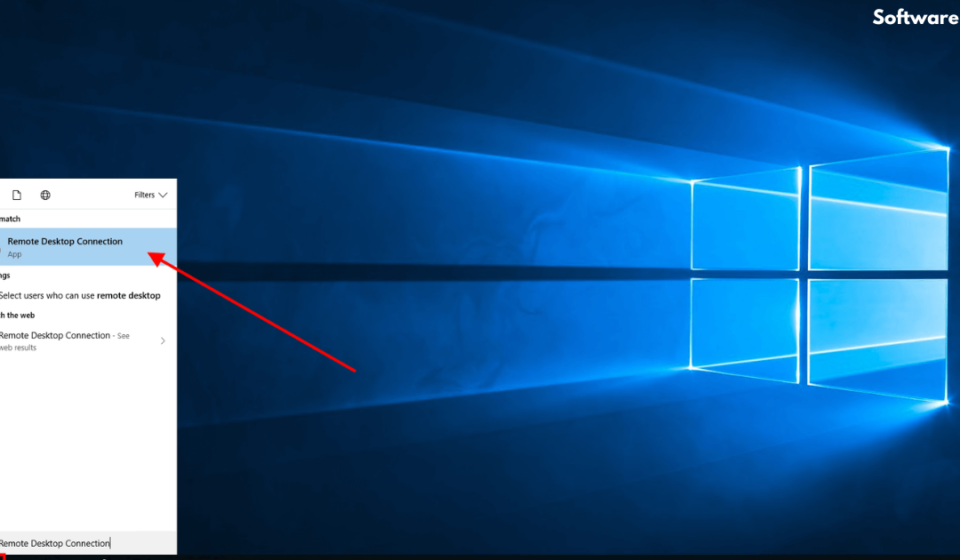
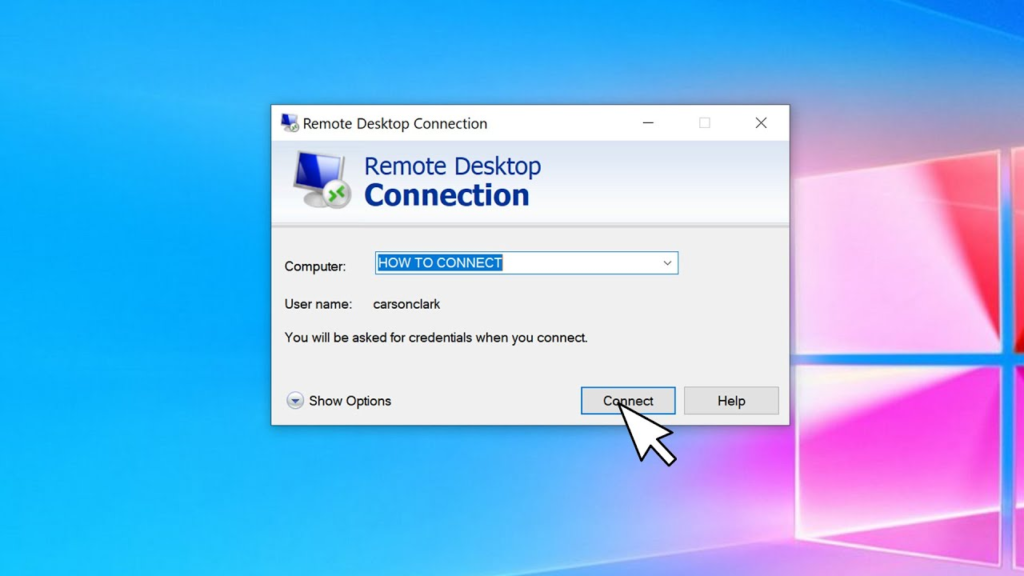
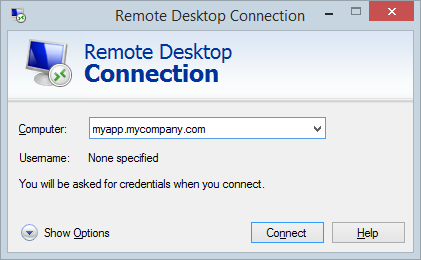
- On your Windows client machine, open the Remote Desktop Connection application. You can find it by searching “Remote Desktop” in the Start Menu.
- In the “Computer” field, enter the name of the host computer (if on the same network) or its public IP address (if you are connecting over the internet).
- Click “Connect.”
- Enter the username and password of an account on the host computer that has permission to log in remotely. Typically, an administrator account is used .
- You may see a certificate warning. If you trust the computer you are connecting to, you can proceed.
The Pros of Using Remote Desktop Connection
It’s Free and Built-In: Perhaps the biggest advantage is that it comes as a standard feature of Windows. There is no need to download or purchase separate software for basic remote access, making it a highly accessible solution for most users.
Deep Integration with Windows: Because it’s a Microsoft product designed for Windows, the integration is flawless. It uses native protocols, is tightly coupled with Windows security features, and benefits from consistent updates from Microsoft. It is reliable and easy to use for businesses that depend on remote support .
High Security for Local Networks: On a corporate network, RDP is highly secure. It leverages Active Directory, Group Policy, and other enterprise security tools to enforce robust authentication and authorization policies . The encryption used is strong and consistent.
Excellent Performance on LAN: On a fast local network, the performance of Remote Desktop Connection is often indistinguishable from a local session. It handles video and graphics remarkably well for a remote protocol.
The Cons and Limitations
Limited to Windows Systems: This is the most significant limitation. The software only supports Windows devices natively, which can be restrictive for users who need cross-platform compatibility . While there are RDP clients for macOS, Linux, and Android, the host computer must be running a Professional or Enterprise version of Windows.
Tricky to Set Up Over the Internet: As noted, configuring RDP for internet access requires port forwarding and a static IP address or a dynamic DNS service. This technical hurdle prevents many casual users from utilizing it outside their home network.
Significant Performance Issues on Slow Connections: Users can experience latency or slower performance depending on the quality of their internet connection . While the performance settings help, RDP is not as optimized for low-bandwidth, high-latency connections as some newer third-party tools.
Not Available on Windows Home Edition: The ability to accept incoming Remote Desktop connections is a feature reserved for Windows Professional, Enterprise, and Education editions. Users of Windows Home cannot use their PC as a host, though they can still connect to other PCs.
Alternatives to Remote Desktop Connection
For users who need more features or cross-platform support, several alternatives exist.
- TeamViewer: This is one of the most popular remote access tools. It is cross-platform (Windows, macOS, Linux, iOS, Android), easy to set up over the internet without port forwarding, and offers features like file transfer, remote printing, and chat. While it has a free version for personal use, it is paid for commercial use.
- AnyDesk: AnyDesk is a fast, lightweight, and cross-platform alternative known for its low latency and high performance, even on slower connections. It also offers a generous free version for personal use and is often considered a direct competitor to TeamViewer.
- Chrome Remote Desktop: A simple, cross-platform solution that runs in the Google Chrome browser or as a standalone app. It is incredibly easy to set up using a Google account and is completely free, though it offers fewer features than other alternatives.
- Microsoft Remote Desktop Client for Mac/iOS/Android: While you cannot host a remote session from these devices, Microsoft offers official RDP clients for macOS, iOS, and Android. This allows you to use the superior security of a Windows host while connecting from a non-Windows device.
Frequently Asked Questions (FAQs)
1. Is Remote Desktop Connection completely free?
Yes, Remote Desktop Connection is a free, built-in feature of Windows. You don’t need to pay any licensing fees to use it to connect to or from a compatible Windows PC.
2. Is it safe to use Remote Desktop Connection?
Yes, it is very safe when used correctly. It uses strong encryption and requires authentication. For maximum safety, you should only use it within a secure local network (like at work) or connect via a VPN when accessing it over the internet. Never expose the default RDP port (3389) directly to the public internet.
3. Can I use Remote Desktop Connection on Windows Home?
No, the feature to host remote connections (allow others to connect to your PC) is not available in Windows Home edition. However, the Remote Desktop Connection client can be used on Windows Home to connect to other, more powerful PCs.
4. How do I make my Remote Desktop Connection faster?
You can improve performance by lowering the display resolution and color depth in the “Experience” tab of the Remote Desktop Connection settings. Also, disabling the desktop background and visual themes can help. On the host computer, ensure the network is not being overloaded by other activities.
5. What is the alternative to Remote Desktop Connection for cross-platform use?
For users who need to connect from a Mac, Linux, or mobile device to a Windows PC (or vice versa), popular cross-platform alternatives include TeamViewer, AnyDesk, and Chrome Remote Desktop. These applications are easier to set up over the internet and work across different operating systems.
Conclusion
Remote Desktop Connection is a testament to the power of built-in functionality. It provides a secure, reliable, and free solution for the most common remote access tasks, solidifying its place as a critical tool for professionals and casual users alike. Its deep integration with Windows, robust security, and solid performance on stable networks make it an excellent choice for IT administrators, remote workers, and anyone within a Windows-centric ecosystem.
The limitations are clear: its insularity to the Windows world and its relative complexity for internet-based use. For many, these are acceptable trade-offs for a tool that is always there when you need it. For those seeking cross-platform support or a simpler setup, third-party options are readily available.
Ultimately, Remote Desktop Connection remains a highly valuable application. It demonstrates that sometimes the best tool is the one you already have, quietly waiting in your system files, ready to connect you to your computer from anywhere in the world.