PotPlayer 64-bit – Windows Media Player for Power Users
In a world saturated with media players, finding the perfect one that balances power, performance, and user experience can be a challenge. For years, VLC has dominated the conversation, but a worthy alternative has been steadily gaining acclaim among Windows users: PotPlayer (64-bit). This free multimedia player is not just another video tool; it’s a highly customizable powerhouse designed to handle virtually any audio and video format with remarkable efficiency .
Whether you are a casual viewer looking for a seamless playback experience or a content creator needing advanced tools for analysis, PotPlayer offers a compelling solution. In this comprehensive guide, we will explore everything you need to know about PotPlayer 64-bit, from its standout features and customization options to practical use cases that make it a favorite among tech enthusiasts.
Introduction: What is PotPlayer (64-bit)?
PotPlayer is a free multimedia player for Windows developed by Kakao (formerly Daum). It is celebrated for its extensive format support, lightweight design, and deep customization options. Unlike basic players that struggle with certain codecs, PotPlayer comes with built-in codecs, eliminating the need to hunt for additional software to play your media files .
The “64-bit” designation means the software is optimized for modern Windows systems, allowing it to utilize more RAM and process high-definition content like 4K and 8K videos more smoothly than its 32-bit counterpart. While similar to KMPlayer (another popular player), PotPlayer is written in C++ and features a unique architecture that many users find more stable and efficient .
Why Choose PotPlayer Over VLC?
VLC is the go-to for many because it “just works,” but PotPlayer takes a different approach: it works exceptionally well and lets you control exactly how it works. Here is why PotPlayer is considered a superior VLC alternative for Windows .
1. Modern and Customizable Interface
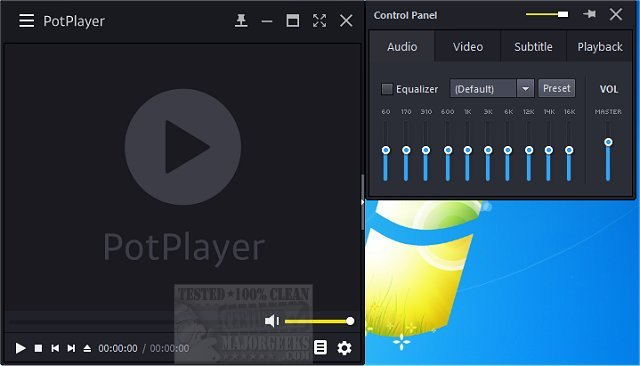
The first thing users notice is the aesthetic difference. While VLC retains a classic, somewhat dated menu bar, PotPlayer offers a sleek, modern interface. More importantly, it is endlessly customizable .
- Skins and Themes: You can completely change the look of the player. From minimalistic dark modes to colorful futuristic designs, the ability to apply skins allows users to personalize their viewing environment .
- Layout Control: If you don’t like where a button is, you can move it. You can tweak colors, fonts, and navigation controls via the preferences menu.
2. Advanced Subtitle Management
PotPlayer is a dream for subtitle enthusiasts. It handles standard formats like SRT and SMI flawlessly but goes a step further .
- Real-Time Translation: The player can translate subtitles into different languages using services like Google Translate or Bing .
- AI-Powered Subtitle Generation: Perhaps its most impressive trick is the integration with Whisper AI, which can generate subtitles directly from the audio in real-time. This is incredibly useful for obscure videos that lack captioning .
3. Superior Hardware Acceleration
To ensure smooth playback on various systems, PotPlayer supports a range of hardware acceleration technologies including DXVA, CUDA, and QuickSync . This offloads the video decoding process from the CPU to the GPU, resulting in lower CPU usage and better performance, especially when watching high-bitrate 4K videos .
4. Lightweight and Resource-Friendly
Despite its heavy feature set, PotPlayer is surprisingly lightweight. It consumes minimal system resources during playback, making it suitable for older computers as well as high-end gaming rigs .
Key Features: Unlocking the Full Potential
Extensive Format Support
PotPlayer is a universal player. It supports virtually every media container and codec available, including MKV, MP4, AVI, MOV, FLV, WMV, MP3, FLAC, and WAV. With built-in codecs, you can play almost anything without additional installation. It also handles 360-degree videos and 3D content .
Hardware Acceleration and 4K Playback
PotPlayer is designed to handle ultra-high-definition content without stuttering. Utilizing DXVA (DirectX Video Acceleration) allows the GPU to handle the heavy lifting. Enabling hardware acceleration is straightforward and essential for watching 4K or 8K videos on less powerful machines.
How to Enable Hardware Acceleration :
- Open PotPlayer and press F5 or right-click and select “Preferences.”
- Navigate to “Video” or “Filter” > “Video Decoder.”
- Click on “Built-in Decoder/DXVA Settings.”
- Check the box for “Use Hardware Acceleration (DXVA).”
- Click “OK” to save.
This setting will drastically improve playback performance and reduce CPU load.
Gaming Controller Support (XInput)
PotPlayer is one of the few players that natively supports XInput, allowing users to control playback using an Xbox or compatible gamepad. This is perfect for watching movies or shows from the couch .
- Setup: Connect your controller, open PotPlayer, and navigate to Preferences > Basic > Keyboard/Mouse/Controller. You can map buttons to functions like Play/Pause, Fast Forward, Rewind, and Volume Control.
Dual Audio Playback and Playlist Management
PotPlayer allows you to play two different videos simultaneously, which is useful for language learning or video comparison. Its playlist manager is also robust, allowing you to create “albums” that aggregate media from local storage, NAS, or even FTP servers .
URL Playback (YouTube, Twitch, etc.)
Tired of ads? PotPlayer can play video streams directly from URLs. By pasting a YouTube or Twitch link into the “Open URL” prompt, you can watch content directly in the player without browser interruptions and with access to the player’s superior audio and video filters .
How to Configure PotPlayer for Optimal Performance
PotPlayer is a beast because of its settings, but those settings can be daunting. Here is a step-by-step guide to setting up PotPlayer for the best experience.
Step 1: The Basics (F5 Preferences)
Press F5 to open the preferences menu. This is your command center. You can organize the interface, set language, and choose a skin.
Step 2: Customize Playback Behavior
- Time Span: Set the left/right arrow keys to skip forward or backward by a specific amount. A recommended setting is 2 seconds for precise navigation or 5 seconds for a quicker skim .
- Speed Control: Use C to increase speed by 10%, X to decrease by 10%, and Z to reset to normal speed. This is invaluable for reviewing video footage or binge-watching content .
Step 3: Optimize Video and Audio
- Video: Ensure “Aspect Ratio” is set to “Maintain Ratio” to prevent black bars or stretching. Enable “Hardware Acceleration” (DXVA) to leverage your GPU .
- Audio: PotPlayer can boost the volume up to 500%, which is perfect for low-volume files .
Step 4: Set Up Subtitle Filters
- Custom Style: Under the subtitle menu, you can change the font, size, color, and position of subtitles. Enable “Shadow” or “Outline” to make text more readable on light backgrounds.
- Sync: Use [ and ] to adjust subtitle sync if they are out of phase with the video .
PotPlayer for Content Creators and Professionals
Beyond casual viewing, PotPlayer is a powerful productivity tool for video editing, quality assurance, and content analysis.
Bookmarking and Scene Capture
Professionals can use the powerful bookmark system to tag specific times in a video .
- Add Bookmark: Press P during playback to add a book mark with a title (e.g., “0:12:45 – Bug appears”).
- Export: Bookmarks can be saved locally or exported to share with a team. This is excellent for collaboration on video projects.
Taking Screenshots and Recording Video
Content creators can easily capture frames for thumbnails or record specific segments of a video.
- Screenshot: Use Ctrl + E to capture the current frame as a PNG or JPEG .
- Record: Right-click the video > Video > Video Recording (or Alt + C) to start recording a segment. This allows you to capture clips without external software, a feature lauded by many users .
A-B Repeat Mode
If you are learning a language or analyzing a scene, you can set a specific section to loop.
- Mark A: Press [ at the start point.
- Mark B: Press ] at the end point.
- The player will continuously loop this section until you press the bracket keys again .
Frequently Asked Questions (FAQs)
1. Is PotPlayer completely free to use?
Yes, PotPlayer is a completely free multimedia player. There are no hidden charges, subscription fees, or premium versions required to unlock core features. You can download and use the full-featured software without any cost.
2. Does PotPlayer have a built-in subtitle downloader?
Yes, PotPlayer includes an online subtitle search feature. By right-clicking the screen and navigating to the subtitle menu, you can search for subtitles online using platforms like OpenSubtitles, allowing you to automatically download captions for your video .
3. How do I fix lag or stuttering in high-quality videos?
Stuttering is often caused by the CPU struggling with the video file. You should enable hardware acceleration (DXVA) to utilize your graphics card. Additionally, ensure your graphics drivers are up to date. You can find these options in Preferences > Video > Video Decoder .
4. Can I use PotPlayer to listen to music and create playlists?
Absolutely. PotPlayer is an excellent audio player supporting formats like FLAC and MP3. You can create and manage playlists easily, and its lightweight nature makes it perfect for long listening sessions. It can even remember playback positions for audio files .
5. Where does PotPlayer save its settings and bookmarks?
PotPlayer can save its settings to an .ini file within the program folder if you enable “Save Settings to INI” in Preferences > General. Bookmarks are usually saved in the same folder as the video file as a .pbf file, or they can be stored internally in the player’s settings .
Conclusion: Is PotPlayer Right for You?
PotPlayer (64-bit) is more than just a media player; it is a versatile tool that adapts to the user’s needs. Its wide format support, advanced hardware acceleration, and deep customization options make it a top-tier choice for Windows users.
Who should use it?
- The Power User: If you love tweaking settings and want complete control over how your media looks and sounds.
- The Content Creator: For capturing screenshots, recording clips, and analyzing video frame-by-frame.
- The Media Enthusiast: Anyone who wants a reliable player that plays everything, supports subtitles perfectly, and looks great doing it.
- The Casual Viewer: If you want a simple, modern player that works well with YouTube and local files without hassle.
While the sheer number of settings might initially seem overwhelming, the default setup is excellent for most users. Once you start exploring the menus, you will find a player that grows with you. For Windows users, PotPlayer 64-bit is undoubtedly one of the best, if not the best, free media player available today.