HEVC Video Extensions for Windows- Playing H.265 Content
Learn about HEVC Video Extensions for Windows, the codec needed to play H.265/HEVC video files. Discover free vs paid options, installation tips, and alternatives for smooth 4K playback.
Introduction: The Codec You Didn’t Know You Needed
Imagine this: you’ve transferred a beautiful 4K video from your phone to your Windows PC, but when you double-click to play it, nothing happens—or you get an error message saying the file can’t be played. The problem isn’t your computer or the file; it’s a missing codec. Specifically, you need the HEVC Video Extensions.
HEVC, short for High Efficiency Video Coding (also known as H.265), is a modern video compression standard that delivers high-quality video in significantly smaller file sizes compared to older formats like H.264. This makes it the go-to format for 4K and Ultra HD content, and it’s widely used on smartphones, streaming services, and professional video applications.
However, Windows doesn’t always include native support for HEVC out of the box. This guide explains what the HEVC Video Extensions are, the difference between the free and paid versions, and how to play HEVC files on your Windows PC.
What Are HEVC Video Extensions?
HEVC Video Extensions are a codec pack that adds support for HEVC (H.265) video decoding to Windows. In simple terms, it’s a small piece of software that tells your computer how to read and play video files compressed using the HEVC standard.
Once installed, the extension works silently in the background, enabling playback through native Windows apps like Media Player, Movies & TV, and other applications that rely on the Windows media framework. There’s no visible interface or settings to configure—it just works.
Key Features:
- Native Playback Support: Plays HEVC files directly in built-in Windows apps
- Hardware Acceleration: Uses your device’s GPU for smooth, efficient playback on compatible hardware
- System-Level Integration: Once installed, any app using the Windows codec stack can play HEVC content
- HDR Support: Required for HDR video playback from streaming services like Netflix on Windows
The Free vs Paid Versions
A common source of confusion is that two versions of the HEVC Video Extensions exist on the Microsoft Store.
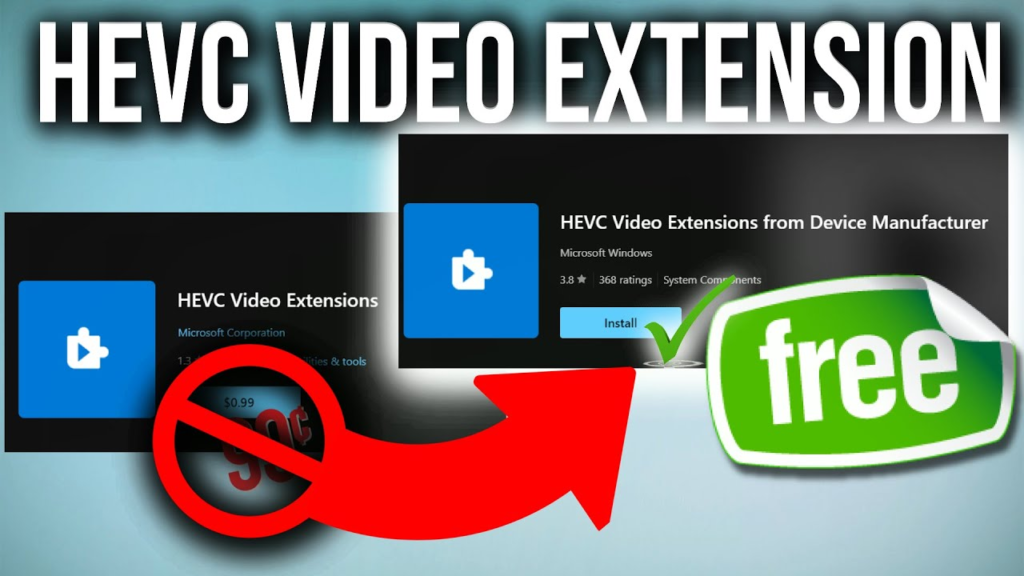
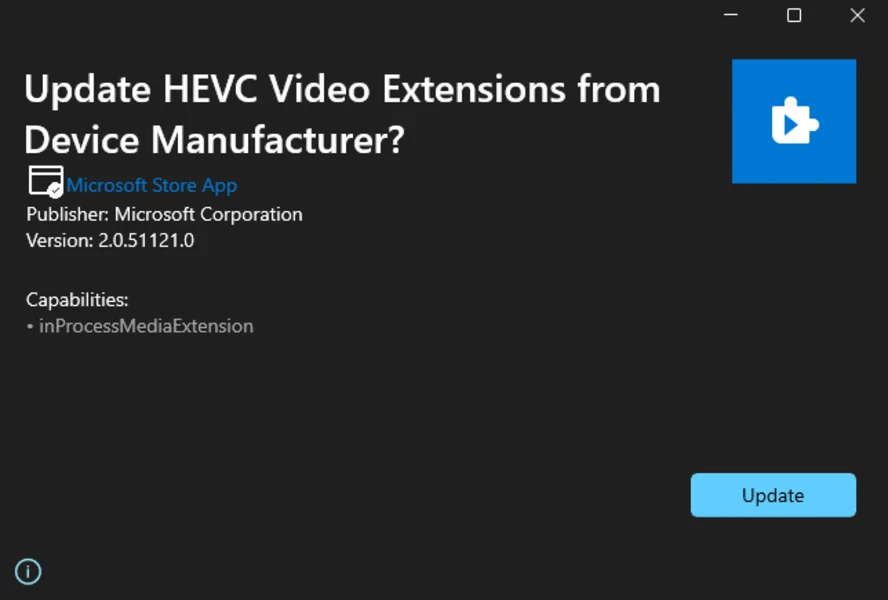
1. HEVC Video Extensions from Device Manufacturer (Free)
This version was intended for OEMs (like Dell, HP, Lenovo) to pre-install on devices that included hardware support for HEVC decoding. Microsoft assumed the manufacturer had already paid the licensing fees, so they offered this version for free.
However, this free version is no longer readily available to all users through the Microsoft Store. While a direct link to the product page (ms-windows-store://pdp/?ProductId=9n4wgh0z6vhq) still exists, many Windows 11 users receive a “This app will not work on your device” error. There are workarounds (like downloading the installer from the Internet Archive), but these are not officially supported and may not work reliably.
2. HEVC Video Extensions (Paid)
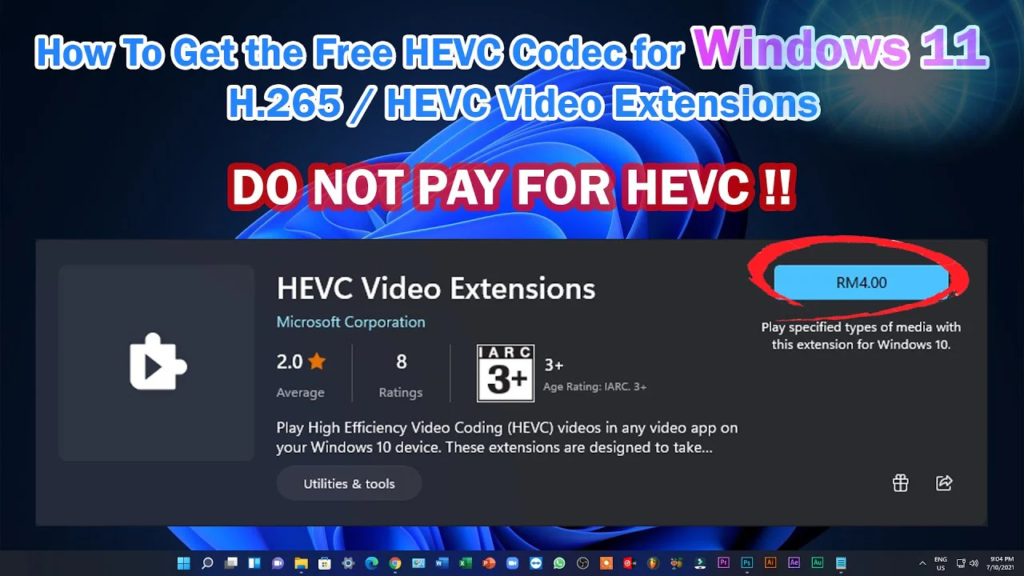
This is the standard version available in the Microsoft Store for $0.99. Why does Microsoft charge for this? Because HEVC is governed by multiple patents, and Microsoft is legally required to pay royalty fees for the codec. The company decided to pass this small cost on to the customer. For users who need reliable, official support, this is the recommended option.
Important Note: For all intents and purposes, the free and paid versions function identically. The only difference is how the licensing fee is handled. If your device originally came with the free version, you may not need to purchase it.
How to Install HEVC Video Extensions
Official Method: Using the Microsoft Store
- Open the Microsoft Store app on your Windows 10 or Windows 11 PC.
- Search for “HEVC Video Extensions”.
- If the “HEVC Video Extensions from Device Manufacturer” appears as “Install,” you can try installing it for free. If not, you’ll see the paid version for $0.99.
- Click “Install” or “Buy” and follow the prompts.
- Restart your computer to complete the integration.
Alternative Free Method: The Direct Link
In some cases, the free version is still accessible via a direct link. Copy and paste this into your browser’s address bar and press Enter:
ms-windows-store://pdp/?ProductId=9n4wgh0z6vhqIf the Microsoft Store opens and shows an “Install” button, you’re in luck. If it says “This app will not work on your device,” you’ll need the paid version or an alternative player.
Unofficial Workaround for the Free Version
Some users have successfully installed the free OEM version using a downloaded installer (usually found on archive sites) and PowerShell commands. However, this is not recommended for most users because:
- Unofficial downloads may contain malware. A recent review of hevcvideoextensions.com flagged it as potentially risky.
- Microsoft may have patched this method, so it may not work reliably.
- It’s unsupported, meaning you won’t get official updates.
Alternatives: Third-Party Media Players
If you don’t want to pay $0.99 and the free version isn’t working, you don’t need to install any extensions at all. Several third-party media players have built-in HEVC support and don’t rely on Windows codecs.
VLC Media Player is the most popular and reliable option. Download it for free from videolan.org. Once installed, you can right-click any HEVC file and choose “Open with” > “VLC media player”. Other options like MPC-HC and MPV also support HEVC natively.
Frequently Asked Questions (FAQs)
1. Why can’t I play HEVC videos on my PC?
Your computer lacks the necessary codec to decode the HEVC format. You need to install the HEVC Video Extensions or use a third-party player like VLC.
2. Are the HEVC Video Extensions free or paid?
There are two versions: a free version for “Device Manufacturers” that is often unavailable, and a paid version for $0.99 in the Microsoft Store.
3. What apps need the HEVC Video Extensions?
You need the extension to play HEVC files in native Windows apps like Media Player and Movies & TV. Streaming services like Netflix also require it for HDR playback on Windows.
4. Can I just use VLC instead?
Yes. VLC Media Player has built-in HEVC support and can play HEVC files for free without installing any Windows extensions.
5. Do I need HEVC extensions for HEIC photos?
No, HEIC photos use a different codec. You would need the HEIF Image Extensions for that, which are also available in the Microsoft Store.
Conclusion
HEVC Video Extensions are a small but essential component for watching modern 4K and HDR video on Windows. While Microsoft charges $0.99 for the official version, you have a few options: see if the free OEM version works on your device, purchase the official extension, or bypass the issue entirely by using a free, third-party media player like VLC. If you frequently work with high-resolution video files, investing in the extension for $0.99 provides a seamless, system-wide solution that integrates effortlessly with your native Windows apps.