Cub Editor for Windows- A Niche Tool for Microsoft Access Databases
Microsoft Access has been a staple of desktop database management for decades. Small businesses, nonprofits, and even some enterprise departments use Access to track inventory, manage contacts, analyze sales, and run reports. But working with Access databases directly—editing tables, running queries, modifying forms—typically requires owning a copy of Microsoft Access itself. That license costs money.
What if you need to make a quick edit to an Access database file (.mdb or .accdb) but do not have Access installed? Or what if you prefer a simpler, more focused interface for basic data editing tasks?
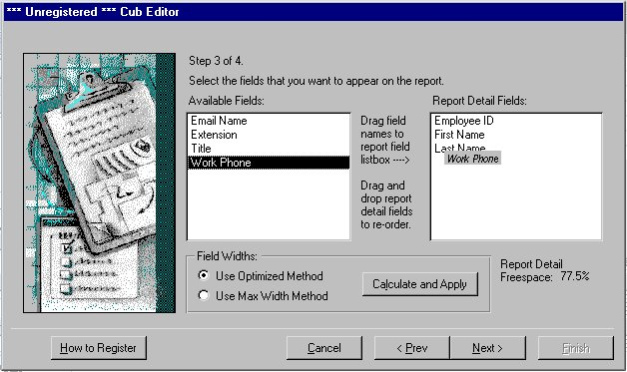
Cub Editor is designed to address exactly this scenario. It is a free Windows utility that allows users to open, view, and edit Microsoft Access databases without requiring the full Microsoft Access application. Think of it as a lightweight, focused tool for database administrators, developers, or casual users who need to get in, make changes, and get out.
Published on CNET Download on August 27, 2015, Cub Editor (version 2.7) targets users running Windows 2000 through Windows 10. However, it has a notable requirement: you must have MS Access 2000, 2002, or 2003 installed. This article explores what Cub Editor offers, its limitations, and who might still find it useful.
Cub Editor for Windows – Complete Guide to This Access Database Tool
What Is Cub Editor?
Cub Editor is a free software utility for Microsoft Windows. Its primary function is to provide editing capabilities for Microsoft Access database files. It allows users to view, modify, and manage data within Access databases without needing to launch the full Microsoft Access application.
The Problem It Solves:
Microsoft Access is a powerful database management system, but it is also large, expensive (unless you already own it as part of Office Professional), and sometimes overly complex for simple data editing tasks. Consider these scenarios:
- You receive an Access database file from a client or colleague, but you only have Office Standard (which does not include Access).
- You are a developer maintaining an Access database and want a quick way to edit data without loading the full Access environment.
- You prefer a simpler, more streamlined interface for basic table edits.
Cub Editor attempts to fill this gap by offering a lightweight, dedicated editing tool.
Key Information from the Source:
- Version: 2.7
- Platform: Windows
- Publication Date: August 27, 2015
- Total Downloads: 99
- Downloads Last Week: 2 (at the time of the listing)
- Additional Requirements: MS Access 2000, 2002, or 2003
The Critical Requirement – MS Access 2000, 2002, or 2003
The most important detail about Cub Editor is its dependency on older versions of Microsoft Access. The software explicitly requires MS Access 2000, 2002, or 2003 to be installed on the same system.
Why Does It Need Access?
Cub Editor is not a standalone database engine. It does not have its own ability to read or write Access file formats. Instead, it likely acts as a front-end interface that connects to Access databases using Microsoft’s Data Access Components (MDAC) or Jet Database Engine—components that ship with Access. In simple terms, Cub Editor “borrows” Access’s ability to open and manipulate database files, but provides its own user interface for doing so.
What This Means for Users:
- You already need Access. If you do not own a license for MS Access 2000, 2002, or 2003, Cub Editor will not work. It cannot replace Access; it supplements it.
- Old software required. Those versions of Access are over 20 years old (Access 2003 was released in 2003). They do not run on modern Windows without compatibility tweaks, and Microsoft no longer supports them.
- No support for newer Access versions. The requirement does not list Access 2007, 2010, 2013, 2016, 2019, or Office 365. Cub Editor likely cannot use newer Access installations.
Practical Implication: For almost all users in 2026, this requirement is a deal-breaker. Very few people have Access 2000/2002/2003 installed on a Windows 10 or Windows 11 machine. Those who do are likely running legacy systems.
H2: Supported Operating Systems
Cub Editor supports a range of Windows versions consistent with its 2015 publication date and its dependency on old Access versions.
| Operating System | Supported |
|---|---|
| Windows 10 | Yes |
| Windows 7 | Yes |
| Windows Vista | Yes |
| Windows XP | Yes |
| Windows 2000 | Yes |
| Windows 2003 | Yes |
Analysis:
- Windows 10 Support: The listing includes Windows 10, which was new in 2015. However, note the Access requirement—installing Access 2003 on Windows 10 is possible but requires workarounds and may be unstable.
- No Windows 11: Not listed. Likely unsupported.
- No 64-bit Mention: The source does not specify 32-bit vs. 64-bit compatibility. Access 2000-2003 are 32-bit applications. Cub Editor likely requires a 32-bit Windows environment or 32-bit compatibility mode on 64-bit Windows.
Potential Features (Inferred)
The CNET listing includes no developer description, editor’s review, or feature list. However, based on the tool’s name (“Cub Editor”) and purpose (Access database editing), we can infer typical capabilities.
Likely Features:
- Browse tables: View data in a grid format, similar to Access’s datasheet view.
- Edit records: Add, modify, and delete rows in database tables.
- Run queries: Execute simple SELECT queries to filter data.
- Export data: Save table contents as CSV, Excel, or text files.
- Compact and repair: Basic database maintenance functions.
Unlikely Features (Compared to Full Access):
- Creating or modifying table structures (adding/removing columns, changing data types)
- Designing forms or reports
- Writing complex VBA code
- Managing relationships between tables
- Importing/exporting to advanced formats
What “Cub” Means: The name “Cub Editor” might imply a connection to “CUB” as in “cube” (data cubes for OLAP), but this is speculation. It could simply be a product name with no deeper meaning.
Why Only 99 Total Downloads?
The download count (99 total) is very low. Several factors explain this.
1. Extremely Niche Requirement: Requiring MS Access 2000, 2002, or 2003 dramatically limits the potential audience. By 2015, most users had moved to newer Office versions or to cloud databases. The number of people running old Access versions AND wanting a third-party editing tool was minuscule.
2. Obsolete Before Arrival: By 2015, free alternatives like LibreOffice Base (which can read some Access files) existed. Additionally, Microsoft offered free “Access Runtime” versions that allowed running Access applications without a full license. The need for a dedicated editing tool was already shrinking.
3. No Developer Description: The CNET excerpt shows an empty “Developer’s Description” section. Potential users saw no explanation of what the software does, why they need it, or how it differs from simply opening Access directly. Lack of information suppressed downloads.
4. Competing Built-In Tools: For users who already had Access installed, why would they download a separate editor? Access itself provides full editing capabilities. Cub Editor would only appeal to users who have Access installed but find its interface too heavy—a very small subset.
5. Questionable Value Proposition: Even if you have Access 2003 installed, what does Cub Editor offer that Access does not? The source provides no answer. Without a clear advantage (faster, simpler, specialized features), most users stuck with the original tool.
Use Cases Then vs. Now
Then (around 2015): A hypothetical user has Access 2003 installed on a Windows XP or Windows 7 machine. They manage a legacy Access database for a small business. They find Access’s full interface cluttered for their needs—they just want to edit data in a simple grid. Cub Editor might have offered a cleaner, more focused experience.
Now (2026): Credible use cases are vanishingly rare.
| Potential User | Likelihood | Notes |
|---|---|---|
| Legacy system maintainer | Low | Some industrial, medical, or government systems still run Windows XP with Access 2003. A technician might use Cub Editor for quick edits. |
| Vintage computing enthusiast | Very low | A hobbyist running Windows 2000 or XP for retrocomputing might install Cub Editor out of curiosity. |
| Digital archivist | Very low | Preserving software from 2015 as part of a historical collection. |
| Average user | Zero | No reason to use Cub Editor. Modern alternatives are superior. |
Modern Alternatives That Actually Work:
| Alternative | Cost | Access Compatibility | Notes |
|---|---|---|---|
| LibreOffice Base | Free | Partial (reads .mdb, limited .accdb) | Open-source, actively maintained, runs on modern Windows. |
| Microsoft Access Runtime | Free | Full (opens any Access DB, but no design tools) | Official Microsoft tool. Requires Access license to create DBs, but runtime only needs free download. |
| MDAC/Jet OLEDB via Excel | Part of Office | Full | You can use Excel to connect to Access databases and edit data via ODBC. |
| Python + pyodbc | Free | Full | For users comfortable with scripting; read/write Access DBs without Access installed (requires ACE driver). |
| Full Microsoft Access | Paid (Office Pro) | Full | The gold standard, but expensive. |
Recommendation: If you need to edit an Access database today and do not own Access, try LibreOffice Base first. It is free, modern, and does not require ancient Access versions. Only consider Cub Editor if you are specifically maintaining a legacy Windows XP system with Access 2003 already installed.

Installation and Usage Expectations
Given the sparse documentation, here is what users might expect.
Installation:
- Ensure MS Access 2000, 2002, or 2003 is already installed on your Windows system.
- Download Cub Editor from CNET or the developer’s website.
- Run the installer (likely small, given the low download count suggests a lightweight program).
- Follow any on-screen prompts.
Usage:
- Launch Cub Editor.
- Open an existing Access database file (
.mdbfile;.accdbfrom Access 2007+ may not work). - Browse tables, edit data, possibly run queries.
- Save changes back to the database file.
Potential Issues:
- Compatibility: The Access database must be in the older
.mdbformat (Access 2000-2003). Newer.accdbfiles likely fail. - Security: Windows may block installation of unsigned older software. You may need to disable security warnings.
- Missing Features: If Cub Editor lacks table structure editing, you will still need full Access for schema changes.
Frequently Asked Questions (FAQs)
1. Is Cub Editor really free?
Yes, according to the CNET listing, Cub Editor is free. However, note the requirement: you must already own a licensed copy of MS Access 2000, 2002, or 2003 for the software to function. The editor itself has no cost, but the prerequisite software is not free.
2. Will Cub Editor work with Access databases created in newer versions (Access 2007, 2010, 2016, Office 365)?
The requirement lists only Access 2000, 2002, and 2003. It likely cannot open the newer .accdb file format introduced with Access 2007. Even if it opens .mdb files created by newer Access versions, compatibility may be limited.
3. Can Cub Editor replace Microsoft Access entirely?
No. Cub Editor is an editing tool that requires Access to be installed. It cannot create new databases, design tables, manage relationships, or build forms/reports. It is a supplement to Access, not a replacement.
4. Why does Cub Editor require such old versions of Access?
Cub Editor was likely built using Microsoft’s Jet Database Engine components that shipped with Access 2000-2003. Newer versions of Access use different components (ACE engine) that may be incompatible. The developer did not update the software to support newer Access versions.
5. Is there any reason to use Cub Editor instead of just opening Access directly?
The source provides no clear advantage. In theory, Cub Editor might offer a simpler, faster-loading interface for basic data editing tasks. In practice, most users with Access installed find it easier to just open Access. Cub Editor’s value proposition is unclear.
Conclusion
Cub Editor for Windows is a historical curiosity more than a practical tool. Published in 2015 but requiring Microsoft Access 2000-2003, it was born obsolete. By the time it appeared on CNET, the software world had moved on to newer Access versions, cloud databases, and free open-source alternatives like LibreOffice Base.
The software’s extremely low download count (99 total) reflects its irrelevance to almost all users. Even at its launch, the target audience—people who own Access 2000-2003, use it regularly, but want a different interface for editing—was microscopic. Today, in 2026, that audience has shrunk to near zero.
For the vast majority of users, Cub Editor is not worth downloading. If you need to edit an Access database, use Microsoft Access itself (if you have a license), the free Microsoft Access Runtime, or LibreOffice Base. These tools are modern, supported, and do not require hunting down 20-year-old software.
However, for the digital archivist or vintage computing hobbyist preserving the software ecosystem of 2015, Cub Editor represents a small footnote: an attempt to improve upon Access that ultimately faded into obscurity. Download it for historical interest. But for actual database work, look elsewhere.