SteadyCrypt – Easy File Encryption
In an age of data breaches, ransomware attacks, and increasing digital surveillance, protecting your confidential files is no longer optional—it is essential. But many encryption tools are complex, intimidating, and designed for IT professionals. What if you could protect your sensitive documents with just a few clicks?
Enter SteadyCrypt, a free Windows utility that simplifies file encryption without sacrificing security. With its drag-and-drop interface, master password protection, and support for encrypted containers, SteadyCrypt makes securing your private files accessible to everyone.
This comprehensive guide covers everything you need to know about SteadyCrypt—how it works, its key features, why encryption matters, and how to use it effectively to protect your sensitive data.
What Is SteadyCrypt? An Overview
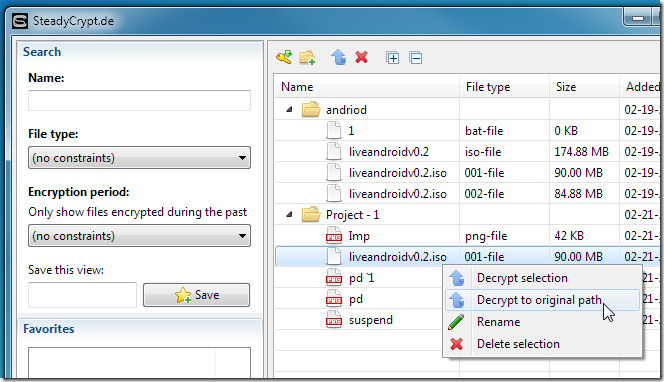
SteadyCrypt is a file encryption tool for Windows that allows users to quickly and easily protect confidential files. Instead of requiring users to understand complex cryptographic concepts, SteadyCrypt provides a simple drag-and-drop interface. You drag a file onto the application (or into a designated container), enter a master password, and the file becomes encrypted—unreadable to anyone without the password.
The software creates encrypted containers—secure virtual storage spaces where your files are protected. Once a file is inside a SteadyCrypt container, it cannot be accessed, viewed, or modified without the correct master password.
Key features at a glance:
- Simple drag-and-drop functionality – No command line, no complex settings
- Master password protection – One password secures all your encrypted files
- Encrypted containers – Files are stored in secure, password-protected containers
- Prevents unauthorized usage – Encrypted files cannot be opened or modified
- Lightweight and fast – Encrypts files quickly without system slowdown
- Free to use – No cost for the encryption features
Who is SteadyCrypt for?
- Home users protecting tax documents, financial records, or personal photos
- Small business owners securing client information and contracts
- Students protecting research data and sensitive academic files
- Journalists and activists safeguarding confidential sources and materials
- Anyone who wants simple, strong encryption without learning complicated software
Why Encryption Matters in 2026
The Threats You Face Every Day
Every time you store a file on your computer, you are exposed to potential threats:
| Threat | Description |
|---|---|
| Data breaches | Hackers steal files from cloud services or servers |
| Lost or stolen devices | Laptops or USB drives containing sensitive information |
| Insider threats | Someone with physical access to your computer (family, coworkers, repair technicians) |
| Ransomware | Malware that encrypts your files unless you pay |
| Government or employer surveillance | Unauthorized access to your personal files |
What Encryption Does
Encryption transforms readable data (plaintext) into unreadable gibberish (ciphertext) using a mathematical algorithm and a secret key (your password). Without that password, the encrypted file is meaningless—even to the most powerful computers.
Plaintext (readable): My tax return shows I earned $50,000.
Encrypted (unreadable): 7b3d2f9e8a1c4b6d0e5f8a3c2b1d9e7f5a3b2c1d4e6f8a9b7c5d3e1f2a4b6c8d0
Encryption vs. Password Protection
Many people think password-protecting a Word document or ZIP file is sufficient. It is not. These protections are often trivially easy to bypass with free software available online. True encryption (like what SteadyCrypt provides) is mathematically secure.
| Feature | Password Protection (Word/PDF/ZIP) | True Encryption (SteadyCrypt) |
|---|---|---|
| Security level | Low (easily bypassed) | High (mathematically secure) |
| Algorithm strength | Weak or proprietary | Standard encryption (AES) |
| Recovery options | Often none if password forgotten | None (by design) |
| File size limit | Yes | No |
| Ease of use | Simple | Simple (with SteadyCrypt) |
How SteadyCrypt Works
The Master Password System
SteadyCrypt uses a master password approach. Instead of creating a unique password for each encrypted file, you set one master password when you install or first run the software. That master password is used to secure all containers and files.
Advantages:
- You only need to remember one strong password
- Consistent security across all protected files
- Easier to manage for non-technical users
Disadvantages:
- If someone obtains your master password, they can decrypt all your files
- If you forget your master password, you lose access to all encrypted files
Critical advice: Choose a strong, memorable master password. Write it down and store it in a secure location (like a safe, not a sticky note on your monitor). Losing your master password means losing your encrypted files permanently.
Drag-and-Drop Encryption
The software supports simple drag-and-drop functionality:
- Drag a file or folder from Windows Explorer
- Drop it onto the SteadyCrypt application window (or into an open container)
- Enter your master password (if not already unlocked)
- Done – your file is now encrypted
This simplicity makes SteadyCrypt accessible to users who would be intimidated by command-line encryption tools like GnuPG or OpenSSL.
Encrypted Containers
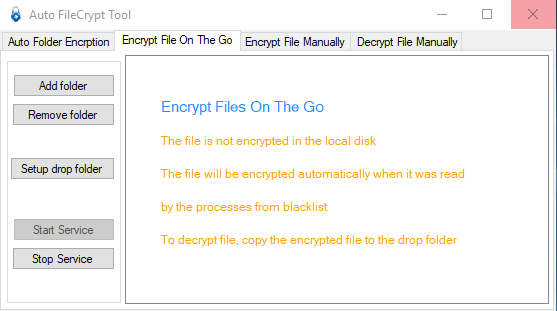
SteadyCrypt uses the concept of encrypted containers—virtual storage spaces that act like encrypted folders or drives.
How containers work:
- The container appears as a file on your hard drive
- When unlocked with the master password, it mounts as a virtual drive (like a USB stick)
- Files placed inside are automatically encrypted
- When you “close” the container, files become inaccessible
This approach allows you to organize encrypted files just as you would normal files, without manually encrypting each one individually.
Prevent Unauthorized Usage
Once a file is encrypted with SteadyCrypt, it cannot be used in any way without the correct master password. This means:
- Cannot be opened
- Cannot be viewed
- Cannot be copied (the encrypted file can be copied, but the content remains encrypted)
- Cannot be modified (modifying the encrypted file renders it unreadable)
This “deny by default” approach ensures maximum protection.
Technical Requirements
| Requirement | Details |
|---|---|
| Operating System | Windows Vista, 7, 10 (and likely Windows 11) |
| Additional Requirements | Java (must be installed on your system) |
| Version | 2.4 (latest as of publication) |
| Total Downloads (CNET) | 161 (small but growing user base) |
| Recent Downloads | 12 per week |
Note about Java: SteadyCrypt requires Java to run. If you do not already have Java installed, you will need to download it from the official Java website. Java is a widely-used runtime environment that many desktop applications require.
How to Use SteadyCrypt: Step-by-Step
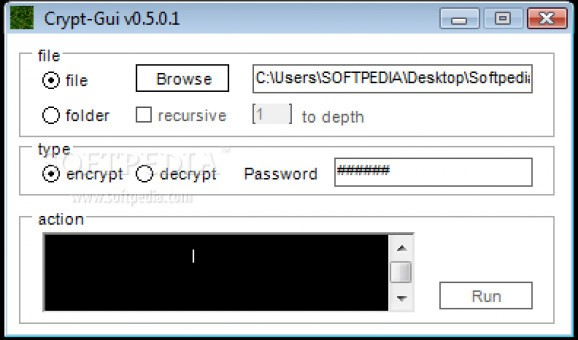
Installation
- Download SteadyCrypt from CNET Download or the developer’s website
- Install the software (follow the installation wizard)
- Ensure Java is installed (if not, download from java.com)
- Launch SteadyCrypt
- Set your master password (first-time setup)
Creating an Encrypted Container
- Open SteadyCrypt
- Click “Create New Container” (or similar)
- Choose a location and filename for the container (e.g.,
MySecrets.sdc) - Set the container size (if configurable)
- Your master password will be used to secure it
Adding Files to the Container
- Open the container (enter master password)
- Drag and drop files from Windows Explorer into the container window
- Close the container when finished
Adding Files via Drag-and-Drop (Without Container)
- Drag a file from Windows Explorer
- Drop it onto the SteadyCrypt icon or application window
- Enter master password
- The file is encrypted (likely saved with a
.encextension or similar)
Opening Encrypted Files
- Double-click the encrypted file (or drag it onto SteadyCrypt)
- Enter master password
- The file is decrypted and opened (either temporarily or saved as a decrypted copy)
Best Practices
Do:
- Use a strong master password (at least 12 characters, mix of letters, numbers, and symbols)
- Store the master password in a secure location (password manager, safe)
- Back up your encrypted containers to external media or cloud storage
- Test decryption before deleting original files
- Keep Java updated for security patches
Don’t:
- Forget your master password (data loss is permanent)
- Share your master password with anyone
- Store the master password in an unencrypted file on your computer
- Assume encryption alone makes your system secure (you still need antivirus, firewall, updates)
SteadyCrypt vs. Other Encryption Tools
| Feature | SteadyCrypt | VeraCrypt | 7-Zip (Encryption) | BitLocker | GnuPG |
|---|---|---|---|---|---|
| Ease of use | Very easy (drag-drop) | Moderate | Easy | Easy | Difficult |
| Full-disk encryption | No | Yes | No | Yes | No |
| File/folder encryption | Yes | Yes (containers) | Yes (archives) | No (full disk) | Yes |
| On-the-fly mounting | Yes (containers) | Yes | No | Yes | No |
| Open source | No | Yes | Yes | No | Yes |
| Windows compatibility | Yes | Yes | Yes | Pro/Enterprise only | Yes |
| Requires Java | Yes | No | No | No | No |
When to Choose SteadyCrypt
Choose SteadyCrypt if:
- You want the simplest possible encryption experience
- You prefer drag-and-drop over command lines or complex settings
- You need to encrypt individual files and folders (not entire drives)
- You already have Java installed or do not mind installing it
When to Choose Alternatives
Choose VeraCrypt if:
- You need full-disk encryption (encrypt entire hard drive)
- You want open-source, audited encryption
- You need cross-platform support (Windows, Mac, Linux)
Choose 7-Zip if:
- You already use 7-Zip for compression
- You only need occasional encryption of ZIP archives
- You prefer a tool with no Java requirement
Choose BitLocker if:
- You have Windows Pro/Enterprise
- You need full-disk encryption with TPM integration
- You trust Microsoft’s implementation
Common Use Cases for SteadyCrypt
Protecting Tax and Financial Documents
Your tax returns, bank statements, and investment records contain sensitive information. Encrypt them with SteadyCrypt to prevent identity theft if your computer is lost or stolen.
Securing Medical Records
Personal health information is valuable to identity thieves. Keep your medical records, test results, and insurance documents in an encrypted container.
Safeguarding Personal Photos
Not all photos are meant for public viewing. Protect intimate or sensitive images with strong encryption.
Protecting Business Client Data
If you work with client information, confidentiality agreements may require you to secure that data. SteadyCrypt provides a simple way to meet those obligations.
Securing Research Data
Students, academics, and researchers often work with proprietary or confidential data. Encryption prevents unauthorized access if your laptop is stolen.
Traveling with Sensitive Files
When crossing borders, authorities may demand access to your electronic devices. Having your sensitive files encrypted (and the encryption software not obviously installed) can protect your privacy.
Frequently Asked Questions (FAQs)
1. Is SteadyCrypt really free to use?
Yes, SteadyCrypt is completely free to download and use. There are no premium versions, subscription fees, or in-app purchases. The software is supported by the developer (likely as a passion project or portfolio piece).
2. What encryption algorithm does SteadyCrypt use?
The source page does not specify the encryption algorithm. Based on similar tools, SteadyCrypt likely uses AES-256, the industry standard for file encryption. AES (Advanced Encryption Standard) with a 256-bit key is considered secure enough to protect classified government documents.
3. Can I use SteadyCrypt on Mac or Linux?
No, SteadyCrypt is a Windows-only application. It requires Windows operating systems (Vista through 10/11) and the Java runtime. Mac and Linux users should consider VeraCrypt (cross-platform) or GnuPG (command-line).
4. What happens if I forget my SteadyCrypt master password?
If you forget your master password, your encrypted files are lost forever. SteadyCrypt does not have a “forgot password” feature or backdoor. This is by design—any backdoor that allows password recovery could also be exploited by attackers. Write your master password down and store it securely.
5. Does SteadyCrypt work with cloud storage (Dropbox, Google Drive, OneDrive)?
Yes, you can store SteadyCrypt encrypted containers (or individual encrypted files) in cloud storage services. However, be aware that:
- The encrypted files are still protected by your master password
- Cloud providers cannot read the encrypted content
- You must have the master password to decrypt on another device
- Make sure you do not accidentally sync the decrypted version
6. How do I know SteadyCrypt is secure?
SteadyCrypt has a small user base (161 total downloads on CNET), which means it has not been extensively audited by security professionals. For extremely sensitive data (trade secrets, national security information), consider using well-audited open-source tools like VeraCrypt instead. For typical home and small business use, SteadyCrypt is likely sufficient, but understand the risks.
7. Why does SteadyCrypt require Java?
The developer chose to write SteadyCrypt in Java, which allows it to run on any system with a Java Virtual Machine (JVM). Java was a popular choice for cross-platform desktop applications in the 2000s and 2010s. The downside is that users must install Java separately if not already present.
8. Can I encrypt entire folders with SteadyCrypt?
While the source page does not explicitly state folder encryption, drag-and-drop functionality typically works with folders. If not, you can:
- Create an encrypted container and add the folder’s contents
- ZIP the folder first, then encrypt the ZIP file
- Use alternative software for folder encryption
9. Is SteadyCrypt still actively maintained?
The version number (2.4) and relatively low download numbers suggest SteadyCrypt may be a mature, stable project without frequent updates. As long as it works on your version of Windows, active maintenance is not strictly necessary for security (encryption algorithms do not change). However, lack of updates could mean unfixed bugs or compatibility issues with future Windows versions.
10. How do I securely delete the original unencrypted files?
SteadyCrypt encrypts files but does not automatically delete the originals. You must delete them yourself. However, normal deletion (Recycle Bin) does not actually remove data from your hard drive—it only marks the space as available. To securely delete files, use a tool like Eraser or CCleaner that overwrites the data multiple times.
11. Can I use SteadyCrypt on a USB drive (portable mode)?
If SteadyCrypt is a standard installer, it may not be portable. However, you can:
- Install SteadyCrypt on a USB drive (if the installer allows selecting installation location)
- Use a portable encryption tool instead (e.g., VeraCrypt Portable)
- Encrypt files on your main computer, then copy the encrypted versions to the USB drive
12. What should I do before encrypting important files?
Before encrypting any file:
- Back up the original to external media (encrypted backup is even better)
- Test decryption with a sample file to ensure you remember the master password
- Verify the decrypted file is identical to the original
- Securely delete the original if you are certain the encrypted version works
Never rely solely on encryption without backups.
The Importance of Strong Passwords
Your SteadyCrypt master password is the only thing protecting your encrypted files. Make it strong.
Characteristics of a Strong Password
- Length: At least 12 characters (16+ is better)
- Complexity: Mix of uppercase, lowercase, numbers, and symbols
- Uniqueness: Not used for any other account
- Unpredictability: Not a dictionary word, name, or date
Examples of Weak vs. Strong Passwords
| Weak Password | Why It is Weak | Strong Password |
|---|---|---|
| password123 | Common dictionary word + numbers | S5!gH9$mQ2@rL8# |
| Fluffy2024 | Pet name + year | 4pP7#sD1&kL9$mN2 |
| mybirthday | Date pattern | 8uH3%zF2^tJ6*wR1 |
| qwerty | Keyboard pattern | 2yW5#gH8$jM3?kL0 |
How to Remember Strong Passwords
- Use a password manager (Bitwarden, Keepass, 1Password, LastPass) to store all your passwords. You only need to remember one strong master password for the password manager itself.
- Create a memorable passphrase with random words and substitutions (e.g., “CorrectHorseBatteryStaple” but with numbers/symbols).
Conclusion: Simple Security for Everyone
SteadyCrypt solves a real problem: most people do not encrypt their files because existing tools are too complicated. By offering drag-and-drop simplicity, master password convenience, and encrypted containers, SteadyCrypt lowers the barrier to entry for file encryption.
It is not the most feature-rich encryption tool. It does not offer full-disk encryption, open-source transparency, or cross-platform support. But for Windows users who want to quickly protect a few sensitive files without learning complex software, SteadyCrypt is an excellent choice.
The low download count (161 total, 12 per week) suggests SteadyCrypt is a niche tool, but that does not diminish its utility. For the right user—someone with basic Windows and Java knowledge, who needs simple but strong encryption—it may be exactly the solution they have been searching for.
Remember: encryption is only one part of digital security. Keep your system updated, use antivirus software, back up your data, and practice safe browsing. But when it comes to protecting specific files from prying eyes, SteadyCrypt offers a fast, free, and friendly solution..