Neat Download Manager – A Lightweight Powerhouse for Fast, Reliable Downloads
In an age where our digital lives depend on downloading everything from critical work documents and software updates to high-definition movies and large game files, the default download manager in your web browser often feels like a relic of the dial-up era. Browsers like Chrome, Firefox, and Edge have built-in download capabilities, but they lack advanced features, often falter with large files, and offer little control over the process. A stalled download at 98% is a universally frustrating experience that can waste time and bandwidth.
This is where dedicated download managers step in to revolutionize your file-grabbing experience. Among the many options available, Neat Download Manager (NDM) has emerged as a standout, celebrated for its perfect blend of simplicity, speed, and a completely free price tag. This comprehensive guide will explore everything you need to know about Neat Download Manager, from its core features and setup process to how it compares to its paid rival, Internet Download Manager (IDM). Whether you’re a student downloading course materials, a professional handling large datasets, or just someone who wants faster, more reliable downloads, this article will show you why NDM deserves a permanent spot on your PC or Mac.
What is Neat Download Manager and Who is it For?
Neat Download Manager is a free, open-source, and lightweight utility designed to accelerate, manage, and simplify your file downloads. The brainchild of developer Javad Motallebi, NDM was created to offer a no-nonsense alternative to complicated and often expensive download managers . Its primary purpose is to tackle the shortcomings of browser-based downloads, providing users with a more robust, stable, and efficient tool.
NDM is an ideal choice for a wide spectrum of users:
- Students and Researchers: For downloading large PDFs, datasets, academic papers, and lecture videos without worrying about interruptions.
- Remote Workers and Professionals: For reliable downloading of hefty software installers, system images, and cloud-synced project files.
- Casual Users: For anyone tired of their browser crashing during a download or wanting to download videos from social media and other sites with a single click .
- PC Enthusiasts and Gamers: For obtaining massive game files, mods, and patches quickly and managing them efficiently.
- Users with Unstable Internet Connections: The robust pause-and-resume feature is a lifesaver for those who don’t have a consistent, high-speed connection.
The Core Technology Behind NDM: How It Achieves Blazing Speeds
At the heart of Neat Download Manager’s impressive performance is a technology called multi-threaded download acceleration, also known as dynamic segmentation. Understanding this principle is key to appreciating how NDM, and tools like it, can dramatically cut down your waiting times.
Breaking the Bottleneck: Why Single-Thread Downloads are Slow
When you download a file using your browser, it typically establishes a single connection (or “thread”) to the server hosting the file. Think of it as a single-lane highway. Even if your internet connection has the capacity for a multi-lane superhighway, a browser’s single-thread download is bottlenecked. Furthermore, if this single connection experiences interference or drops, the whole download fails, and you have to start from scratch.
The Multi-Threaded Revolution: Parallel Downloads Explained
Neat Download Manager tackles this issue with a smarter approach. It splits the file you want to download into multiple smaller segments. It then establishes several simultaneous connections to the server and downloads these segments in parallel—a process akin to opening up multiple lanes on that highway . Here’s a step-by-step breakdown:
- File Analysis: When you start a download, NDM communicates with the server to determine the file’s size and if it supports partial downloads (a crucial requirement for multi-threading).
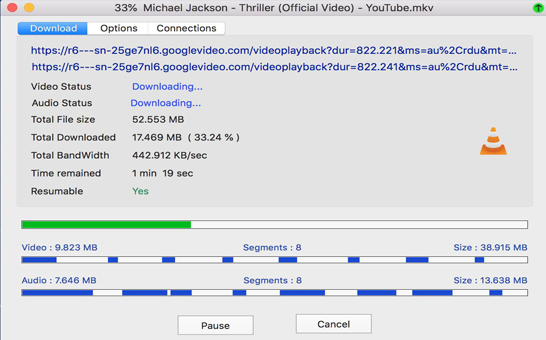
- Segmentation: It then logically divides the file into a set number of pieces (the default is often 8, but can be configured up to 32).
- Parallel Fetching: The software initiates multiple download connections, with each thread responsible for fetching a different segment of the file.
- Data Aggregation: As the segments are downloaded, NDM receives them and assembles them in the correct order on your local storage.
- Completion: Once all segments are successfully downloaded and assembled, the file is complete and ready to use.
The result is a dramatic increase in download speed, often maxing out your available bandwidth, making NDM significantly faster than a standard browser download . In user tests, both NDM and the popular paid tool IDM have been observed to reach peak speeds around 24 MB/s or higher, essentially saturating the user’s internet connection .
Key Features That Make Neat Download Manager a Must-Have
Beyond its core acceleration technology, NDM is packed with features that make it a joy to use.
Browser Integration: The Seamless Download Capture
One of NDM’s most convenient features is its deep integration with web browsers. To make this work, you install a companion extension for your browser of choice, including Chrome, Firefox, Edge, Opera, and other Chromium-based browsers like Brave or Vivaldi .
Once installed, NDM can automatically intercept download links. This means when you click on a download link in your browser, NDM will automatically launch and take over the task instead of using the browser’s built-in manager. This creates a seamless workflow where the download speed and management are handled by a far superior tool without any extra effort on your part.
Pause and Resume: Your Insurance Against Connection Drops
For users with unreliable internet, this feature is nothing short of essential. If your Wi-Fi drops out, you lose power, or you need to shut down your computer, a traditional browser download would be lost. NDM allows you to pause a download at any point and resume it later from where it left off . This not only saves time and bandwidth but also spares you the immense frustration of restarting a massive download from zero.
Bandwidth Control and Connection Management
Powerful as it is, a download accelerator can consume all your available bandwidth, potentially slowing down other online activities like web browsing, streaming, or online gaming. NDM provides excellent tools to manage this:
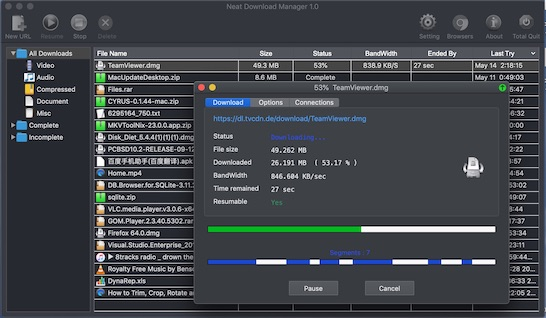
- Bandwidth Limit: You can manually set a cap on how much of your internet speed NDM can use, ensuring you can browse or stream while a large file is downloading in the background .
- Max Connections per Download: For advanced users, you can adjust the number of threads NDM uses for a single download . While higher numbers can sometimes increase speed, it’s best to leave this at the default unless you know what you’re doing, as too many connections can overwhelm a server.
Download Organization and File Management
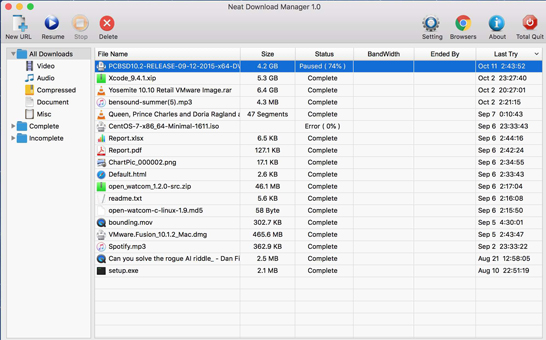
A cluttered “Downloads” folder is a universal nuisance. NDM helps you stay organized by automatically sorting your downloaded files. It can categorize them by type, such as Video, Document, Archive, and more, and it clearly shows the status of each download: Complete, Incomplete, or All Downloads . This simple management view provides a clear snapshot of your download activity, making file management a breeze.
Additional Noteworthy Features
- HLS/TS Stream Downloading: NDM has the unique capability to download HTTP Live Streaming (HLS) video segments (which are often in .ts format) and merge them into a single, playable video file. This is incredibly useful for grabbing video content that isn’t directly downloadable from a webpage .
- Media Detection: When integrated with your browser, NDM can detect downloadable media on a page, offering a quick “Download” button overlay. This has proven effective for sites like Facebook, Twitter, and SoundCloud, though results can vary, especially on encrypted streaming platforms .
- Protocol Support: NDM supports HTTP, HTTPS, and FTP protocols, ensuring compatibility with the vast majority of download sources on the internet .
- Cross-Platform Availability: One of NDM’s major strengths is that it’s available for both Windows (7, 8, 8.1, 10, 11) and macOS (10.10 and above), offering a consistent experience for users who work on both operating systems .
Getting Started: A Step-by-Step Installation Guide
Setting up Neat Download Manager is a quick and straightforward process. Here’s a guide to get you up and running.
Step 1: Download the Installer
Head to the official Neat Download Manager website to download the latest version. The installer is incredibly small, often less than 1 MB, making it one of the lightest download managers available . You can download it for Windows or macOS.
Step 2: Install the Application
For Windows, run the downloaded .exe file. The installation process is standard and simple: accept the license agreement, choose your install location (the default is fine for most), and proceed. For macOS, open the .dmg file and drag the NDM application to your Applications folder. The process is fast and won’t take more than a minute.
Step 3: Configure Your Settings (Optional but Recommended)
Upon launching NDM for the first time, it’s a good idea to open the Options or Settings menu to configure it to your liking. Key settings to adjust include:
- Download Directory: Set your preferred default folder for all downloads.
- Temporary Directory: NDM can use a separate folder for partially downloaded files.
- Language: While the interface is in English, you can explore if other language options are available.
Step 4: Install the Browser Extension (Crucial for Best Experience)
For NDM to fully integrate with your web browsing, you must install its companion extension. In the NDM application, click on the “Browsers” tab or button, which will present you with links to the official extension stores for Chrome, Firefox, and Edge .
Click the link for your preferred browser and install the extension like you would any other. Once installed, it will often be represented by a small, inactive icon in your browser’s toolbar.
Step 5: Start Downloading!
With the app installed and the browser extension active, NDM is ready to go. To test it, find a file to download—like a large software installer or a Linux distribution. The moment you click the download link, the NDM application should pop up and take over the task. If it doesn’t, you can right-click on any download link and select the “Download by NeatDownloadManager” option from the context menu .
Comparing the Contenders: NDM vs. IDM
In the world of download managers, Internet Download Manager (IDM) is the undisputed heavyweight champion—a powerful, feature-rich tool that has been the industry standard for many years. However, IDM is not free, costing around $30 for a license . This often leads to the question: Is Neat Download Manager a good alternative to IDM?
The short answer is yes, NDM is widely regarded as the best free alternative to IDM, and in many cases, it is more than sufficient for the average user . Let’s break down the comparison.
| Feature & Aspect | Neat Download Manager (NDM) | Internet Download Manager (IDM) |
|---|---|---|
| Cost | Completely Free | Paid (approx. $30) |
| Core Technology | Multi-threaded download acceleration. Highly effective at saturating bandwidth . | Dynamic multi-threaded acceleration with advanced algorithms for even more granular speed optimization . |
| Browser Integration | Excellent. Supports Chrome, Firefox, Edge, Opera, and other Chromium browsers . | Excellent. Supports all major browsers with deep integration. |
| Video Downloading | Good. Can download HLS streams and videos from many popular sites (Facebook, Twitter). May struggle with encrypted sites . | Superior. Features powerful media and video download detection for many sites, including encrypted streaming services. |
| Interface | Simple and Lightweight. Very easy to use and understand. Offers a no-frills, clean experience . | Feature-Rich but Complex. The interface is packed with options, which can be overwhelming for some users. |
| Advanced Features | Limited. Lacks advanced automation, extensive scheduling, and scripting options . | Extensive. Supports detailed scheduling, advanced automation, site-specific settings, and scripting . |
| File Organization | Basic. Organizes by file type and status (Complete/Incomplete) . | Advanced. Offers customizable categories, file renaming, and more detailed organizational options. |
| System Footprint | Extremely Lightweight. The installer is under 1 MB, and it uses very few system resources . | Heavier. The installer is significantly larger, and the application uses more memory and CPU resources. |
| Platform Support | Windows & macOS . | Windows only (officially). While there are ways to run it on macOS, it is not officially supported. |
The Verdict: Which One Should You Choose?
- Choose Neat Download Manager if: You are a cost-conscious user who wants a fast, reliable, and simple download manager. It is perfect for 80% of users who just need to accelerate downloads, manage files better, and ensure stability . Its cross-platform support and incredibly small footprint make it a winner for those with older systems or who switch between Windows and Mac.
- Choose Internet Download Manager if: You are a “power user” or professional who needs advanced features like complex scheduling, automation, and scripting. You also require superior video downloading capabilities for encrypted sites and are willing to pay a premium for the extra features and the peace of mind of a long-established, polished tool . It is also the clear choice if you are a pure Windows user who wants the absolute best performance and feature set, regardless of cost.
As one user on a tech forum aptly put it, for “pure download” functionality, NDM is competitive with or even superior to its rivals, while IDM’s advantage lies in its comprehensive feature set .
Addressing the Limitations: Where NDM Falls Short
While Neat Download Manager is an exceptional tool, it’s important to have realistic expectations. Its simplicity and free price point mean it does have some limitations.
1. Lacks Advanced Automation and Scheduling
For users who want to set up complex download schedules (e.g., downloading files at 2 AM to save bandwidth) or automate tasks, NDM is not the answer. It offers very basic bandwidth control but lacks the deep automation features, site-specific rules, and scripting capabilities that power users might rely on .
2. Limited “Power User” Customization
Compared to tools like IDM, NDM offers limited options for customizing its behavior. You can’t set up intricate file categories, create rules for renaming files, or filter URL types. This is a deliberate design choice to keep the software simple and lightweight, but it won’t suit everyone .
3. Basic Interface Lacks Advanced Workflow Control
The interface is clean, but for some, it may appear too basic. It doesn’t offer deep workflow controls, multiple views, or detailed columns of information, which advanced users may want to monitor their downloads in granular detail .
4. No Built-in Malware or Virus Scanning
Unlike some download managers that offer integrated security scanning, NDM does not come with this feature. This means it’s more important than ever to rely on your antivirus software to scan your completed downloads for potential threats .
5. Occasional Media Detection Inconsistencies
While NDM’s browser extension is great at detecting downloadable links, some users have noted it can be inconsistent, especially on newer or heavily encrypted streaming platforms. For example, while it works well on Facebook or Twitter, it might fail to detect videos on Instagram or YouTube .
Tips and Tricks for Optimizing Your NDM Experience
To make the most out of Neat Download Manager, consider these simple tips:
- Right-Click to Download: If a download doesn’t automatically get captured by NDM, simply right-click on the download link and select the “Download by NeatDownloadManager” option from the context menu .
- Temporarily Disable for Specific Downloads: If you encounter a website where NDM doesn’t work correctly, you can bypass it. For instance, holding the ‘Delete’ key while clicking a download link in some browsers will force the download to use the browser’s default manager instead .
- Adjust the Maximum Connections Per Download with Care: While it’s tempting to crank up the connections to the maximum of 32, this can sometimes backfire. It can stress the server, leading to a slower overall speed or even a blocked IP. The default setting is usually optimal .
- Use a Dedicated Temporary Directory: Setting a specific temporary directory in the options can help keep your system organized and make it easier to clear up space used by incomplete downloads.
- Keep the Extension Updated: Your browser updates frequently, and so do its extension standards. Make sure your NDM browser extension is up to date to ensure flawless integration and security.
Conclusion: Is Neat Download Manager Right for You?
In the crowded landscape of download managers, Neat Download Manager has carved out a significant and well-deserved niche. It brilliantly addresses the core needs of most users: speed, stability, and simplicity. By leveraging multi-threaded acceleration, it dramatically speeds up your downloads, while its robust pause-and-resume features protect you from the agony of failed transfers. Its seamless browser integration and minimal system footprint make it an invisible yet invaluable part of your daily digital toolkit.
While it may lack the deep automation and extensive customization that a small subset of power users require, its free price tag and cross-platform availability make it an unbeatable proposition for the vast majority . For those tired of the limitations of their browser’s download manager and seeking a reliable, high-performance, and cost-effective solution, Neat Download Manager is not just a good choice; it’s the best choice. It transforms a mundane chore into a fast, efficient, and worry-free process, proving that the most effective tools are often the ones that do one thing incredibly well.
Frequently Asked Questions (FAQs)
1. Is Neat Download Manager completely free?
Yes, Neat Download Manager is completely free to download and use. There are no hidden costs, subscription fees, or premium versions, which makes it a compelling open-source alternative to paid tools .
2. Does Neat Download Manager support downloading torrents?
No, Neat Download Manager is designed specifically for direct downloads. It does not have built-in support for the BitTorrent protocol and cannot download or manage .torrent files .
3. Is Neat Download Manager safe and free from malware?
Yes, NDM is a legitimate and safe application. It is known for having a clean installer with no bundled adware or toolbars, which is a common issue with other free software. It’s always recommended to download it directly from the official website to ensure safety .
4. Can Neat Download Manager download videos from YouTube?
While NDM has powerful media detection capabilities, it typically does not work with highly encrypted sites like YouTube. It is more effective on platforms such as Facebook, Twitter, and SoundCloud .
5. How can I delete my download history in Neat Download Manager?
One of the noted downsides of NDM is its limited history management. Some users have found it tedious to delete download history, as there is no bulk-clear or auto-clear function. You may need to manually delete entries one by one or explore the application’s folders for a history file to remove, though this is not a straightforward process .