Microsoft PC Manager 2026 – Is This Free Tool Worth Your Time?
As your Windows PC ages, it’s natural for it to slow down. Heavy use, countless file transfers, and the general wear-and-tear of daily computing take their toll . Many people turn to third-party “system optimizer” tools to fix this, but these often come with aggressive ads, hidden costs, or even harmful side effects. Microsoft has stepped in to offer a free, official alternative: Microsoft PC Manager.
This review explores what this utility does, its key features, how it performs in real-world testing, and whether it’s actually worth adding to your system.
What is Microsoft PC Manager?
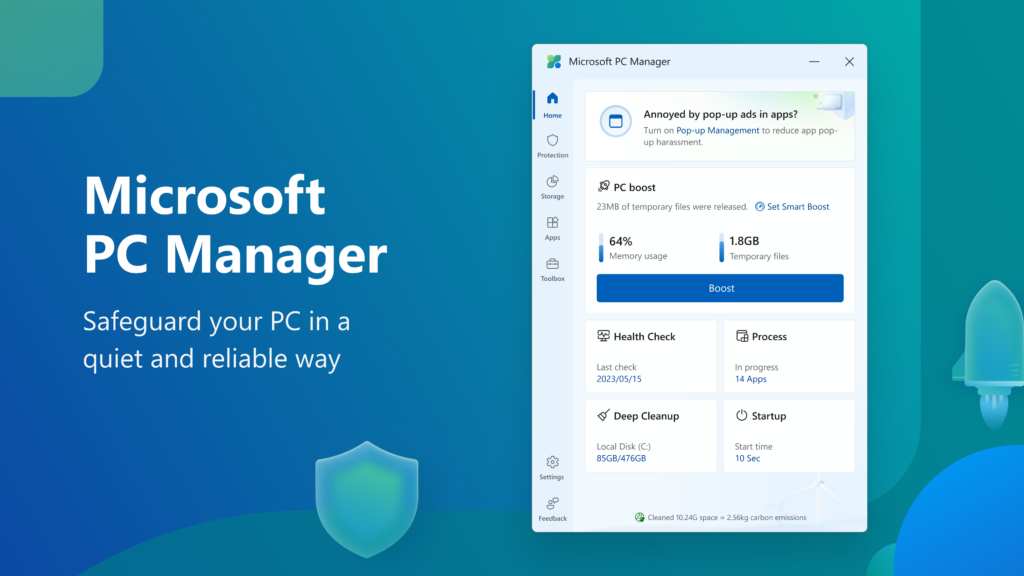
Microsoft PC Manager is a free maintenance app for Windows 10 and Windows 11 that brings together a suite of system tools into one easy-to-use interface . It’s designed to help you keep your PC running smoothly by managing tasks that were previously scattered across different menus, such as Task Manager, Disk Cleanup, and Settings . Microsoft PC Manager is currently available to download from the Microsoft Store and is a stable version of a tool that was originally released in beta in 2022.
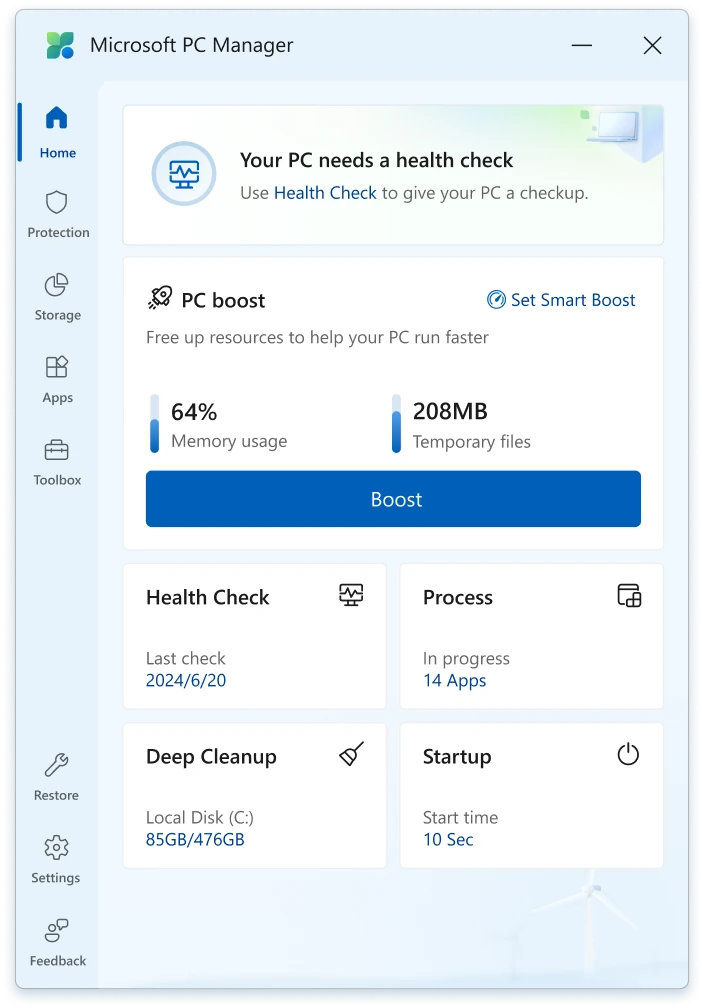
The program’s design is clean and approachable, featuring a central dashboard with big buttons. It avoids the scare tactics and “upsell” popups that make many cleanup apps feel questionable. This is a straightforward, no-nonsense utility that consolidates your computer’s maintenance in one place, but it is worth noting that it doesn’t typically introduce new features you couldn’t already find in Windows.
Key Features and What They Do
The Big Blue Boost Button
The main attraction on the Home screen is the large “Boost” button. When clicked, it clears temporary files and closes unnecessary background processes to free up system memory (RAM) . While it can give a small, short-term lift to performance, it is not a magic fix for a fundamentally slow PC .
Health Check
Consider this your PC’s physical exam. The Health Check scans for issues such as:
- Storage space: It identifies large files, duplicates, and temporary files you can safely delete.
- Startup impact: It shows which programs are slowing down your boot time and quantifies their impact .
- Security: It checks for virus protection and available Windows updates .
- Usage traces: It helps you clear browser history and Windows log files to improve privacy . One of the most useful features is its ability to suggest removing apps you haven’t used in over 30 days, freeing up significant disk space .
Storage Management
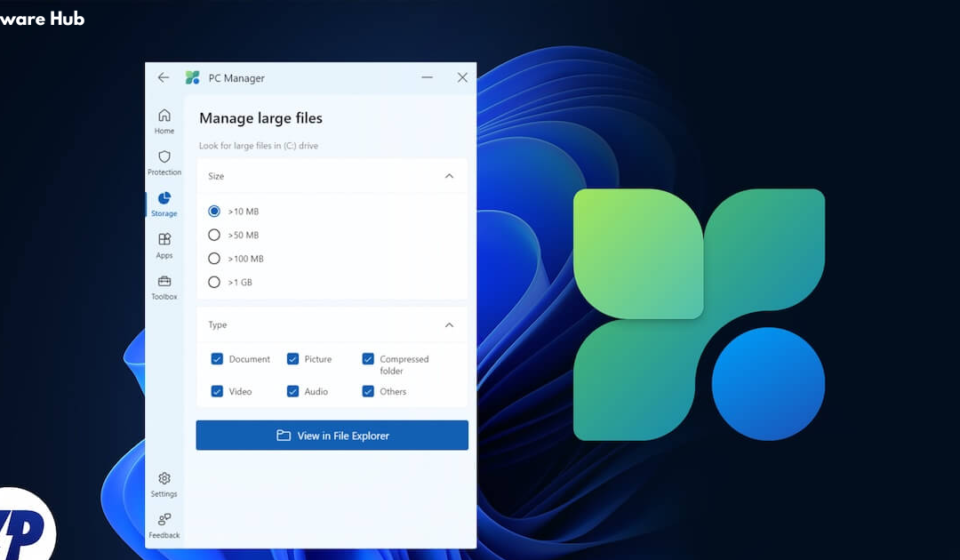
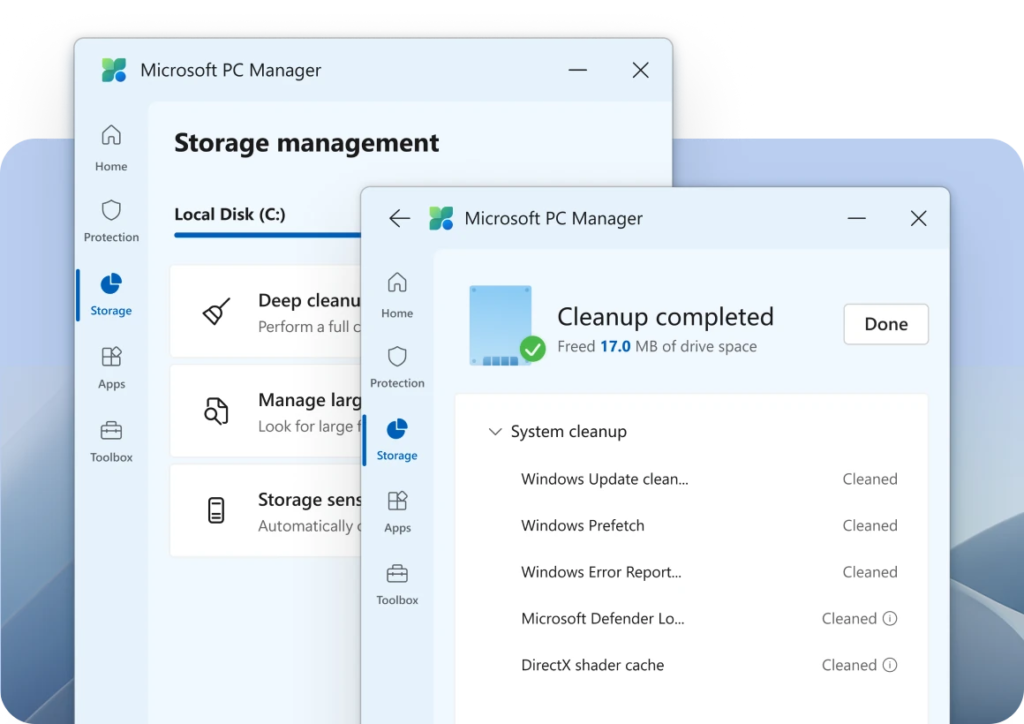
This section is a powerful tool for clearing clutter . You can perform a “deep cleanup” that goes beyond the standard Disk Cleanup utility, targeting cache files, system logs, and even browser data that can take up gigabytes of space . It also allows you to find and remove duplicate files, a common source of wasted storage.
Pop-Up Management
This built-in feature helps block annoying ads and pop-ups from third-party applications, allowing you to focus on your work without interruptions.
Toolbox & Mini Toolbar
The Toolbox provides quick access to useful utilities like the Snipping Tool, Notepad, and Calculator. It also features a mini-toolbar that floats on your desktop, showing system information like CPU usage and network speed . This provides useful system information at a glance without having to launch the full app.
Performance Review: Does It Actually Work?
After testing Microsoft PC Manager on a modern Windows 11 PC, here is the reality of its performance impact.
Modest Speed Gains
The “Boost” feature delivered a modest gain in benchmark scores. In one test, a PC’s PCMark 10 score improved by a mere 9 points immediately after clicking Boost . While this may not be noticeable in everyday use, it can be helpful on a more resource-constrained system. The boost is more of a quick cleanup than a major performance makeover .
Significant Storage Recovery
The “Health Check” and “Deep Cleanup” features are where PC Manager truly shines. Tests showed that the tool can identify and clean up multiple gigabytes of clutter. One user’s PC had 24.1GB of unnecessary files, including massive browser caches, shader caches, and old logs . Another user reported freeing up 9.1GB of disk space after running the recommended optimizations .
Honest Assessments
One of PC Manager’s strengths is its honesty. It won’t promise to make an old machine perform like new, but it will help you get rid of the digital clutter that is slowing it down. It is a useful tune-up tool, not a miracle cure .
The Drawbacks: What to Watch Out For
Aggressive Promotion of Microsoft Services
Perhaps the most significant criticism of Microsoft PC Manager is its built-in marketing. The “Restore default apps” feature in the Protection tab will reset your file associations, potentially making Edge your default browser for PDFs and web links . Web tools in the Toolbox, like the Currency Converter and Translator, also launch links in Microsoft Edge, regardless of your default browser preference .
No Registry Cleaning
Unlike some third-party optimizers, PC Manager does not touch the Windows Registry (except when using Deep Uninstall to remove leftover app entries). For some users, this is a drawback. However, Microsoft has historically recommended against using tools that modify the registry, as it can cause system instability .
Overlap with Existing Features
As many reviewers have pointed out, PC Manager doesn’t really do anything new . It pulls together features that already exist in Windows. While this is convenient, it raises a fair question: why isn’t this just part of Windows Settings already?
Should You Use It?
The answer depends on your comfort level with Windows.
Yes, You Should Try It If:
- You are not very tech-savvy. PC Manager provides a simple, guided interface for maintenance tasks that are buried in Settings menus .
- Your PC is experiencing obvious slowdowns due to junk files and too many startup apps. It can help you clean this up efficiently.
- You want a free, safe alternative to questionable third-party “optimizers.” It contains no ads, no scare tactics, and no paid upsells .
No, You Don’t Need It If:
- Your PC is running perfectly. If it is not broken, you don’t need to fix it.
- You are a power user. You likely already know where to find all of these tools (Task Manager, Disk Cleanup, etc.) and prefer to manage them yourself.
- You are worried about it pushing you toward Edge and other Microsoft products. The aggressive promotion can be a significant annoyance .
The Verdict: Not Essential, But a Great Maintenance Tool
Microsoft PC Manager is a well-designed app that makes PC maintenance more approachable. It’s not a game-changer that will magically transform an aging PC, but it serves as a useful and trustworthy tune-up tool . For less technical users, it’s a gentle guide to better PC health. For power users, it’s a convenient dashboard, but not essential. It is a free, official utility that is definitely worth a try.
Frequently Asked Questions (FAQs)
1. Is Microsoft PC Manager completely free to use?
Yes, Microsoft PC Manager is completely free. There are no in-app purchases or subscription fees. It is available to download from the Microsoft Store at no cost.
2. How does it compare to third-party cleaners like CCleaner?
PC Manager is more trustworthy and less intrusive than many third-party cleaners. It does not use scare tactics or aggressive ads to push a paid version. However, it offers fewer advanced features and does not clean the Windows Registry.
3. Will it make my slow PC feel new again?
No. PC Manager helps improve performance by clearing out digital clutter, but it cannot compensate for weak hardware. Its impact is most noticeable if your PC is slowed down by junk files or too many startup apps.
4. Is PC Manager safe to use?
Yes, it is an official tool developed by Microsoft. It doesn’t do anything dangerous to your system. You should still review items you choose to delete during the cleanup to ensure you don’t accidentally remove something important.
5. Is it already installed on my Windows PC?
No, Microsoft PC Manager does not come pre-installed with Windows. You must download it from the Microsoft Store. Given its usefulness, many reviewers have suggested that Microsoft should consider shipping it by default.
6. What features does Microsoft PC Manager offer?
PC Manager includes several useful features: a storage cleaner to remove junk and temporary files, a startup app manager to disable unnecessary programs that slow down boot times, a process manager to end resource-heavy tasks, and a system health check that scans for common issues affecting performance.
7. Can I use PC Manager alongside other antivirus or security software?
Yes, PC Manager is designed to work alongside your existing security software, including Windows Defender and third-party antivirus programs. It does not replace your antivirus but rather complements it by handling system maintenance and performance optimization tasks.
8. Does PC Manager have any ads or promotional pop-ups?
Unlike many free third-party cleaners, Microsoft PC Manager does not bombard you with ads or push notifications. It maintains a clean, professional interface focused on system management rather than upselling additional products or services.
9. What versions of Windows does PC Manager support?
Microsoft PC Manager is designed for Windows 10 and Windows 11. It is available through the Microsoft Store and requires a compatible version of these operating systems to function properly. Older versions like Windows 7 and Windows 8 are not supported.
10. How often should I use PC Manager to maintain my system?
For most users, running PC Manager once a week or every few weeks is sufficient to keep your system running smoothly. However, if you frequently install and uninstall software or notice your PC slowing down, you can run it more often. The tool provides on-demand scans so you can use it whenever you feel your system needs a quick cleanup.
Note: Microsoft PC Manager is a legitimate first-party utility from Microsoft, making it a trustworthy choice for basic PC maintenance. While it doesn’t offer the advanced features of some third-party tools, its safety, simplicity, and zero cost make it an excellent option for everyday users.