Spacedesk – Turning Your Devices into Extra Monitors
In today’s multitasking-driven world, screen real estate is a precious commodity. Whether you’re a student juggling research papers, a remote worker managing multiple communication channels, or a creative professional needing space for tool palettes, having a second monitor is no longer a luxury—it’s a productivity necessity.
But what if you could get that extra screen without spending a dime on new hardware? What if the tablet collecting dust on your shelf or the old laptop in your closet could be transformed into a functional, touch-enabled second display in minutes? This is where Spacedesk comes in, a software-based solution that promises to turn your Windows PC into a multi-monitor powerhouse using devices you already own.
This comprehensive guide explores everything about Spacedesk: what it is, how it works, its key features, setup process, performance expectations, and whether it’s the right tool for your needs. If you’ve ever wished for more screen space without the expense or complexity of traditional monitors, read on to discover how Spacedesk could be the answer.
What Is Spacedesk?
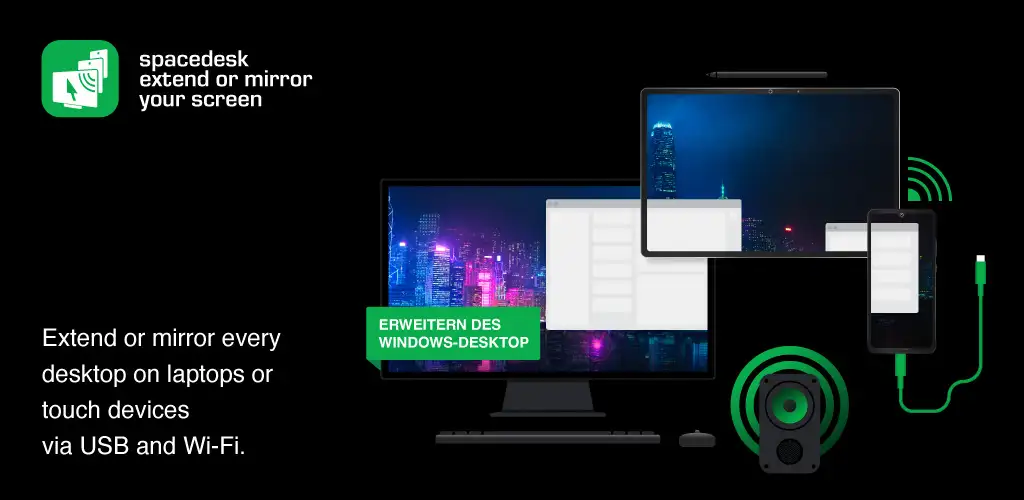
Spacedesk, developed by datronicsoft Technology GmbH, is a versatile software application that allows you to extend or mirror your Windows desktop to other devices over a local network . Essentially, it transforms your existing smartphones, tablets, laptops, and even other desktops into additional monitors for your primary Windows computer.
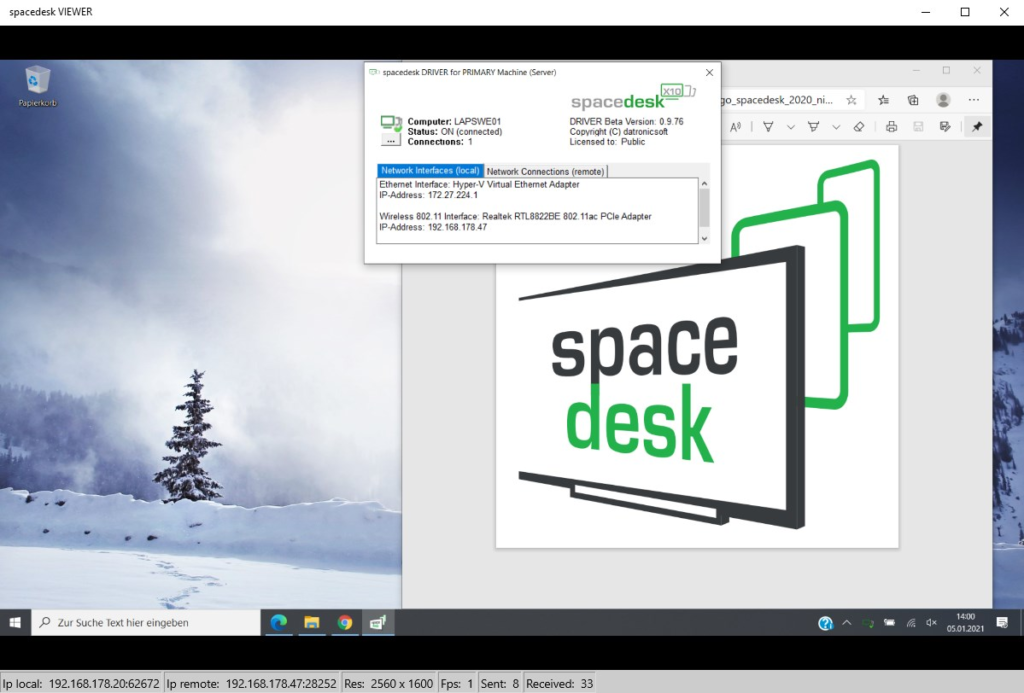
The software works via a client-server model. You install the Spacedesk Driver on your main Windows PC (the “server”). This driver acts as a virtual graphics adapter, creating additional displays that Windows recognizes just like a physically connected monitor . Then, you install a Spacedesk Viewer app on the device you want to use as a secondary screen (the “client”) or access the display through a web browser. The two devices then communicate over your network, streaming the desktop content from the server to the client .
Unlike traditional hardware solutions like HDMI or DisplayPort cables, Spacedesk transmits the video signal over standard TCP/IP network protocols . This means the connection can be over Wi-Fi, Ethernet, or even USB tethering. The result is a flexible and wireless way to add displays without the hassle of cables or the need for extra graphics ports.
Who Is Spacedesk For?
Spacedesk is designed for a broad audience, but it’s particularly appealing to those who value flexibility and cost-effectiveness .
Students and Educators: With the rise of digital learning, having a dual-screen setup can be a game-changer. Students can keep lecture notes on one screen while watching a video lecture on the other, or have research material open alongside a document editor. It is a budget-friendly way to enhance a study setup without investing in a new monitor .
Remote and Hybrid Workers: Working from home often means working from a single laptop screen. Spacedesk allows you to use a tablet or an old laptop as a secondary display for email, calendar, or your team’s chat application, freeing up your primary screen for focused work . This helps simulate a traditional office environment with multiple monitors.
Casual Users and Households: For anyone with a spare tablet or smartphone lying around, Spacedesk provides a practical way to put that old device to use. It can serve as a dedicated display for media controls, system monitoring, or just as an extra browser window .
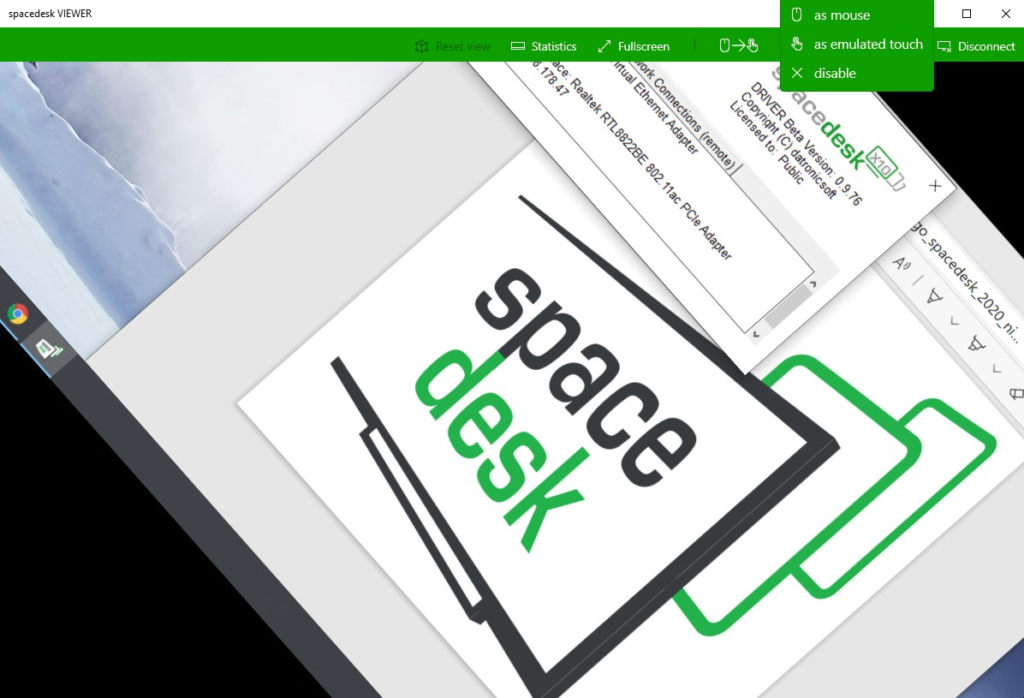
Creative and Design Work: While not a replacement for a high-end color-accurate monitor, Spacedesk’s support for stylus input turns touch-enabled tablets into a drawing tablet or a sketchpad . This can be useful for taking notes, sketching out ideas, or using creative software that benefits from a touch interface.
Presenters and Collaboration: Spacedesk’s mirroring and video wall features make it useful for presentations or informal meetings . You can quickly share your screen with a connected device or set up a larger display across multiple devices for digital signage.
Key Features and Capabilities
Spacedesk is packed with features that make it a versatile and powerful tool for display extension and remote control.
Desktop Extension and Mirroring
This is the core functionality of Spacedesk. It provides two primary modes for using your secondary devices:
- Desktop Extension: This mode turns your secondary device into an additional monitor, effectively expanding your workspace . You can drag windows, applications, and files from your primary screen to the secondary one, giving you more room to work. This is ideal for multitasking and maximizing productivity.
- Desktop Mirroring (Duplication): This mode clones your main display to the secondary device . Everything you see on your primary monitor is shown on the connected device. This is useful for giving presentations, showing your work to a colleague, or when you want the same view on a larger screen.
Remote Control and KVM Functionality
Beyond just display, Spacedesk functions as a software-based KVM (Keyboard, Video, Mouse) switch . This means you can control your primary Windows PC directly from your secondary device. If your tablet has a touchscreen, you can interact with windows on the extended desktop. You can also use a connected keyboard and mouse on the secondary device to control the main PC. This makes it a practical remote access and input solution .
Stylus and Touch Support
For users with touch-enabled devices like tablets, Spacedesk offers excellent input support . The software can transmit touch inputs and stylus pen data to the primary PC. This turns the tablet into a drawing tablet, allowing for direct input in creative apps. This feature is a key differentiator, making Spacedesk a practical choice for creative workflows .
Video Wall Configuration
A more unique feature of Spacedesk is the ability to create a video wall . You can arrange multiple connected devices into a larger display configuration. This setup is particularly useful for digital signage in retail, lobbies, or events, as well as for more immersive presentations or dashboards .
Audio Redirection
Spacedesk goes beyond video by also supporting audio playback . The software can redirect audio output from your primary Windows machine to your secondary device. For example, if you connect your PC to a tablet with better speakers, you can route the sound through the tablet’s speakers for an improved listening experience.
Broad Device Compatibility
One of Spacedesk’s greatest strengths is its cross-platform support, making it incredibly versatile :
- Primary Machine (Server): Runs on Windows 11, Windows 10, and Windows 8.1 .
- Secondary Devices (Client): Supports a wide range of platforms, including:
- Windows (via a dedicated viewer app)
- Android (via the Play Store app)
- iOS/iPadOS (via the App Store app)
- Web Browser (HTML5 browser viewer, making it compatible with almost any device with a modern browser)
System Requirements
Before diving into setup, it’s important to ensure your systems meet Spacedesk’s requirements. These are generally modest, contributing to its broad accessibility.
For the Primary Windows Machine (Server)
- Operating System: Windows 11 or Windows 10 (version 1607 and newer) . Windows 8.1 is also supported, but Windows 7 is no longer officially supported .
- Graphics Adapter: Most modern GPUs from NVIDIA, AMD, and Intel are supported, as well as the basic Windows display driver . The driver requires support for WDDM (Windows Display Driver Model) versions from 1.1 to 3.1 .
- DirectX: Version 9 through 12 is supported .
- Network: A stable local network connection (Wi-Fi or Ethernet) with TCP/IP protocol support .
For the Secondary Device (Viewer)
The requirements vary depending on the platform of the secondary device:
- For Android: Version 5.0 or later .
- For iOS/iPadOS: Version 9.3 or later .
- For Windows: Windows 11, 10, 8.1, or 7 with DirectX 10 or DirectX WARP support .
- For Browser Viewer: Any modern browser running on a device with a network connection.
Step-by-Step Setup Guide
Setting up Spacedesk is remarkably straightforward, even for non-technical users. Here’s a simple guide to get you started.
Step 1: Download and Install the Driver on Your Primary PC
- Go to the official Spacedesk website.
- Download the Spacedesk Driver for Windows.
- Run the installer file. During the installation, Windows Firewall may ask for permission to allow Spacedesk to communicate on the network. Ensure you grant this permission for private networks .
- Once installed, the Spacedesk Driver service will run automatically in the background. You can find its icon in the system tray. Verify that the service status is “On” .
Step 2: Download and Install the Viewer App on Your Secondary Device
- On the device you want to use as a second screen, download the appropriate Spacedesk Viewer app.
- For Android devices, get it from the Google Play Store.
- For iOS devices (iPhone, iPad), download it from the Apple App Store.
- For another Windows PC, you can download the Windows Viewer from the Spacedesk website.
- Install the app on your secondary device.
Step 3: Connect the Two Devices
- Ensure both your primary PC and secondary device are connected to the same local network. This can be the same Wi-Fi network, a wired Ethernet connection, or a USB tethering setup.
- Open the Spacedesk Viewer app on your secondary device.
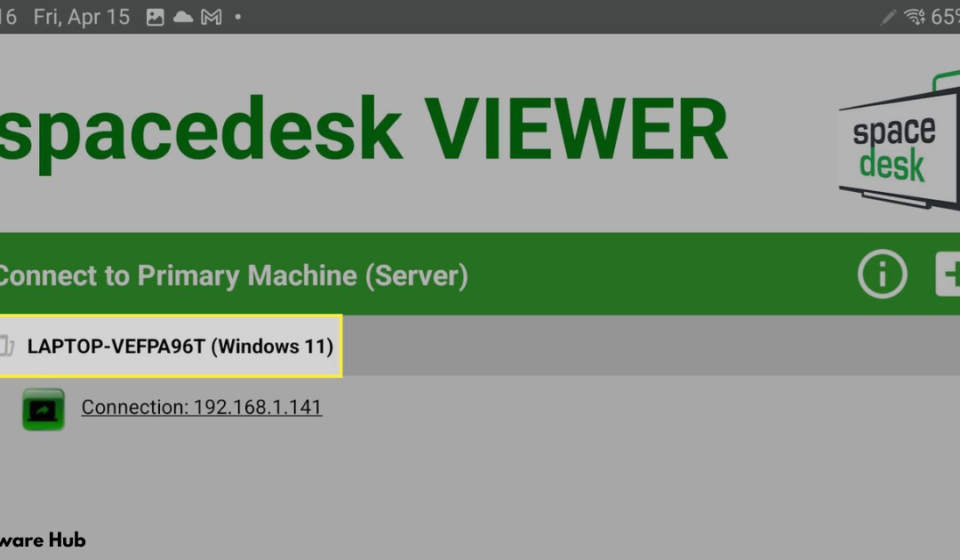
- The app should automatically scan the network and detect your primary Windows PC. It will typically list the computer’s name and IP address .
- Tap or click on the connection to initiate the display session.
Step 4: Configure Your Display Settings
- Once connected, the secondary device will display your primary PC’s desktop.
- To set it as an extended display, right-click on your desktop and go to Display Settings (or System > Display in Windows Settings).
- You should see the new virtual display. Scroll down to the Multiple displays section and select Extend these displays from the dropdown menu .
- You can then drag the display icons to arrange them to match your physical setup (e.g., place your tablet to the left or right of your main monitor).
Performance and Optimization
Performance is a critical factor for any display extension tool, and with Spacedesk, it depends heavily on your network and device capabilities.
Understanding the Latency
Most user reviews and practical tests indicate that Spacedesk works well for general productivity tasks. It is excellent for static or moderately changing content like documents, spreadsheets, code, and chat applications . However, several users report experiencing lag when using it over Wi-Fi, especially on the 2.4 GHz band . As one reviewer noted, “There is lag because of 2.4G band,” recommending a 5GHz Wi-Fi or wired Ethernet connection for a smoother experience .
How to Optimize Performance
- Use a Wired Connection: For the best possible performance, especially if you plan to do anything that requires responsiveness, connect both devices via Ethernet. If Ethernet is not an option, a USB cable connection is a close second in terms of stability and latency .
- Use 5GHz Wi-Fi: If you must use Wi-Fi, opt for a 5GHz network over 2.4GHz. The 5GHz band offers higher bandwidth and less interference, which is crucial for streaming video data .
- Tweak Viewer Settings: The Spacedesk Viewer app includes settings to optimize the stream. You can lower the resolution (e.g., from 1080p to 720p), reduce the frame rate, or adjust the color depth to reduce the amount of data being transmitted, which can significantly reduce lag on slower networks .
- Disable Battery Saver: On both the primary PC and the secondary device, disable battery saver modes, as they can throttle performance and network activity. Plugging the devices in will also ensure they are running at full capacity .
Performance Limitations
It is important to set realistic expectations. Spacedesk is not designed for high-performance tasks like gaming, high-frame-rate video editing, or color-critical design work . The network-based transmission will always introduce some latency compared to a physical cable. One user described it as “the best free alternative that will help you easily use your other computer… although the way it is made is normal that you have a little lag or the quality is not perfect, its perfect for something static that does not require much movement” .
Pricing and Licensing
One of the most attractive aspects of Spacedesk is its pricing model: the core app is free to use for personal use . You can install the driver on a Windows PC, the viewer on your other devices, and use them as extended or mirrored displays without paying a dime. There is no trial period, and no core features are locked behind a paywall for standard personal use. It provides full functionality for the average home user, student, or freelancer .
For professional, commercial, or managed environments, the licensing terms may differ . Organizations, businesses, or users who want to deploy Spacedesk in a commercial setting or who require integration into a business workflow should consult the official Spacedesk website for the latest commercial licensing details. The software also offers in-app purchases for business licenses that increase the number of allowed connections .
Spacedesk Reviews: The Good and The Bad
A look at user feedback across platforms reveals a mostly positive picture, tempered by some common complaints .
What Users Love
- It’s Free and Simple: The top praise goes to the fact that Spacedesk is free for personal use and incredibly easy to set up. A user on Trustpilot raved, “I just installed this on my laptop, and extended the display to a P12 Lenovo pad. It was such an easy task without the need of any configuration at all” . Many users on the Play Store echoed this sentiment, with one calling it “the best software, no doubt” .
- Repurposes Old Devices: Users love breathing new life into old devices. Articles and reviews frequently highlight this benefit . It is a cost-effective and sustainable way to get a multi-monitor setup.
- Broad Compatibility: The ability to use it across Windows, Android, and iOS devices is a major plus. A user on the App Store mentioned, “I tried many applications but this one is working quite well and second thing is it is free of cost” .
- Stylus and Touch Support: Creative users appreciate the drawing tablet capability, with one user noting its support for the SPen .
Common Complaints
- Latency and Lag: This is the most frequently mentioned drawback. Users find it unsuitable for video or gaming due to noticeable lag . One App Store reviewer wrote, “there is lag when extending windows 10 display on iPad even after changing settings like resolutions or fps, which is not the case with other similar apps” .
- Network Dependency: Performance is highly dependent on the network quality. Users on congested or slow Wi-Fi networks experience poor performance, disconnections, and stuttering .
- Connection Stability: While many praise its stability, some users report frequent disconnections . One reviewer noted that for them, “It works exceptionally well, however there are some bugs present” , while another complained of the app reconnecting constantly .
- Minor Annoyances: Some users dislike the popup that appears every time a device connects .
Frequently Asked Questions (FAQs)
1. Is Spacedesk completely free to use?
Yes, Spacedesk is completely free for personal and non-commercial use. You can download the driver and viewer apps and use all core features without any time limitations or costs. Commercial use may require a business license .
2. Can I use Spacedesk over the internet, or just on my local network?
Spacedesk is designed to work on a local network (LAN). Both the primary PC and the secondary device need to be connected to the same network, whether that’s via Wi-Fi, Ethernet, or a USB cable . It is not optimized for remote connections over the internet.
3. What kind of devices can I use as a second screen?
You can use a wide variety of devices as secondary screens, including Android tablets and phones, iPhones and iPads, other Windows laptops, and even any device with a modern web browser .
4. Does Spacedesk support touch and stylus input?
Absolutely. If your secondary device has a touchscreen or stylus, Spacedesk transmits that input to your primary Windows PC. This allows you to use a tablet as a drawing tablet or navigate the extended desktop with touch .
5. Why is my Spacedesk connection laggy, and how can I fix it?
Lag is usually caused by network limitations. For best performance, use a wired Ethernet or USB connection. If you must use Wi-Fi, ensure you are on a fast, uncongested 5 GHz network. You can also reduce lag by lowering the resolution, color depth, or frame rate in the Viewer app settings .
Conclusion
Spacedesk offers a compelling and cost-effective solution to a modern problem: the need for more screen real estate. Its ability to repurpose old or underused tablets, laptops, and even smartphones into functional secondary monitors is a brilliant way to boost productivity without the environmental or financial cost of new hardware.
The software shines in its simplicity, broad compatibility, and generous free-to-use model for personal users. Its support for touch and stylus input adds a layer of versatility that many other solutions lack. For students, remote workers, and casual users, Spacedesk is an invaluable tool that can transform a single-screen workflow into a flexible, multi-display experience.
However, it’s not a magic bullet. It is, and always will be, a network-based solution, and its performance is heavily tied to the quality of that network. For high-bandwidth or latency-sensitive tasks like gaming or professional video editing, it will likely fall short of expectations. But for its intended purpose—improving productivity through document, chat, and web browsing—Spacedesk is a top-tier choice.
Ultimately, the greatest endorsement for Spacedesk is the lack of a reason not to try it. If you have a spare device, a Windows PC, and a local network, you can have a second monitor set up in under five minutes. In many cases, that will be all you need to see why Spacedesk has earned its reputation as a practical and effective display extension tool.