Restore Windows Photo Viewer – Bring Back the Classic Image Viewer
For many Windows users, the transition from older operating systems like Windows 7 to Windows 10 or 11 brought a significant change: a new default photo viewer. The modern “Photos” app, with its focus on a sleek interface and cloud integration, was designed to be a more feature-rich experience. However, for a large number of people, it felt slower, more complicated, and less straightforward than the classic Windows Photo Viewer they had grown to love. This is where the simple, free tool, Restore Windows Photo Viewer, comes in.
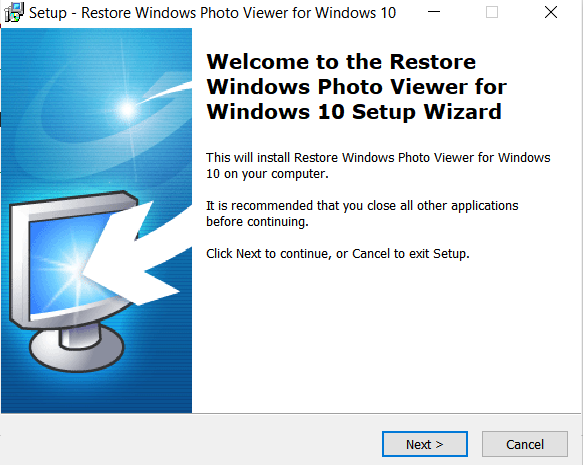
Restore Windows Photo Viewer is a lightweight utility that, as its name suggests, brings back the familiar Windows Photo Viewer to newer versions of Windows . This review will explore what this tool does, why it remains so popular, and who it is for.
What is Restore Windows Photo Viewer?
Restore Windows Photo Viewer is a small, free program designed for Windows 10 and Windows 11 users . Its primary purpose is to reinstate the classic Windows Photo Viewer, the image-viewing application that was the default in Windows 7 and earlier versions . In Windows 10 and 11, Microsoft replaced this with the “Photos” app, which is a more modern, touch-friendly application that also integrates with OneDrive and offers basic editing features.
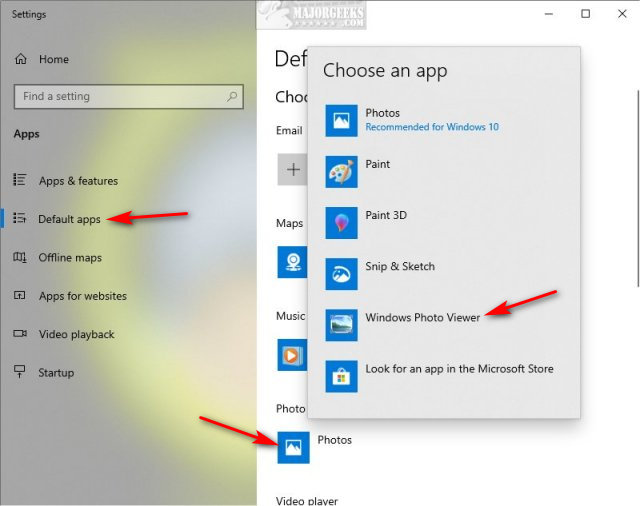
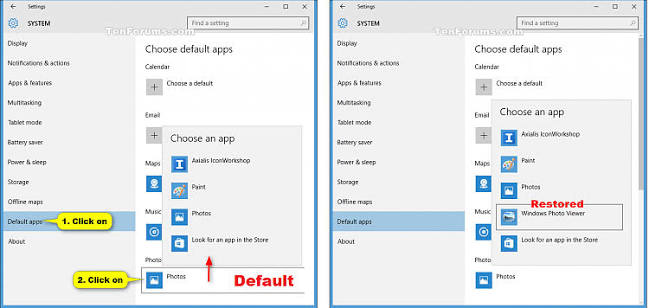
However, many users find the modern Photos app to be slow, resource-heavy, and overly complicated for simple tasks like quickly opening a JPEG image or browsing a folder of pictures. Restore Windows Photo Viewer provides a solution by re-adding the classic viewer to the operating system and allowing you to set it as your default image viewer . It can apply these changes for just the current user or for all users on a computer, offering flexibility for multi-user environments.
Key Features and Benefits
1. Brings Back the Classic Interface
The main feature of this software is its ability to resurrect the classic Windows Photo Viewer. This viewer is known for its speed, simplicity, and familiar interface. It opens images quickly, loads fast, and provides simple, intuitive navigation tools, such as a slideshow feature and zoom controls. For users who handle image collections regularly, this efficient performance is a major benefit.
2. Lightweight and Easy to Use
One of the biggest advantages of Restore Windows Photo Viewer is that it is extremely lightweight. It doesn’t install a new, bloated program; it simply restores an existing component of Windows. The tool is incredibly easy to use, with one reviewer noting it was “Very straightforward! Easy and quick to use, and it works!”. The process typically involves running the software and following a few simple steps.
3. Supports a Wide Range of File Types
The restored Windows Photo Viewer supports a variety of standard image file formats, including:
- JPEG, JPG, JPE, JFIF
- BMP, DIB, ICO
- PNG, TIFF, TIF
- GIF, WDP, JXR
This covers the vast majority of common image formats users encounter daily, making it a highly functional viewer for most use cases.
4. Revert Changes Easily
The tool also allows users to revert to the modern Microsoft Photos app at any time . This is an important feature, as it gives users the flexibility to switch back to the default application if they change their minds or encounter compatibility issues. It ensures there is no permanent change to the system.
What Users Are Saying
The feedback for Restore Windows Photo Viewer is overwhelmingly positive, with many users expressing relief at being able to get the classic viewer back.
The Positive Feedback
Many users praise the software for being straightforward and effective. One reviewer stated, “A great program for just viewing pics. It’s just too bad can’t edit pics. But that’s where paint comes in the picture. But thanks for bringing this program back to life. It’s silly that Microsoft haven’t thought about this awesome program in their update.” Another user highlighted how the included instructional video made the installation process simple and easy. The software’s ability to do exactly what it promises is a consistent theme in the reviews.
The Negative Feedback
While feedback is largely positive, there is one minor point of contention. One reviewer noted that after installing the tool, they had to “manually set the default application,” and they questioned “WHY is this an install?” This suggests that, for some, the process isn’t perfectly automatic and requires one extra step. However, this is a minor criticism in an otherwise highly praised utility.
Pros and Cons at a Glance
Pros
- Fast Loading: Opens image files quickly .
- Lightweight: Restores a built-in Windows component, so it uses very few system resources .
- Easy to Use: Simple interface that requires little to no adjustment .
- Smooth Navigation: Provides smooth image transitions and slideshow features .
- Reliable Performance: Maintains consistent performance even during long viewing sessions .
- Reversible: You can switch back to the Photos app at any time .
Cons
- Limited Editing Features: Offers only basic viewing and rotating tools; lacks advanced editing capabilities .
- No Cloud Integration: Unlike the Photos app, it doesn’t integrate with cloud storage services like OneDrive .
- Lacks Modern Gallery Features: It doesn’t offer modern photo gallery features, smart tagging, or the ability to search photos by content .
- Manual Setup: In some cases, you may need to set the viewer as the default manually after installation.
Conclusion
Restore Windows Photo Viewer is a simple, free, and incredibly effective tool for anyone who misses the classic image viewer from Windows 7. Its lightweight performance, responsive controls, and familiar user interface make it a perfect solution for users who want a fast and uncomplicated way to view their photos . While it lacks the modern features and cloud integration of the Photos app, its simplicity and speed are its greatest strengths. For users who just want to quickly open an image without the fuss, Restore Windows Photo Viewer is a reliable and welcome addition to Windows 10 and 11.
Frequently Asked Questions (FAQs)
1. What does Restore Windows Photo Viewer do?
It is a free utility that brings back the classic Windows Photo Viewer to Windows 10 and Windows 11. It allows you to set this lightweight, fast viewer as the default application for opening your image files.
2. Why would I want the old Windows Photo Viewer instead of the modern Photos app?
Many users find the modern Photos app to be slow and resource-heavy. The classic Windows Photo Viewer is very lightweight, opens images instantly, and has a simple, straightforward interface that makes browsing photos quick and easy. It is often preferred for simple viewing tasks.
3. Is Restore Windows Photo Viewer safe to download?
Yes, it is considered safe. It is a legitimate utility that simply restores a built-in Windows component. To ensure you are getting a safe version, it is best to download it from a trusted source like CNET Download or the developer’s official website.
4. Can I switch back to the modern Photos app after using this software?
Yes, the tool gives you the option to revert to the Microsoft Photos app at any time. This means the changes it makes are not permanent and you can easily go back to the default Windows 10/11 application.
5. What image file types does the restored viewer support?
The restored Windows Photo Viewer supports a wide range of common formats, including JPEG, PNG, GIF, BMP, TIFF, ICO, and others. It is compatible with all the standard formats most users would need for everyday photo viewing.
6. Does Restore Windows Photo Viewer work on both Windows 10 and Windows 11?
Yes, the utility is designed to work on both Windows 10 and Windows 11 operating systems. It effectively restores the classic viewer regardless of which version of Windows you are using.
7. Is this software free to use?
Yes, Restore Windows Photo Viewer is completely free software. There are no hidden charges, subscriptions, or premium versions to worry about. It is a straightforward utility that does one thing and does it well.
8. Do I need administrative privileges to install and use this tool?
Yes, you typically need administrator rights on your computer to run the utility and make changes to Windows default application settings. This is because the tool modifies system registry entries to enable and set the classic viewer as an option.
9. Will using this tool affect my other applications or system performance?
No, the utility only enables the existing Windows Photo Viewer component that is already present in Windows 10 and Windows 11 but hidden by default. It does not install any new system files or background processes, so it will not impact system performance or interfere with other applications.
10. What happens if I uninstall Restore Windows Photo Viewer?
If you uninstall the utility, the Windows Photo Viewer may still remain as an available option depending on how it was enabled. However, you can easily use the tool again or manually set the modern Photos app as your default viewer through Windows Settings if you wish to revert completely.
11. Does it work with RAW image files or other professional photography formats?
The basic restored Windows Photo Viewer does not natively support RAW formats like CR2, NEF, or ARW. However, you can install additional codecs or Microsoft’s own RAW Image Extension from the Microsoft Store to add RAW support to the classic viewer.
12. Where can I download Restore Windows Photo Viewer safely?
The safest way to download this utility is from the developer’s official website or a trusted software distribution platform like CNET Download or MajorGeeks. Avoid downloading from unknown third-party sites to reduce the risk of downloading modified or malicious versions. Always verify the file hash or digital signature if available.
Note: Restore Windows Photo Viewer is not a new application but rather a tool that unlocks a hidden, built-in Windows feature. It does not modify core Windows files and is considered safe for everyday use.