7-Zip Review- Why This Free Tool Still Beats Paid Alternatives
You have a folder full of large files that need to be emailed. Or maybe you downloaded a software program that came as a RAR archive. What do you do? For millions of users, the answer is 7-Zip.
This free, open-source file archiver has been around for decades. Despite stiff competition from paid tools like WinZip and WinRAR, 7-Zip remains one of the most downloaded utilities on the internet—with over 10 million total downloads from CNET alone. But is it still the best choice in 2025? Or have newer alternatives surpassed it?
In this review, we will explore everything 7-Zip offers, including its supported formats, compression strength, encryption features, ease of use, and some common complaints. By the end, you will know whether this free tool belongs on your computer.
What Is 7-Zip? (H1)
7-Zip is a file compression and decompression utility. Its primary job is to take one or more files and pack them into a single, smaller archive file. This makes storage more efficient and sharing easier. Conversely, it can unpack (extract) files from archives you receive from others.
Unlike many competitors that charge money after a trial period, 7-Zip is completely free for personal and commercial use. There are no nag screens, no feature limitations, and no expiration dates. It is open-source software, meaning its code is publicly available for anyone to inspect—a major plus for security-conscious users.
The software is developed by Igor Pavlov and has been actively maintained since 1999. The latest stable version as of this review is version 25.00.
Supported File Formats: What Can 7-Zip Handle? (H2)
One of 7-Zip’s greatest strengths is its broad format support. It does not just work with its own native format; it opens dozens of archive types from other programs.
Formats 7-Zip Can Create (Pack/Compress)
You can create archives in these formats directly from 7-Zip:
- 7z – The native 7-Zip format. Offers the best compression ratios but requires 7-Zip (or a compatible tool) to open.
- ZIP – The most universally compatible format. Almost every operating system can open ZIP files without extra software.
- GZIP – Common on Linux systems.
- BZIP2 – Another Linux-friendly format.
- TAR – Often used on Linux to bundle files without compression (frequently combined with GZIP as .tar.gz).
Formats 7-Zip Can Open (Extract Only)
You can extract files from these formats, but you cannot create new archives in them:
- RAR – The proprietary WinRAR format (very common for downloaded software and media)
- ISO – Disc image files (CD/DVD/Blu-ray copies)
- CAB – Windows installer cabinet files
- ARJ, DEB, DMG, HFS, LZH, LZMA, MSI, NSIS, RPM, UDF, WIM, XAR, Z – And many more
In total, 7-Zip supports over 20 different archive types. If you encounter a strange file extension and do not know how to open it, 7-Zip is often the answer.
Compression Performance: How Small Can 7-Zip Make Files? (H2)
Compression is the main reason people use archiving software. Smaller files upload faster, download quicker, and consume less storage space. 7-Zip excels here, especially with its native 7z format.
The 7z Advantage
The 7z format uses an advanced compression algorithm called LZMA (Lempel-Ziv-Markov chain algorithm). Without getting too technical, LZMA analyzes patterns in your files and stores them more efficiently than older methods. In real-world testing:
- Text files (documents, source code, logs): 7z can shrink them to 10–30% of their original size.
- Images (already compressed formats like JPG): Minimal additional compression (sometimes none).
- Software installers (EXE files): Moderate compression (50–70% of original).
- Multiple similar files: Very high compression because redundancy across files is eliminated.
Compared to standard ZIP compression, 7z typically produces files that are 30-50% smaller. Compared to older tools like WinZip, 7-Zip’s ZIP compression is also 2-10% better than PKZip and WinZip for ZIP and GZIP formats.
The Tradeoff: Speed vs. Size
Better compression takes longer. 7-Zip lets you choose from multiple compression levels:
- Fast (less compression, quicker)
- Normal (balanced)
- Ultra (maximum compression, slowest)
For everyday use, the Normal setting works well. For archiving files you will keep for years, Ultra is worth the extra time.
What’s New in Version 25.00?
The latest update (version 25.00) made an important change: increased default dictionary sizes for LZMA/LZMA2 compression. A larger dictionary size allows the algorithm to find more patterns across larger files, resulting in better compression ratios. The update also fixed several bugs reported by users.
Security and Encryption: Keeping Your Files Safe (H2)
Not all compression tools offer encryption. 7-Zip does, and it does it well.
Password Protection
When creating a 7z or ZIP archive, you can add a password. Anyone trying to open the archive must enter that password. This is useful for:
- Sending sensitive documents via email
- Storing personal financial records on cloud storage
- Sharing confidential work files with a client
Strong Encryption Algorithms
7-Zip uses AES-256 encryption for 7z archives. AES-256 is the same standard used by governments and banks to protect classified information. It is considered unbreakable with current technology.
For ZIP archives, 7-Zip supports the older ZipCrypto (weaker but more compatible) or AES-256 (stronger but some older ZIP tools cannot open it). Choose AES-256 whenever possible.
Self-Extracting Archives (SFX)
7-Zip can create self-extracting archives (.exe files). These are archives that contain their own extraction program. The recipient does not need 7-Zip or any other archiver installed; they simply double-click the EXE file, and it extracts the contents automatically. You can also password-protect self-extracting archives.
This feature is especially helpful when sending files to less technical users who might not have archiving software.
User Interface and Ease of Use (H2)
7-Zip offers two main ways to interact with it: Windows shell integration and a standalone file manager.
Windows Shell Integration (Right-Click Menus)
After installation, 7-Zip adds options directly to Windows File Explorer’s right-click context menu. To compress files:
- Select the files or folders you want to archive.
- Right-click on them.
- Hover over the 7-Zip submenu.
- Choose an action (Add to archive, Add to “filename.7z”, Add to “filename.zip”, etc.).
To extract an archive:
- Right-click the archive file.
- Hover over 7-Zip.
- Choose Extract Here (extracts to the current folder), Extract to “folder name” (creates a new folder), or Extract to a specific location.
This integration makes 7-Zip feel like a natural part of Windows rather than a separate program.
The 7-Zip File Manager
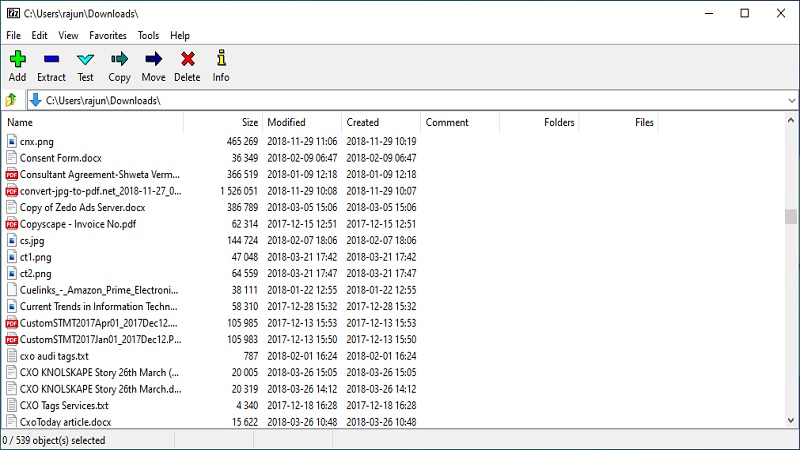
For more advanced tasks, 7-Zip includes a standalone File Manager application. It features a dual-panel layout (two file lists side by side), reminiscent of older file managers like Norton Commander. You can:
- Browse your hard drive in one panel and an archive in the other
- Drag and drop files between panels to add or extract
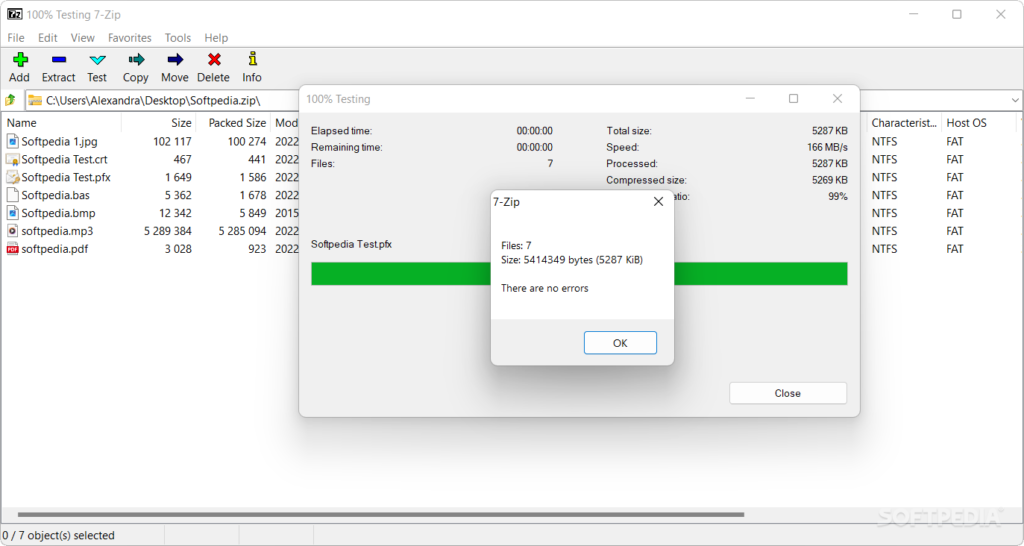
- Test archives for corruption
- Compare file checksums (CRC, SHA)
- Change compression settings in detail
The File Manager looks dated—it has not changed much in 20 years—but it remains functional. Casual users may never need to open it.
7-Zip vs. Paid Alternatives (H2)
How does free 7-Zip compare to commercial archivers?
| Feature | 7-Zip (Free) | WinRAR (Paid) | WinZip (Paid) |
|---|---|---|---|
| Price | Free forever | $29 (40-day trial) | $29.95+ (subscription now) |
| Best compression format | 7z (excellent) | RAR (very good) | Zipx (good) |
| Opens RAR files | Yes (extract only) | Yes (full) | Yes (extract only) |
| Opens ZIP files | Yes | Yes | Yes |
| AES-256 encryption | Yes | Yes | Yes |
| Creates self-extracting archives | Yes | Yes | Yes |
| Cloud storage integration | No | No | Yes (Dropbox, Google Drive) |
| Touch-friendly interface | No | No | Yes (Windows Store version) |
| Update frequency | Slow (years between major updates) | Regular | Regular |
Verdict: 7-Zip does 95% of what paid tools do for 100% less money. The only reasons to buy WinRAR or WinZip are if you need cloud integration, a modern touch-friendly interface, or you must create RAR files (instead of just opening them). For most users, 7-Zip is all you need.
Common Complaints and Issues (H2)
No software is perfect. User reviews reveal several recurring complaints about 7-Zip. Here they are, along with advice on avoiding or solving them.
Complaint 1: “It locked up my computer”
A small number of users report that 7-Zip froze their system during compression or extraction. This is rare and usually caused by:
- Corrupted archive files (the archive itself is damaged)
- Antivirus software interfering (temporarily disable real-time scanning and retry)
- Failing hard drive or RAM (run hardware diagnostics)
Solution: Test the archive using 7-Zip’s built-in “Test Archive” feature before extracting. Update to the latest version.
Complaint 2: “It won’t install”
Some users download 7-Zip from unofficial sources and receive a corrupted installer. Others have permission issues on locked-down work computers.
Solution: Always download from the official website (7-zip.org) or a trusted repository like CNET Download. On work PCs, contact your IT department.
Complaint 3: “It failed to extract my RAR file”
RAR is a proprietary format owned by WinRAR. 7-Zip supports extracting RAR files but cannot handle every variant, especially brand-new RAR versions or encrypted RAR files with non-standard settings.
Solution: Try updating to the latest 7-Zip version. If that fails, the official WinRAR trial (free for 40 days) can extract any RAR file.
Complaint 4: “I cannot uninstall 7-Zip completely”
A few users report that 7-Zip leaves behind its right-click menu entries even after uninstalling.
Solution: Use the official uninstaller from Windows Settings (Apps & Features). If context menu entries remain, run a free registry cleaner or manually remove the entries using ShellExView (a more advanced tool). A system restart usually helps.
Complaint 5: “The interface looks old”
This is true. 7-Zip’s interface has barely changed since Windows XP. Some users find it ugly or unintuitive.
Solution: Use the Windows shell integration (right-click menus) and ignore the File Manager. If a modern interface is essential, consider paid alternatives like WinZip or the built-in ZIP support in Windows 10/11 (though it is much less powerful).
Pros and Cons Summary (H2)
Pros:
- Completely free – No cost, no nagging, no ads
- High compression ratio – Smaller files than ZIP or RAR
- Supports many formats – Opens over 20 archive types
- Strong AES-256 encryption – Password protection for sensitive files
- Self-extracting archives – Recipients do not need any software
- Integrates with Windows – Right-click menus make it easy
- Open source – Transparent, auditable code
- Lightweight – Small installer, low resource usage
Cons:
- Dated interface – The File Manager looks old-fashioned
- Slow major updates – New versions come out infrequently
- No RAR creation – Can only extract RAR, not create it
- No cloud integration – Unlike WinZip
- Occasional compatibility issues – With very new or encrypted RAR files
Who Should Use 7-Zip? (H2)
Ideal for:
- Everyone – Seriously, it is free and works well for almost any user.
- Students – Need to compress assignments or open course materials.
- IT professionals – Frequent work with various archive formats.
- Budget-conscious users – Why pay for WinRAR or WinZip?
- Security-focused users – Open source means no hidden backdoors.
Not ideal for:
- Users who need a modern, touch-friendly interface – Try the Windows Store version of WinZip instead.
- Anyone who must create RAR files – Use WinRAR’s free trial.
- Corporate environments requiring paid support contracts – No official paid support for 7-Zip.
Frequently Asked Questions (FAQs) (H2)
1. Is 7-Zip really free? No trial? No hidden payments?
Yes. 7-Zip is open-source software released under the GNU LGPL license. It is completely free for personal, educational, and commercial use. There are no trial periods, no feature restrictions, and no advertisements. You never have to pay.
2. Can 7-Zip open RAR files?
Yes, 7-Zip can extract (open) RAR files. However, it cannot create new RAR archives. For that, you would need WinRAR itself. For most people, the ability to open RAR files is sufficient.
3. Is 7-Zip safe? Does it contain malware?
When downloaded from the official website (7-zip.org) or trusted platforms like CNET Download, 7-Zip is completely safe. The software is open source, meaning security experts have reviewed its code for backdoors or malicious behavior. Always avoid third-party “cracked” or modified versions.
4. How do I password-protect a ZIP file with 7-Zip?
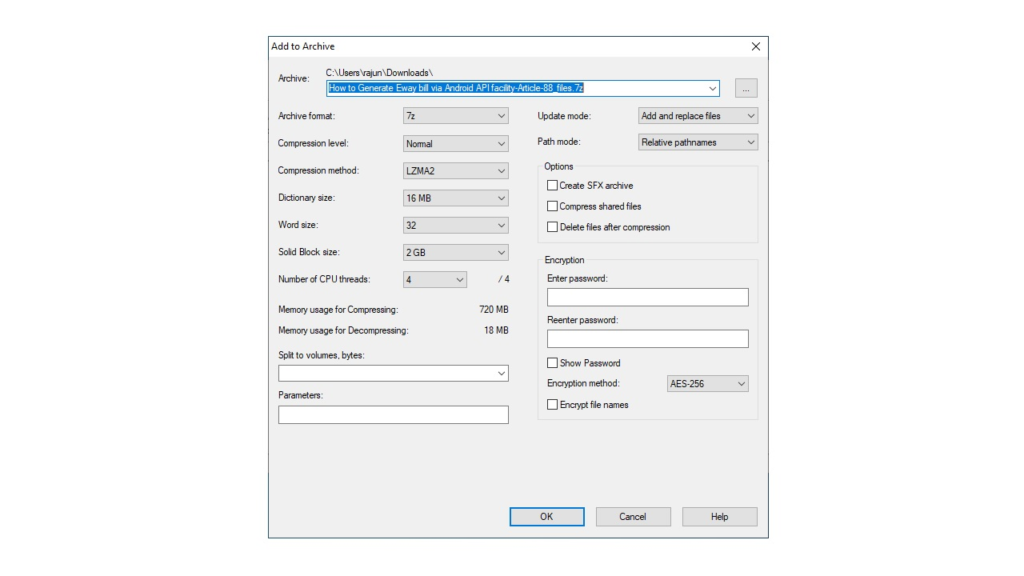
Right-click the files you want to protect, select 7-Zip > Add to archive. In the dialog box, choose ZIP as the archive format. On the right side, enter a password in the “Encryption” section. Select “AES-256” as the encryption method. Click OK. Anyone opening the ZIP will need the password.
5. Why is my compressed file still large? Some files won’t shrink.
Already compressed file types like JPG (images), MP4 (video), MP3 (audio), and PDFs often cannot be compressed further. 7-Zip works best on text files (TXT, DOCX, XLSX, code files), databases, and multiple similar files. For media files, re-encoding them to a more efficient format (e.g., converting BMP to JPG) is more effective than archiving.
Conclusion: The Gold Standard for Free Compression (H2)
7-Zip has earned its reputation over two decades. It is not flashy or modern, but it is powerful, reliable, and free. The software delivers better compression ratios than paid competitors, opens almost any archive format you encounter, and secures sensitive files with military-grade encryption.
The dated interface and slow update cycle may bother some users, but these are minor drawbacks when weighed against the benefits. Most people will never need to open the File Manager at all—the right-click context menu handles 95% of everyday tasks.
Final verdict: Download 7-Zip. Install it. Use it whenever you need to compress or extract files. For the vast majority of Windows users, it is the only archiving tool you will ever need. Paid alternatives simply cannot justify their cost when this free option performs as well or better.
And if you ever encounter a file format 7-Zip cannot handle? You are probably dealing with something extremely obscure—and even then, chances are good that a future update will add support.