Defender Control- A Lightweight Tool for Managing Windows Security
Introduction
Managing built-in security features on Windows can sometimes feel like navigating a maze. While Windows Defender provides essential protection, there are legitimate scenarios where users or IT administrators need to temporarily disable or adjust these safeguards. Defender Control is a lightweight utility that addresses this need, offering a straightforward way to toggle Windows Defender settings without diving into complex system menus. This article explores what Defender Control is, how it works, and who can benefit from using it.
What Is Defender Control?
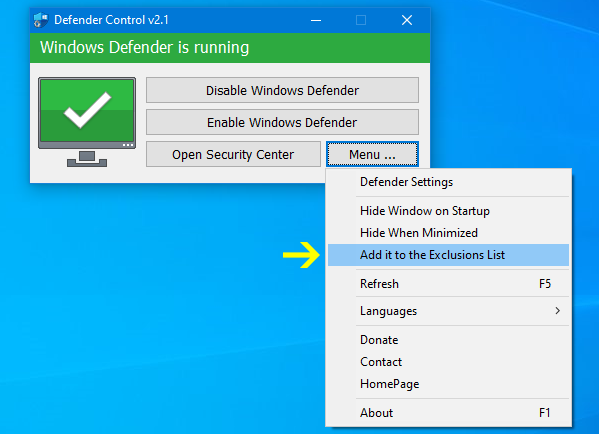
Defender Control is a portable software tool designed to give Windows users easy control over the built-in Windows Defender antivirus. Created by developer Sordum, the utility provides a simple interface that lets users enable or disable Microsoft Defender with a single click . Available for free, it works across Windows 7, 8, 10, and 11 systems, making it accessible to a broad user base .
Unlike many system tools that require installation, Defender Control is portable. You can run it directly from a USB drive or any folder without leaving traces on your system. This portability makes it particularly attractive for IT professionals who need to manage multiple computers efficiently.
Why Such a Tool Exists
Since Windows Vista, Microsoft Defender has been integrated directly into the operating system, running in the background to protect against malware, spyware, and other threats . While this built-in protection offers valuable baseline security, certain situations call for temporary deactivation:
- Installing specific software that conflicts with real-time protection
- Running performance tests where Defender might interfere
- Troubleshooting system issues where security software is suspected as the cause
- Using alternative antivirus solutions where running two active protectors simultaneously wastes resources
The challenge is that Windows often prevents permanent disabling of Defender through standard settings, especially on Windows 10 and 11. Defender Control bypasses this limitation by using advanced methods to manage the service effectively .
Key Features of Defender Control
Simple One-Click Operation
The tool features an intuitive interface with clear buttons to enable or disable Windows Defender . Users can see the current status at a glance through a color-coded system:
- Green: Windows Defender is active and protecting the system
- Red: Windows Defender is disabled
- Orange: There’s an operational issue, such as real-time protection being turned off
This visual approach eliminates guesswork and makes the tool accessible even to users with limited technical expertise.
Portable and Lightweight
With a file size of around 400 KB, Defender Control is remarkably lightweight . It doesn’t require installation, meaning it won’t clutter your system with registry entries or background services. This portability is ideal for:
- IT support staff carrying diagnostic tools on USB drives
- System administrators managing multiple machines
- Users who want to keep their system clean and uncluttered
Works With Modern Windows Versions
Defender Control supports all recent Windows versions, including Windows 11 where Defender is more deeply integrated and persistent . The tool can disable Defender even on systems where Microsoft has made it particularly difficult to turn off protection through standard settings .
Prevents Automatic Re-enablement
One common frustration with Windows Defender is that even when disabled through settings, the system often re-enables it automatically. Defender Control addresses this by using methods that prevent Defender from automatically reactivating . This reliability makes it a preferred choice for users who need sustained control over their security settings.
Who Benefits From Defender Control?
IT Professionals and System Administrators
For IT support staff, Defender Control provides rapid access to security configurations without vendor lock-in . During maintenance windows, technicians can quickly disable protection to install updates or troubleshoot issues, then re-enable it just as easily. The streamlined design minimizes downtime and optimizes resource use during system maintenance .
Key benefits for IT teams include:
- Quick security toggling during troubleshooting
- No complex configuration required
- Works across multiple Windows versions
- Portable for field work
Users With Third-Party Antivirus
When you install a third-party antivirus solution, running two active security programs can be counterproductive. It may consume unnecessary system resources and cause conflicts. Defender Control allows you to disable the built-in protection, freeing up system resources while maintaining security through your chosen alternative .
Advanced Users Seeking Control
Power users who want full control over their system often find Windows’ insistence on keeping Defender active frustrating. Defender Control provides a straightforward solution for those who prefer to manage their own security posture.
Limitations and Considerations
Not for Casual Users
While Defender Control simplifies toggling security settings, it’s primarily designed for IT professionals and users who understand the implications of disabling antivirus protection . Disabling Windows Defender leaves your computer vulnerable to malware and other threats. Only use this tool when you have a specific reason and ensure you have alternative protection in place.
Limited Advanced Configuration
Defender Control focuses on enabling and disabling Defender, not on complex configuration options. For users needing granular control over security policies, firewalls, or enterprise-level management, more comprehensive security suites would be more appropriate .
Potential False Positive Warnings
Because Defender Control directly interacts with a core security component, it may trigger false positive warnings from some security software or be flagged on services like VirusTotal . This is a common issue with tools that manipulate system security settings. Users should ensure they download the tool from reputable sources.
Effectiveness Against Windows Updates
Windows updates can occasionally re-enable Defender even after it has been disabled. While Defender Control uses methods to prevent this, users may need to reapply the tool’s settings after major updates .
How to Use Defender Control Effectively
Basic Operation
Using Defender Control is straightforward:
- Download the portable executable from a trusted source
- Run the program (administrator rights may be required)
- Check the current status using the color indicator
- Click “Disable Windows Defender” or “Enable Windows Defender” as needed
Best Practices
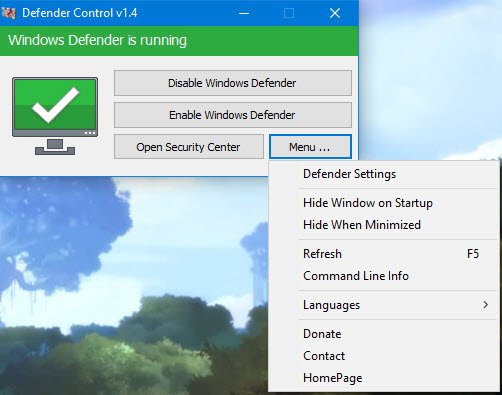
- Add to exclusion list: Before first use, use the tool’s option to add itself to Defender’s exclusion list to prevent it from being flagged as a threat
- Reboot if needed: If Defender doesn’t reactivate after enabling, restart your computer and wait a few minutes. Windows will typically re-enable the service automatically
- Use discretion: Only disable Defender when necessary, and re-enable it promptly once your task is complete
- Maintain alternative security: Never leave your system without some form of active protection
Frequently Asked Questions
1. Is Defender Control free to use?
Yes, Defender Control is completely free software developed by Sordum and available for download from various reputable sources .
2. Will Defender Control work on Windows 11?
Yes, Defender Control fully supports Windows 11, where Windows Defender is more integrated and persistent. The tool can disable Defender even on systems where Microsoft has made it particularly difficult to turn off protection through standard settings .
3. Why would I need to disable Windows Defender?
Common reasons include installing software that conflicts with real-time protection, running performance tests, troubleshooting system issues, or when using an alternative antivirus solution to avoid resource conflicts .
4. Is it safe to use Defender Control?
The tool is safe when used responsibly and downloaded from legitimate sources. However, disabling Windows Defender removes a critical layer of protection, making your system vulnerable to threats. Only use the tool when you have a specific need and re-enable protection promptly .
5. What should I do if Defender Control doesn’t work after a Windows update?
Windows updates can occasionally reset security settings. Try running the tool again to reapply its changes. If issues persist, consider temporarily disabling Tamper Protection manually through Windows Security settings before using the tool .
Conclusion
Defender Control offers a valuable solution for IT professionals, system administrators, and advanced users who need quick, reliable control over Windows Defender settings. Its portable design, simple interface, and effectiveness across multiple Windows versions make it a practical tool for managing system security efficiently.
However, the power to disable protection comes with responsibility. Users should only employ this tool when necessary and ensure they understand the security implications. For legitimate use cases—whether troubleshooting, installing software, or optimizing system performance—Defender Control provides a streamlined way to maintain control over your Windows security environment while keeping the process simple and accessible.